
Copilot Agent Mode: A New Way to Work with Business Central Data in Excel


If you’ve worked with Business Central long enough, you’ve probably developed a love-hate relationship with Excel by this point. Everyone loves Excel, because it’s still the fastest way to explore numbers, slice data, and build something that’s business-ready in 15 minutes. It’s hated just as much because the moment you export anything, you are one “quick tweak” away from a spreadsheet that becomes someone’s unofficial reporting system for the next three years. And heaven forbid, someone makes another Save-As copy of the file with their own changes. In all likelihood, the phrase “One version of the truth” was coined as a disdainful nod to the not-uncommon scenario of people arguing whose Excel-crunched data is right.
Yet, the value of Excel to any organization – regardless of department and title – cannot be overstated. Nor can the value of a highly skilled Excel user. How often do you find yourself in a situation when you have the data in Excel, know what you want to do, but can’t figure out HOW to do it? What was that formula again? Do I need a VLOOKUP or an HLOOKUP? What are all the parameters for this formula? What goes into this parameter?
A few decades ago, when you didn’t have an answer, you asked the person at the desk next to yours or called a friend. If you had time, you bought a book. If you had time, money, and needed to truly improve your skills, you took a course on Excel. Then came the internet and the search engines, and you could enter your how do I question and pray someone out there wrote an article about it. Then came YouTube and the rise of how-to videos. Instead of reading paragraphs and still screenshots, you can now view it all. Then came the LLMs and Generative AI. You ask. It gives answers for your specific problem. Hey Copilot, I need a formula to do this, that, and the other, and it gives you a formula ready to drop into your spreadsheet. We’re flying! This can’t possibly get any better, can it? Yes, it can! Having the answer is not enough. Why won’t Copilot just write the formula into a column and do it for me? The answer to that prayer has finally arrived. And it’s called Agent Mode.
How to Get Access to Agent Mode
Agent Mode is a part of the Copilot features in Excel, so for starters, you will need a Microsoft 365 Copilot license. As of the time of this writing (February 2026), Agent Mode is not enabled for everyone by default. It is a “Frontier” feature, and to enable it in Excel, your Microsoft 365 Administrator needs to enable Frontier Mode from the M365 Admin Center under Copilot settings.
If you want to use Agent Mode and other Frontier (pre-release or early access) features in the Excel desktop app, your admin will also need to help you change your Excel (or Office apps) setting to allow Beta Channel downloads. But if you are okay accessing Agent Mode and other Frontier features in the Excel web app, you can just navigate to it (https://excel.cloud.microsoft/ – yes, there is no dot com at the end, it’s not a mistake).
One more thing: Agent Mode only works when the file you are working on is stored on the OneDrive associated with your Copilot subscription. Files saved on local Desktop, Documents folder or Downloads will not be able to benefit from Agent Mode.
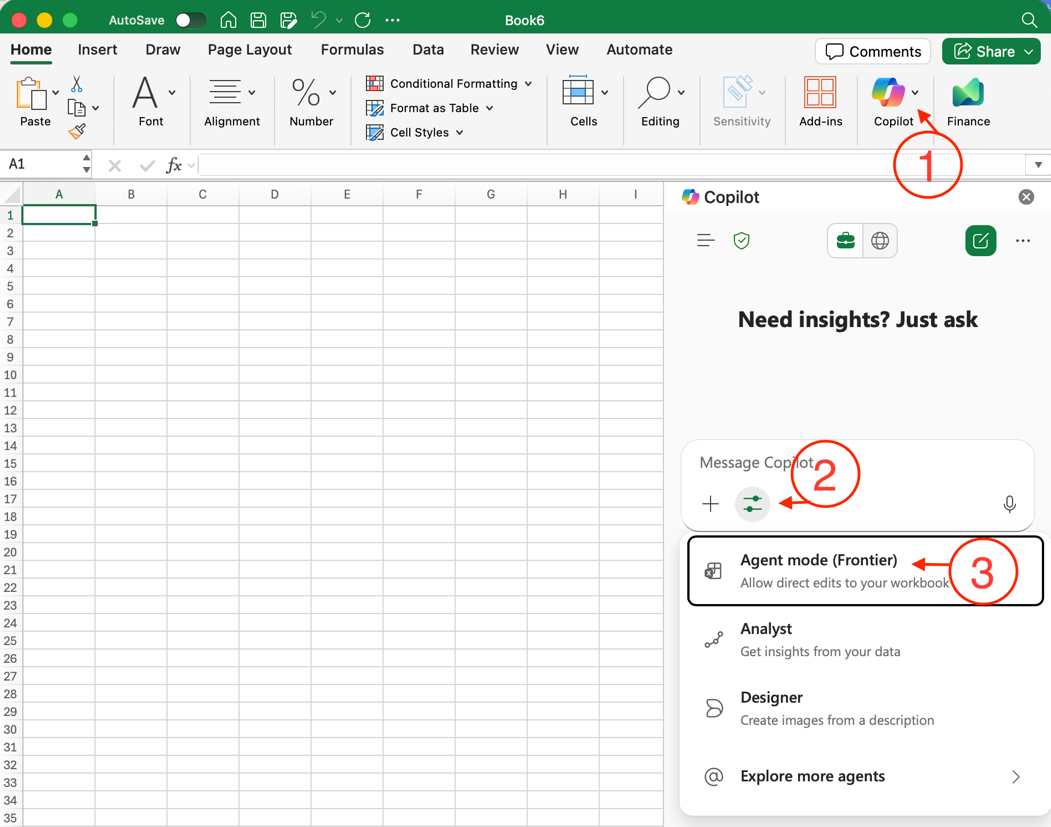
When you open a spreadsheet or create a new spreadsheet in Excel, you will need to enable Agent Mode from the Copilot menu with three simple clicks: Click the Copilot Icon in the ribbon, click on the Settings icon, and select Agent Mode:
What EXACTLY Can Agent Mode Do for Me?
Word, Excel, and PowerPoint all have an Agent Mode feature in their Copilot. When enabled, when you ask Copilot to do something, it will not just show you the steps, it will execute it for you. From writing and running a formula, to creating columns, fixing data in existing columns, creating a new sheet, it can do it all.
How Good Is Agent Mode?
Right out of the gate, one place where people get tripped up is the inconsistency of outputs generated by Agent Mode. Run the same prompt three times, and one time, it may give you output in a certain format, and another time it may do it differently. The numbers may all be correct, but one time it may choose to create a new sheet, and another time, it may just make a table next to yours on the same sheet. It may make a column with one name once, and a different name another time. This is NOT the fault of Agent Mode or Copilot. It’s no different than what happens if you tell a co-worker to do something. What you clearly stipulate gets done that way, and what you leave to their imagination or best judgement gets handled as they see fit. The fix to that “issue” (which really ISN’T an issue) is learning and writing GOOD prompts.
Every good prompt has four key elements: Persona, Task, Context, and Format.
If you’re crunching numbers with Excel’s Agent Mode, you don’t always need to define a Persona for the agent. But you need to clearly articulate the Task at hand. Context, while valuable could also be ignored if the Task is well defined and examples are provided where appropriate. The one most people fail to address all too often is Format. This is where you tell the Agent how you want it to display its outputs. If it’s creating a table, what should the table be called? What should the Column names be? What type of formatting (color, data format, etc.) should be applied? If you want consistency or are particular about Agent Mode following a certain deliverable style, you MUST spend time adding Formatting information in your prompt.
How Agent Mode Can Help Business Central Users
Data Cleanup
Do you need to make mass updates to data in Business Central. You probably already have a process for doing it via Processing Reports or Edit-in-Excel. Where Agent Mode can help is instead of doing multiple Find-Replace actions or manually fixing bad or old data, you can instruct Copilot via Agent Mode in human language what needs to be done and then step away for a cup of coffee while it does it for you.
Analyzing Data
You have just exported a large amount of data from Business Central’s General Ledger Entries or Item Ledger Entries table. You are looking for outliers, to identify a pattern, or want to run a VLOOKUP. You can either tell it to create a certain formula, or you can describe the outcome you are looking for, and it will do the rest for you.
Reconciling Data
Want to quickly match unapplied Payments and Credit Memos in the best way possible to open Invoices? Export your Customer or Vendor Ledger Entries to work, tell Agent mode how you expect it to find matches (by Remaining Amount?) and how to show its reconciliation (Document Type, Document No, etc.) and get in some extra daily steps while its builds a new sheet with the matches you need.
These are just some very high-level examples. There are many more scenarios with AND without Business Central data that Agent Mode can help with. If you’re looking for inspiration, just go to YouTube and search for ‘Excel Agent Mode’ and you will see how users like you in the community are putting it to use to do more, and do it quickly.
More to AI in Excel Than Agent Mode
Agent Mode is just one of many exciting new AI capabilities we have in Excel today.
If you haven’t done it yet, you should also try the Copilot for Finance in Excel. If you don’t see it in your ribbon, click on Add-Ins in the Excel ribbon to search and add it. It’s like Agent Mode, except that its focus and smarts are all around Financial Reporting. It understands concepts like Gross Margin, Cash Flows, etc.
Another exciting new feature in Excel is the =COPILOT(….) function. This is also a Frontier feature like Agent Mode. The idea here is that it can help when you don’t know what function to use. It can even retrieve data from the internet: For instance, if you want a list of all 50 states by their two-letter code added to Column B from row 5, just click on cell B5 and type this into the formula bar:
- =COPILOT(“List of all 50 US States by 2 letter code”)
A few seconds later, you’ll have your list of states.
You can even use it to get publicly available data like Nike, Adidas and Puma’s shoe sales in US over the past three years. And then use Agent Mode to analyze that data.
Like Agent Mode, there is plenty of content on YouTube around both of these features.
Final Thoughts
When we first got GenAI tools powered by LLMs, the magic was that we could chat with it just like we could chat with a human. Unlike search engines that would show us a list of sites which MAY have an answer to our question, tools like Copilot would look through their own general knowledge and web data and give us a contextually relevant response, along with steps on how to solve our problems. But while it could “talk” to us and tell us, it couldn’t DO things on our behalf.
This second generation of GenAI tools, which are often referred to as agentic, are designed to do precisely that. You tell it, it does it. You are essentially delegating work to it. In the scheme of things, this is still early times, and your results may vary. You may run into limitations, or outcomes could be erroneous at times. Just as you would when you delegate work to a human assistant, it is your responsibility to verify and validate what Copilot or your Agentic tool is doing. It will never cease to be important to do so, even after tools like Agent Mode are out of Frontier pre-release previews and generally available to the public.
We live in exciting times. Agent Mode in Excel is just adding more flavor and flair to these exciting times!
