Back to Basics: How to Create a Sales Quote in Business Central



A Sales Quote is a non‑posting sales document used to propose prices, quantities, and terms to a customer. Once accepted, it can be converted into a Sales Order. Here’s a step-by-step guide to converting a Sales Quote into a Sales Order in Business Central.
Step 1: Open the Sales Quotes Page
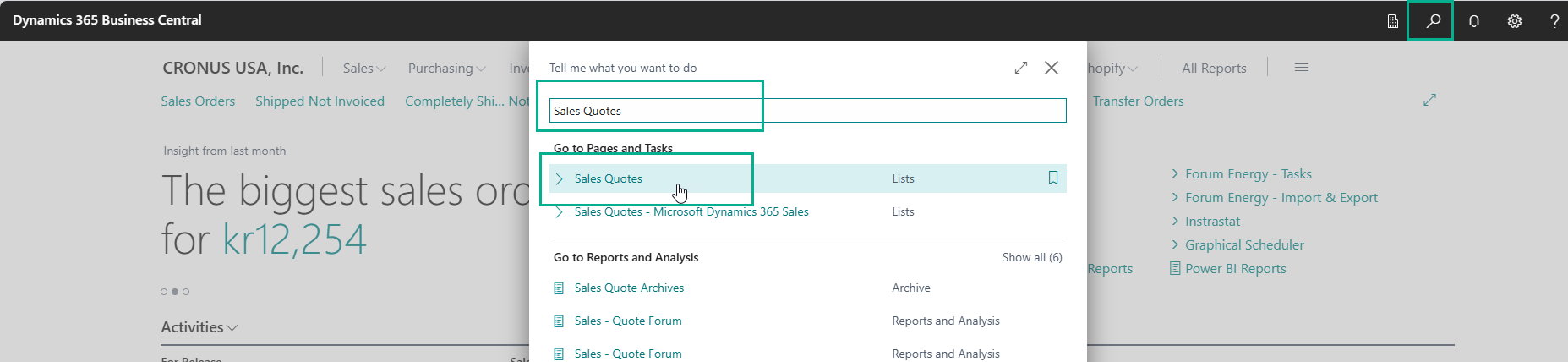
- Select Search (🔍) in the top‑right corner
- Type Sales Quotes
- Select Sales Quotes from the list
Step 2: Create a New Sales Quote
- Select New
- A new Sales Quote card opens.
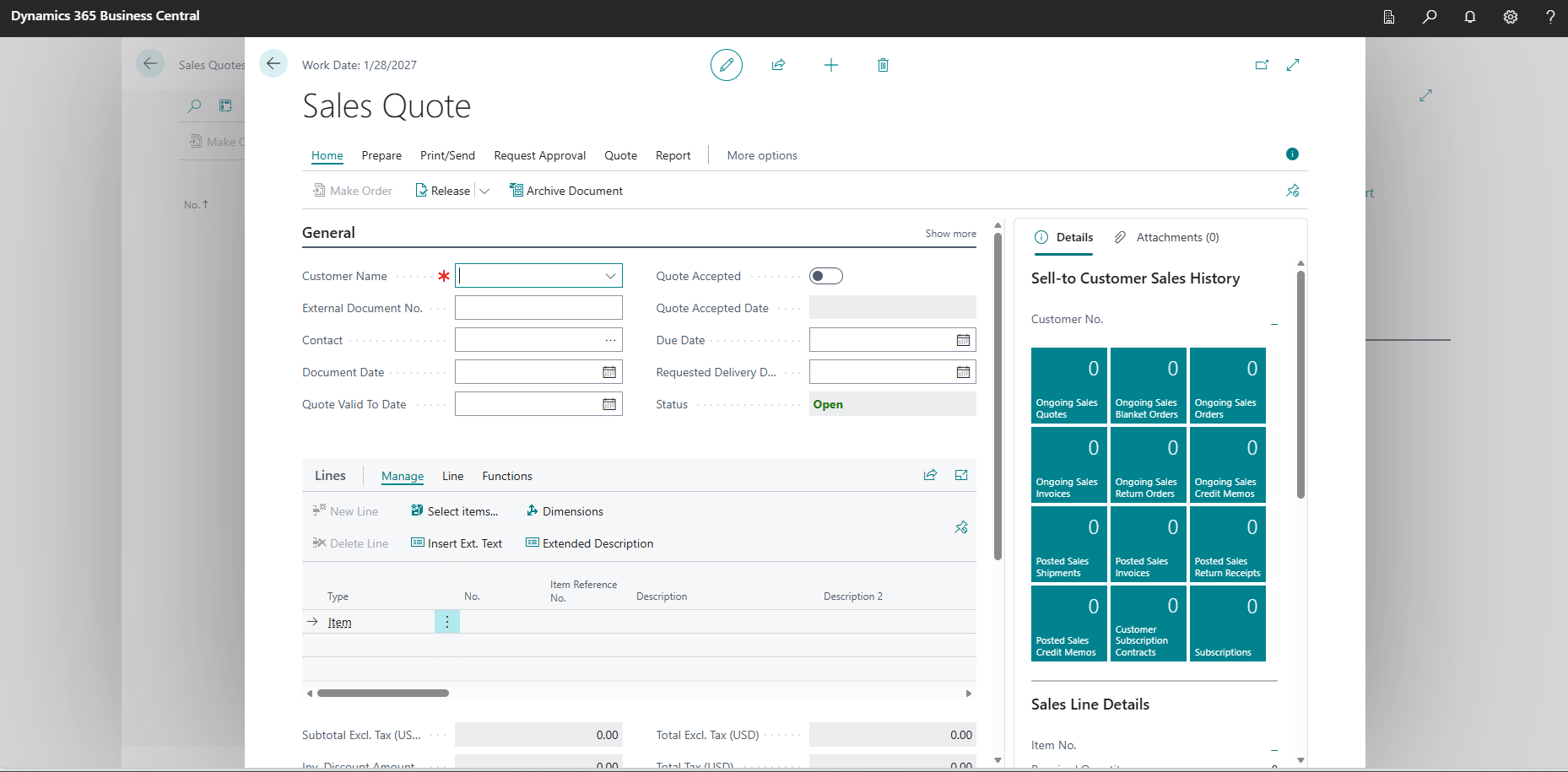
Step 3: Select the Customer
- In the Customer No. field:
- Enter or select the customer
- Enter or select the customer
- The following fields auto‑populate from the customer record:
- Customer Name
- Address
- Payment Terms
- Currency Code
- Prices & Discounts
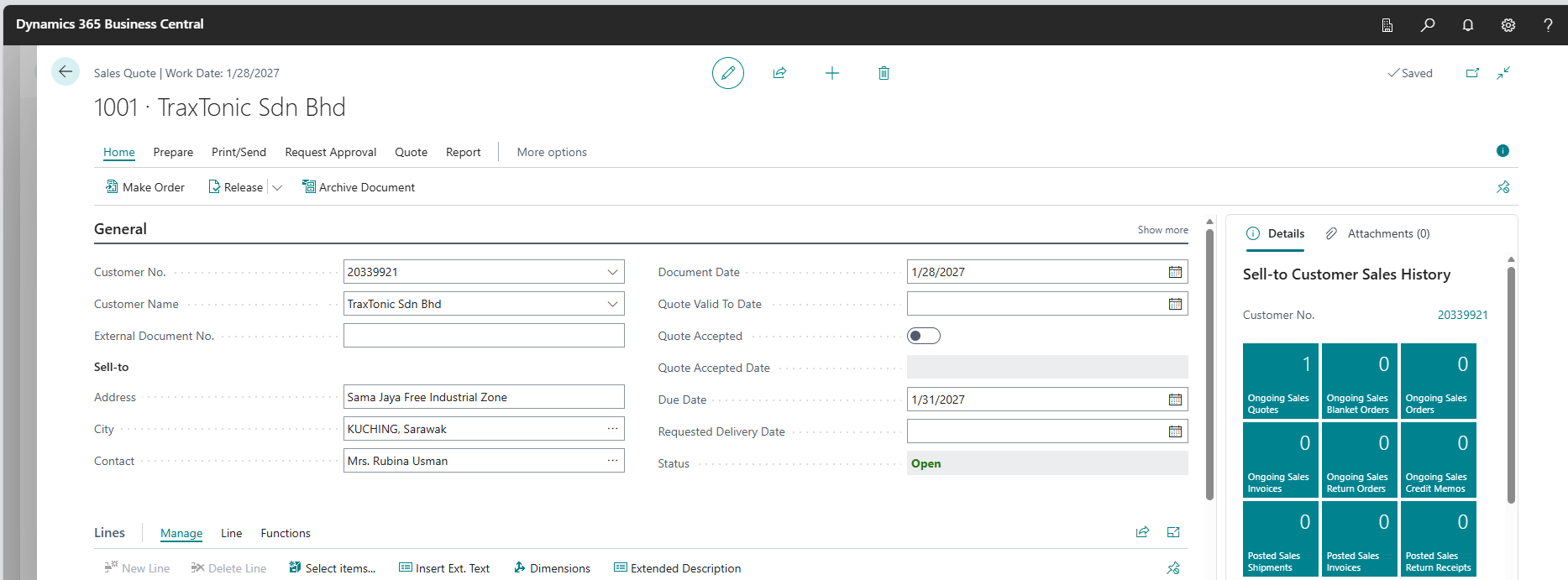
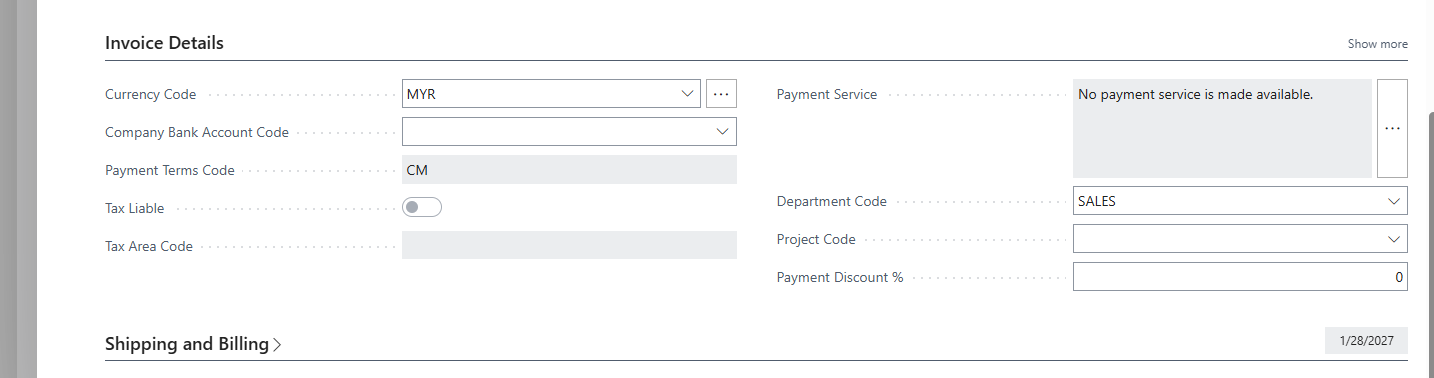
Tip: Changing the customer later may reset prices and discounts.
Step 4: Review and Update the Quote Header
Verify or update key header fields as needed. Common Header Fields include:
- Document Date
- Valid Until Date
- Salesperson Code
- Payment Terms Code
- Shipment Method Code
- External Document No. (optional)
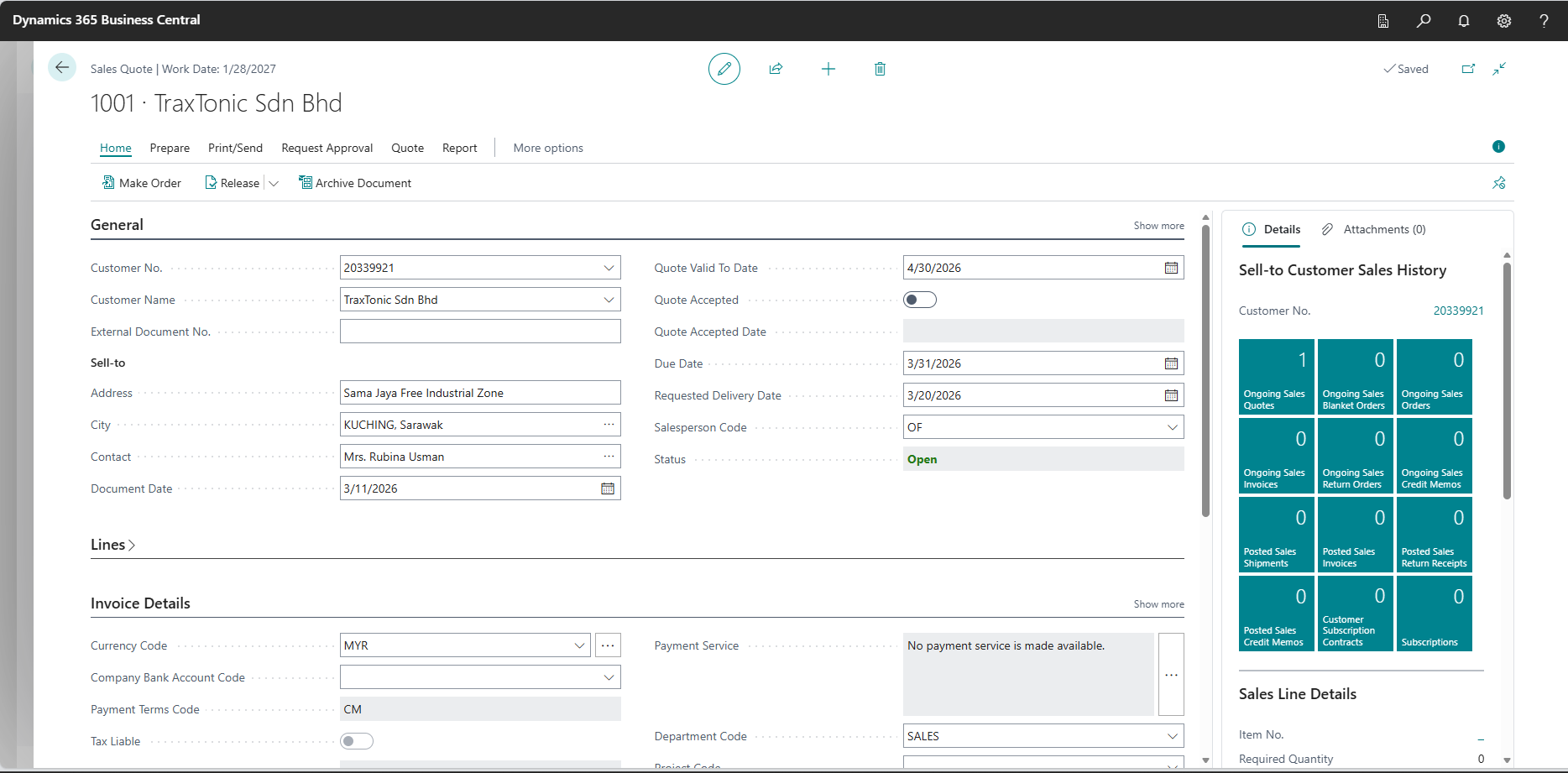
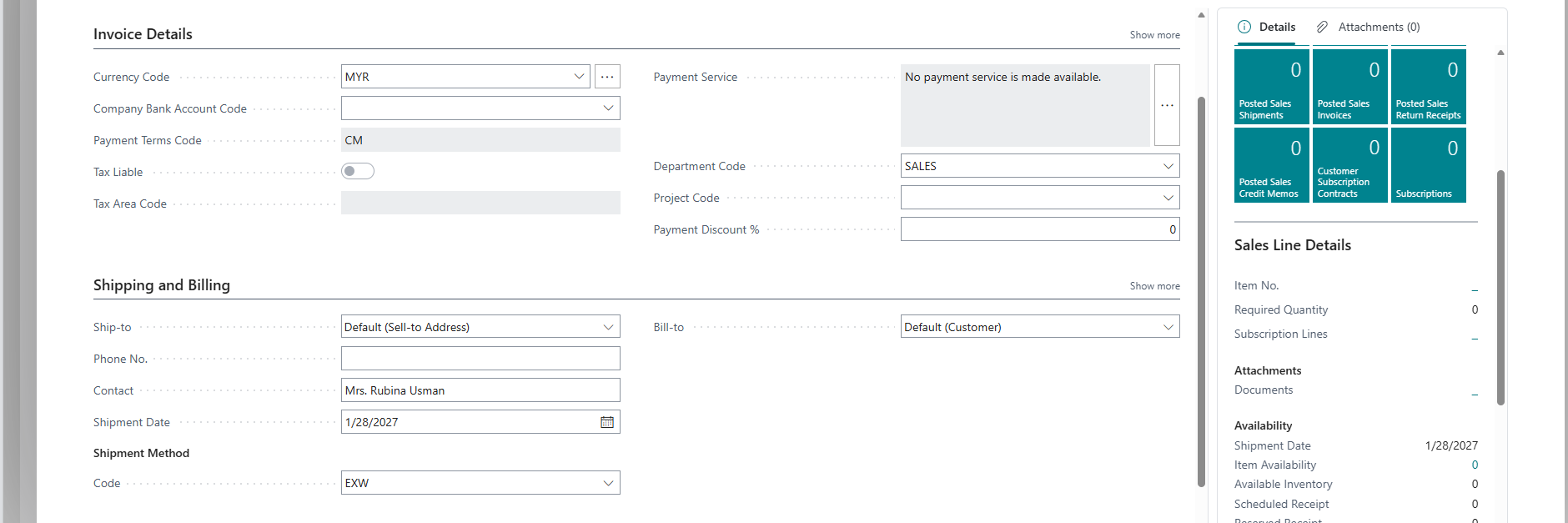
These values control pricing, terms, and downstream processing.
Step 5: Add Sales Lines
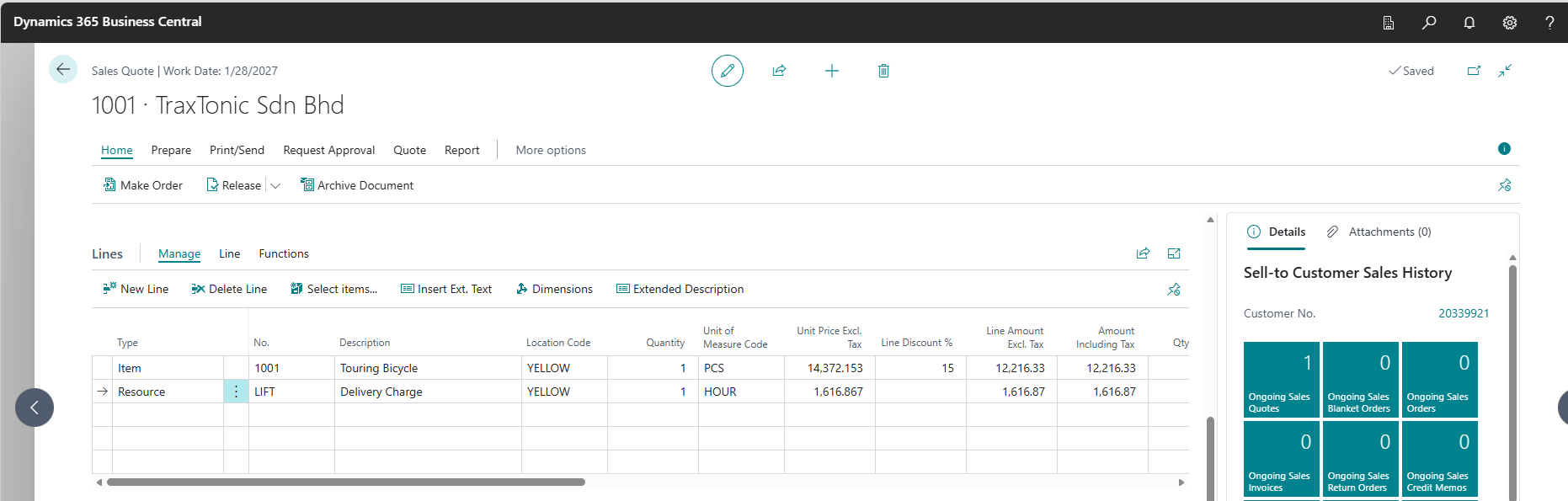
In the Lines section, add what you are quoting. You Can Add:
- Item (most common)
- G/L Account
- Resource
- Charge (Item)
Required Line Fields include:
- Type
- Number
- Quantity
- Unit Price (auto‑calculated or manual)
Business Central automatically calculates line amounts, discounts, and totals.
Step 6: Add Comments (Optional but Recommended)
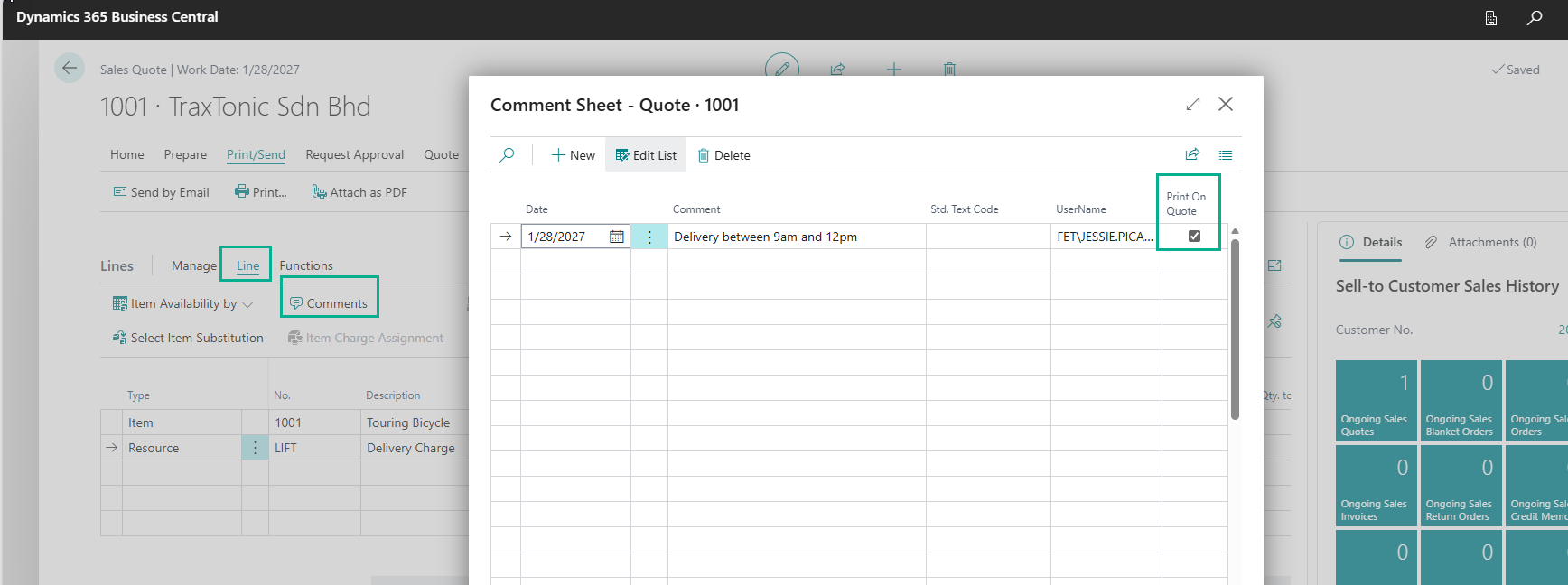
To add notes visible on the quote:
- Select Line → Comment
- Enter sales notes, assumptions, or exclusions
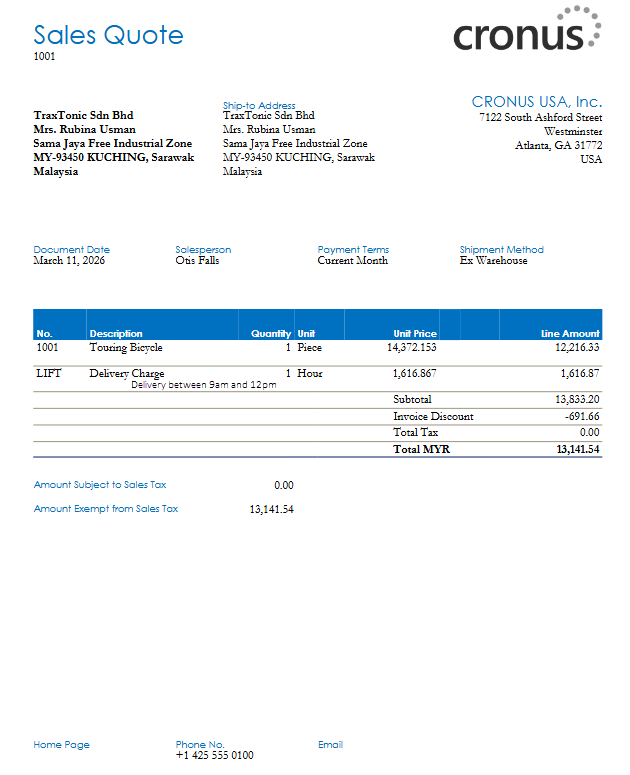
Comments can print on the quote report if configured.
Step 7: Review Totals and Discounts
At the bottom of the quote, you can review the Subtotal, Invoice Discount, and Total Amount. If you’re allowed, you can apply an Invoice Discount. You can also adjust pricing manually, based on permissions.

Step 8: Print the Sales Quote
To print or preview the quote, select Print/Send. Choose “print” to print a physical copy. To preview or download the quote, select the PDF option. The quote status remains Open.
Step 9: Follow Up or Modify the Quote
You can update quantities or prices, extend the Valid Until Date, and add or remove lines. Sales Quotes do not post and do not affect inventory.
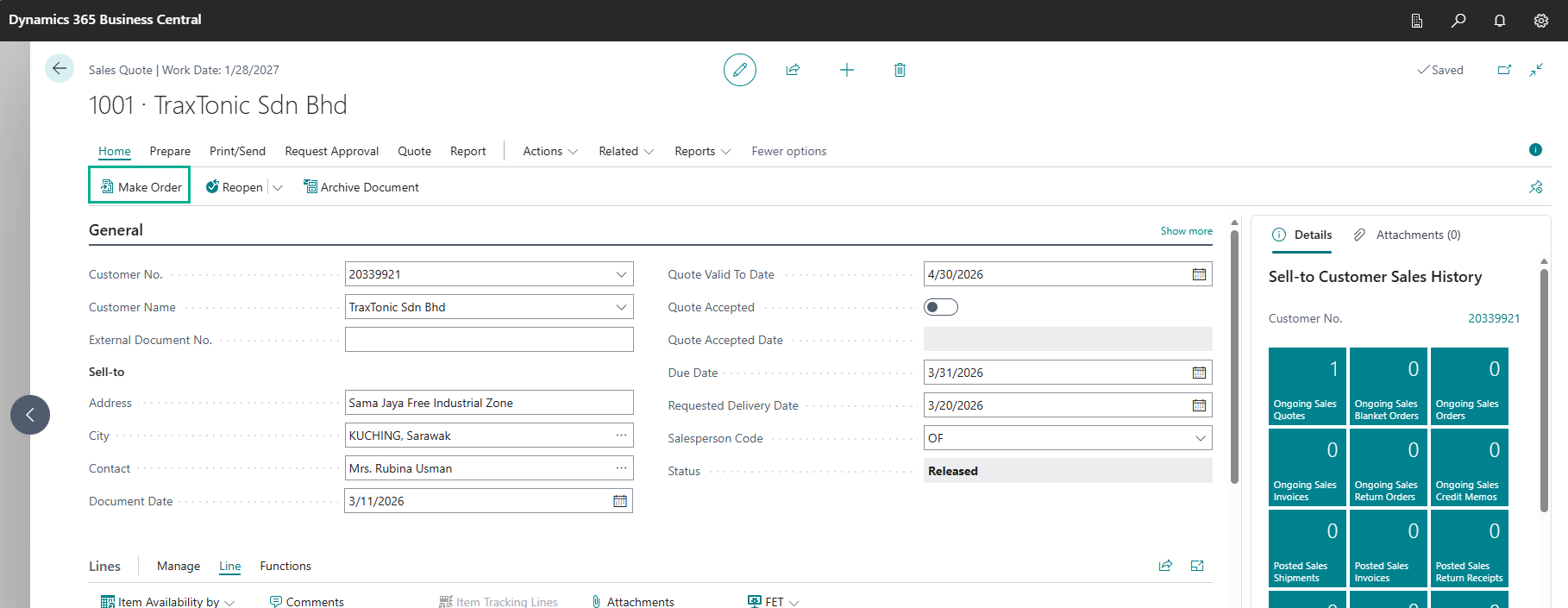
Step 10: Convert the Quote to a Sales Order (When Accepted)
Once the customer accepts:
- Open the Sales Quote
- Select Make Order
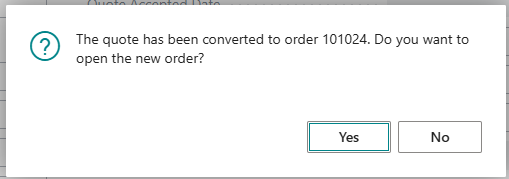
- Confirm
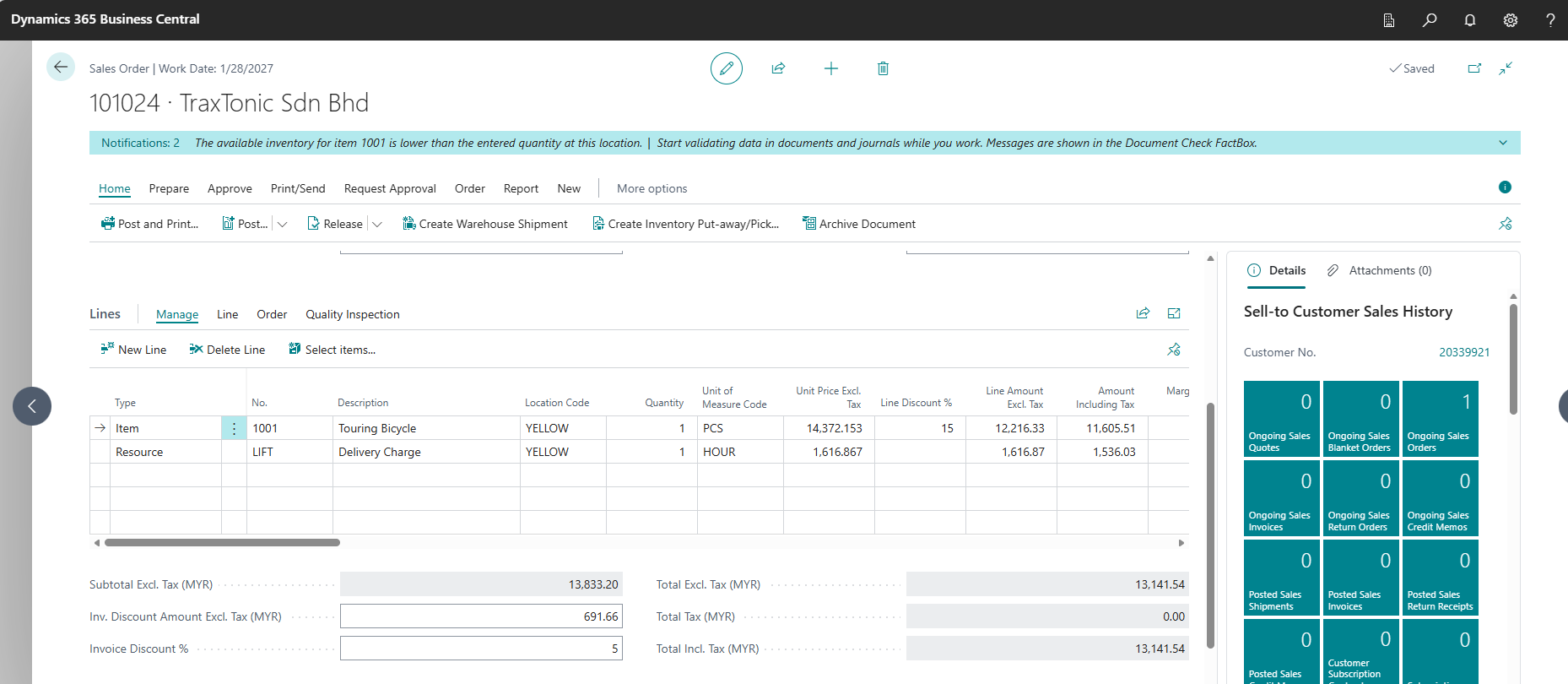
Business Central creates a Sales Order, copies all lines and header values, and links the order to the original quote. The quote is automatically archived or marked as converted.