The Difference Between Managed and Unmanaged Solutions in Dynamics 365

In the first article in this ALM series, we covered the basics of Dynamics 365 solutions; reviewing what they are, how to create one and how to add new and existing components.
Once you start working with solutions, the next concept you need to understand is the difference between managed and unmanaged solutions. Before we get there, though, there’s one other distinction worth covering because it can save you from making a very unintended change: Remove vs. Delete.
Remove, Don’t Delete
When you’re working inside a solution, you may decide that a component no longer belongs there. Maybe you accidentally added the wrong form. Maybe a view was originally part of the project but is no longer being changed. Or maybe you simply want to clean up the contents of the solution.
In that situation, you want to remove the component from the solution. That is not the same thing as deleting the component from Dynamics 365 (which removed it from the entire environment).
To remove an object, highlight it in the solution (1) and select Remove (2) > Remove from this solution (3).
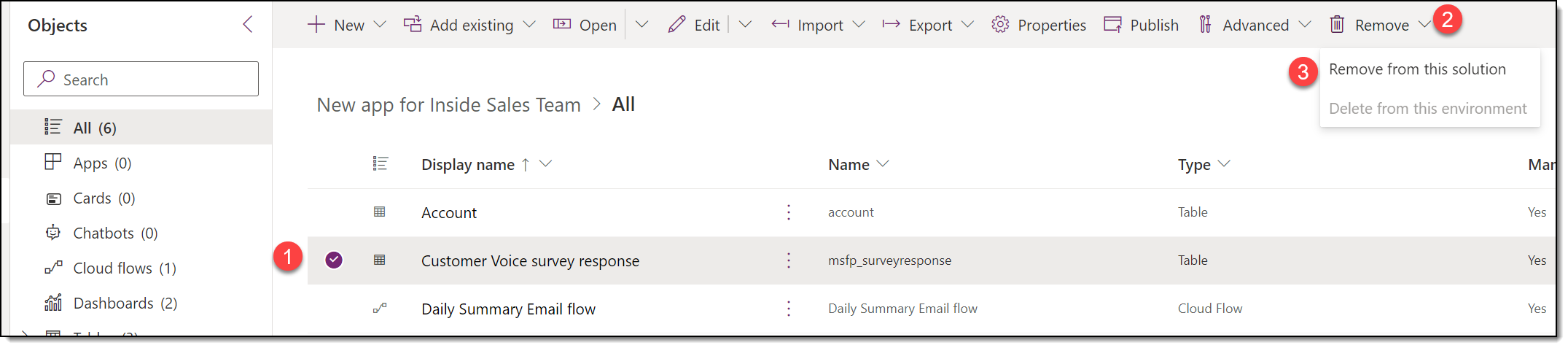
The important part is the wording: from this solution.
You are changing what belongs in your solution package, not removing the actual component from the system. So, when cleaning up a solution, remember REMOVE, don’t DELETE!
What Is an Unmanaged Solution?
An unmanaged solution is designed to be worked on. You can add and remove components, make changes to those components, and continue developing the solution as your requirements evolve.
Unmanaged solutions can also be exported and imported as unmanaged solutions or exported so they can later be imported as managed solutions.
Deleting an unmanaged solution does not delete all its components from the environment. The components remain in the system; they are simply no longer associated with that solution file. This is one reason unmanaged solutions are typically used while you are actively developing and configuring changes.
What Is a Managed Solution?
A managed solution behaves differently. Once a solution has been imported as managed, you cannot add or remove components from that managed solution in the same way you can with an unmanaged solution. You also cannot export that managed solution.
The biggest difference, however, becomes apparent when you uninstall it. If you delete a managed solution, the components installed by that solution are uninstalled from the system along with it. That is very different from deleting an unmanaged solution.
This distinction is important enough to remember:
- Delete an unmanaged solution: the components stay in the environment.
- Delete a managed solution: the components delivered by that solution are uninstalled.
Managed vs. Unmanaged Comparison
|
|
|
Component Behavior | Can be added, edited and removed | Cannot be added, edited or removed |
Export Behavior | Can be exported | Cannot be exported |
Delete Behavior | Delete does not remove solution components from the system | Deleting uninstalls components |
The key difference is really about development versus distribution. An unmanaged solution gives you the flexibility to build and change. A managed solution gives you a more controlled package once those changes are ready to move into another environment.
So Which One Should You Use?
The best practice guidance from Microsoft is straightforward: Use unmanaged solutions in your Sandbox. Move them to Production as managed solutions.
Your Sandbox is where you are actively building, changing, and testing. You need the flexibility of an unmanaged solution there.
Production is different. Production is where your users are doing their day-to-day work. Changes moving into that environment should be more controlled, which is where managed solutions come into play.
This creates a cleaner separation between where you build a solution and where you use it.
Why This Matters for ALM
Managed and unmanaged solutions are not just two different solution types to memorize (though that is a good idea if you plan to take any Microsoft certification exams!). They support a much bigger ALM principle: changes should move through a deliberate lifecycle.
You build and modify your solution somewhere safe. You test it. Once it is ready, you package those changes and move them forward in a controlled way.
That leads directly into the next part of our ALM discussion: solution management best practices. We’ll look at why you should have multiple environments, how publishers and prefixes help organize your customizations, and some simple practices that make managing Dynamics 365 changes much easier over time.