3 Dataverse Formula Column ‘Gotchas’ & How to Work Around Them



Formula columns are a very cool part of Dataverse. They use Power Fx, they are much easier to work with than the old calculated column designer. But there is a catch. Sometimes a column that looks perfectly ordinary and straightforward on a Dynamics 365 form behaves very differently when you try to use it in a formula column.
I ran into several of these while building formula column examples for my Summit Academy workshop class recently, so let’s look at the three that may trip you up.
A text field may not really be just text. A lookup may not point to just one table. Two date fields may not be compatible with one another.
Email Looks Like a Text Column, But It’s Not Just Text
Let’s start with a simple requirement. Suppose I want a formula column on the Contact table called Profile complete. The logic seems straightforward: if email, business phone and job title contain data, return “complete.”
This is the formula I entered:
If( !IsBlank(Email) && !IsBlank(‘Business Phone’) && !IsBlank(‘Job Title’), “Complete”, “Incomplete” )
And this is what I saw on my column:
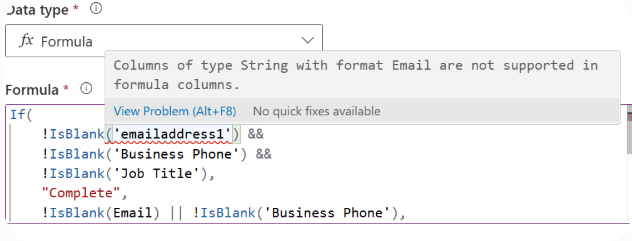
Let’s unpack this error: Columns of string with format Email are not supported in formula columns.
Email is technically stored as a String, but that column also has an Email-specific format. So even though Email looks like a normal text field on the form, Power Fx does not treat it the same way as a plain text field like Job Title.
Company Name and Other Polymorphic Lookup Columns
Suppose the new requirement for Profile complete is: if company name, business phone and job title contain data, return “complete.”
This is the Power Fx formula I used:
If( !IsBlank(‘Business Phone’) && !IsBlank(‘Job Title’) && !IsBlank(‘Company Name’), “Complete”, “Incomplete” )
And this is what I saw in Dataverse:
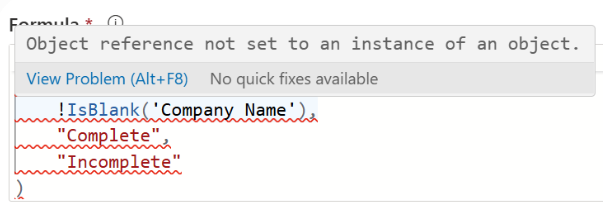
The problem with this scenario is that Company Name is a polymorphic lookup, meaning it can point to more than one table. In this case, Company Name can refer to either an Account or Contact. This matters when writing formulas. You may assume (like I once did!) that you can do something like: IsBlank(‘CompanyName’) or traverse the relationship as though Company Name always points to an Account.
However, because Dataverse does not know that the lookup is always Account, Power Fx needs to deal with multiple possible record types. This can lead to confusing validation errors inside the formula calculation for what appears to be a very simple expression.
Don’t try to make the formula column resolve the polymorphic lookup. Change the data shape where you can. If a business relationship really should point to one table (where Company Name is always an Account), use a dedicated Account lookup rather than relying on the out-of-the-box polymorphic Company Name/Customer column.
If the lookup needs to remain polymorphic, create a new column with the value the formula actually needs. For example, a Yes/No Has Company column calculated by a simple Power Automate flow (when Company Name changes, set Has Company to Yes when it contains a value and No when it is blank) can be used in place of the Customer lookup in the Power Fx formula.
If you are working with Customer, Owner, Regarding or another polymorphic lookup, take a closer look before assuming it will behave like a standard lookup in a Formula column.
Date Fields Can Look Compatible and Still Fail
Date calculations are another area where formula columns can surprise you with validation errors. Suppose you want to calculate Days until estimated close on an Opportunity. The first formula you may try is:
DateDiff( Now(), ‘Est. Close Date’, TimeUnit.Days )
This looks completely logical, but this is what you see in Dataverse when you attempt to create this formula column:

But the Est. Close Date is a Date Only field in Dataverse, while Now() returns a Date/Time value using User Local behavior.
Dataverse formula columns do not allow every combination of Date/Time behaviors to be used together. So the formula can fail, even though both values appear to be dates.
Fortunately, this scenario has a simple fix: use UTCToday() instead of Now(). Here’s the correct formula you can use in Dataverse to calculate Days until estimated close:
If(IsBlank(‘Est. close date’),Blank(),DateDiff(UTCToday(),’Est. close date’, TimeUnit.Days))
The lesson here isn’t just to use UTCToday (though that is the quick fix for this specific scenario). The bigger lesson is when a date formula fails, check the Date/Time behavior of both values.
The Common Thread: Metadata Matters
The interesting thing about all of these limitations is that none of them are obvious from the form. A maker sees:
- Email looks like text
- Company Name looks like an Account lookup
- Est Close Date looks like a date.
But Formula columns care about the underlying Dataverse metadata. They see:
- String + Email format
- Polymorphic Customer lookup
- Date Only behavior
Those are not the same thing. That is why a formula that seems completely reasonable from a business-user perspective can produce a validation error.
My Rule When a Formula Column Fails
If the Power Fx looks correct but Dataverse still says no, I would check the column itself before rewriting the formula many different ways. Look at:
- The column data type
- The column format
- Date/time behavior
- If the lookup is polymorphic
Sometimes the formula is wrong, but sometimes the formula is perfectly fine and the real problem is the Dataverse column behind it.
None of this is an argument against formula columns. They are still my go-to choice for derived field requirements in Dataverse. But they become much easier to work with once you stop thinking only about what a column looks like on the form and start thinking about what Dataverse knows about that column behind the scenes.