
Postings Setups in Dynamics 365 Business Central



In Microsoft Dynamics 365 Business Central (BC), posting setups, a core part of the posting groups functionality, act as the “brain” that connects business activities. These setups are the mapping mechanisms to automatically link the operational transactions (sales, purchases, inventory movements) to appropriate accounts in the General Ledger (G/L).
Why Posting Setups
When a transaction is posted, Business Central looks at the Posting Setup assigned to the Master Data involved to determine which accounts to debit and credit. The primary goal for Posting Setup is to ensure accurate financial reporting without requiring users to manually select G/L accounts for every transaction.
Properly configured posting setups are a critical part of a robust BC implementation, enabling non-accounting users:
- Processing transactions accurately
- Enforcing business rules
- Streamlining the chart of accounts
- Providing flexibility for detailed financial analysis and reporting
Posting setups are broadly categorized into three main types.
General Posting Setups
This setup primarily controls the Income Statement. It is a matrix that determines how sales and purchase transactions impact income and expense-related accounts. It is based on a combination of two sub-groups:
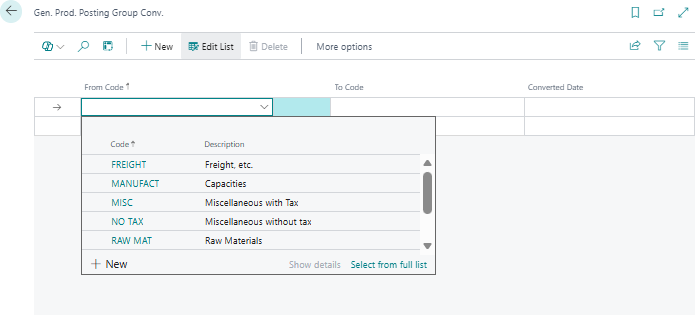
The General Posting Setup page utilizes the unique intersection of these two codes to automatically select the correct G/L accounts for scenarios such as sales revenue, cost of goods sold (COGS), purchases, and payment discounts.
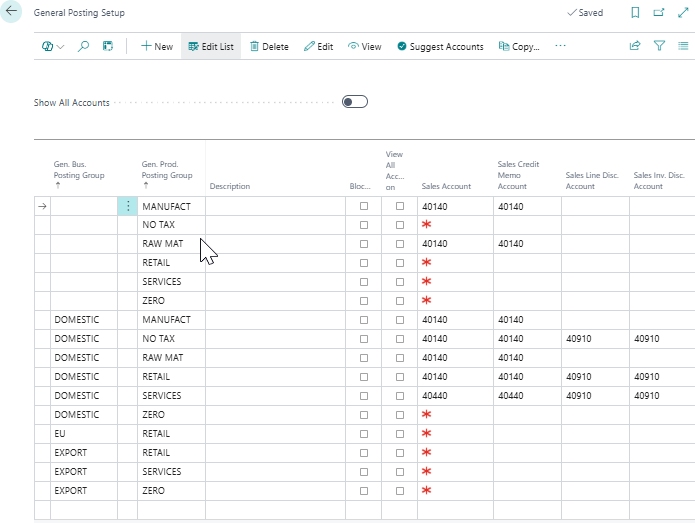
Note: If, at some point, a combination of groups is no longer needed, the recommendation is to avoid deleting the combination (for traceability reasons) but to block it – there is a checkbox field that allows this.
Specific Posting Setups (Sub-ledger)
These setups link specific operational modules (or sub-ledgers) to their corresponding control accounts on the balance sheet. They ensure consistency between the detailed sub-ledger entries and the summarized G/L balances.
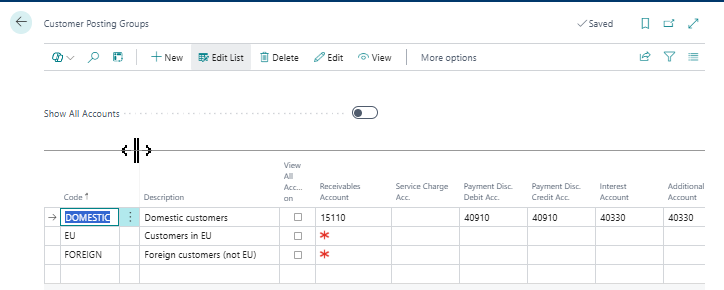
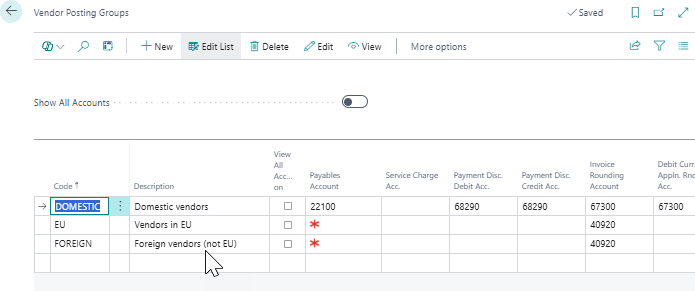
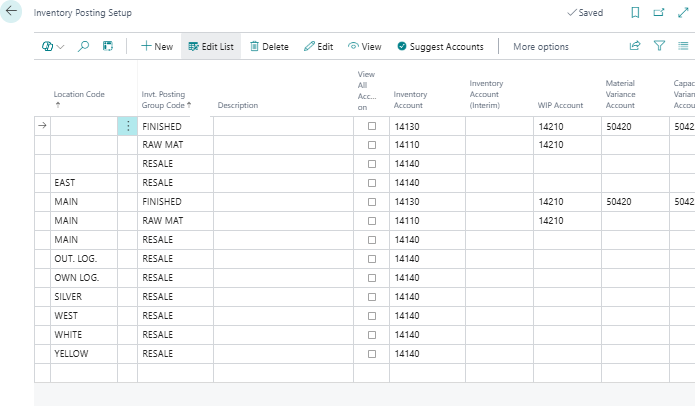
Key specific posting setups include the following, and notice how accounts are changing for each group:
Customer Posting Groups: Link to the Accounts Receivable (A/R) G/L accounts.
Vendor Posting Groups: Link to the Accounts Payable (A/P) G/L accounts.
Inventory Posting Setup: Links the item’s Inventory Posting Group and Location to the relevant Inventory Asset and Variance accounts.
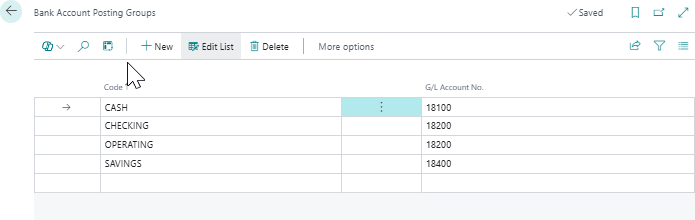
Bank Account Posting Groups: Link each bank account to its specific G/L bank account
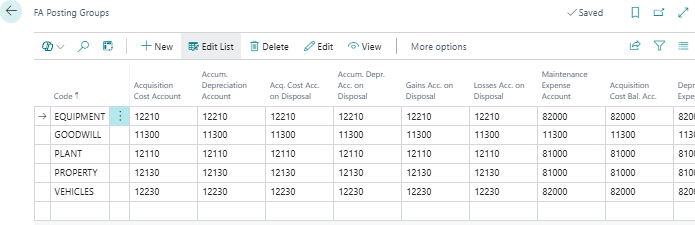
Fixed Asset (FA) Posting Groups: Define accounts related to Fixed Assets, for acquisition costs, accumulated depreciation, depreciation expense, and disposal gains/losses.
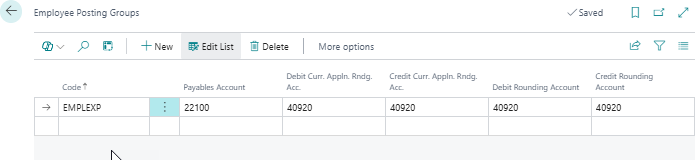
Employee Posting Groups: Define accounts for employee-related transactions.
VAT (Tax) Posting Setups
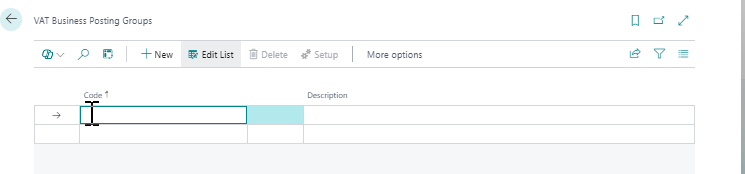
It is used primarily in regions with Value Added Tax. This setup works similarly to the General Posting Setup, using a matrix of VAT Business Posting Groups (with whom you transact, for tax purposes) and VAT Product Posting Groups (what you transact, for tax purposes) to determine the correct tax percentages and the G/L accounts for recording tax amounts.

Best Practices
- Start at the Chart of Accounts: Before configuring groups, determine the KPIs and reporting structure your management requires. Work “backwards” from these goals to define your posting setups.
- Use “Catch-all” Lines: In the General Posting Setup, include lines with a blank Business Posting Group for each Product Posting Group. This ensures that internal adjustments (like item journals) post correctly even without a customer or vendor attached.
- Prevent Errors: Business Central will throw an error if a combination of business and product groups is missing from your setup. Always validate your matrix before high-volume posting periods like month-end, year-end end or Sales Year End.
- Utilize Preview Posting: Before finalizing a transaction, use the Preview Posting feature to see exactly which G/L entries will be created. Yes, it is available.
- The Preview Posting feature in Business Central allows you to see the exact financial impact of a transaction before committing it to the General Ledger. It’s best practice to use this feature to prevent errors that are difficult and time-consuming to reverse.
For more detailed technical guidance, you can refer to the official Microsoft Learn documentation on Posting Groups.
