
Word Templates in Dynamics 365 CRM: Navigating Known Issues



An oldie but goodie… today, we focus on Word Templates in Dynamics 365 CRM. This is a powerful (yes, antiquated) tool you have for any table in Dynamics 365, and you get several templates out-of-the-box to help you get started.
Unfortunately, the interface is a bit unstable at time – even resulting in destabilizing Word itself after trying (unsuccessfully) to edit or create a new table. Fear not: it’s an easy fix.
The Problems
If you check out the Microsoft Learn article that walks you through how to add a new Word Template, you are immediately greeted with this in-your-face warning:
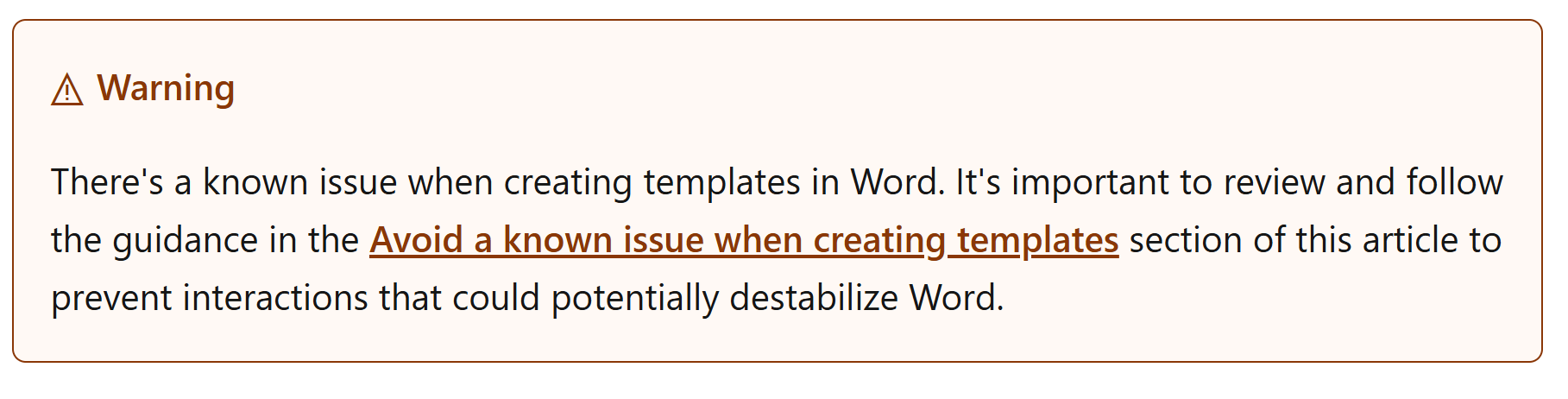
Specifically, there are two big problems you may run into:
1. You insert a content control other than Picture or Plain Text. This one is frustrating, because inside of Word you have these options, and it may be tempting to select one of the other options listed:
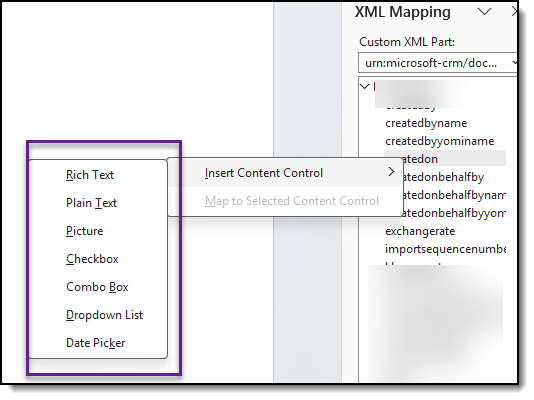
2. You make a textual change. Typically, this is done accidentally through AutoCorrect settings that are turned on by default.
The Fixes
Insert Content Control
No matter how badly you may be tempted to insert rich text, checkbox, combo box, dropdown list or date picker as a content control – do not ever do this! Limit your Word templates to use ONLY Plain Text of Picture and you will not have any problems.
Formatting Limitations
You can bold and italicize your content control fields inside of work, but do not make other textual changes (like capitalization). You may also need to disable AutoCorrect.
Disable AutoCorrect Settings
Rather than turning off AutoCorrect entirely, you can toggle three conditions to Off. Here’s where you can make these quick changes:
1. In Word Options, click on Proofing, then click the AutoCorrect Options button:
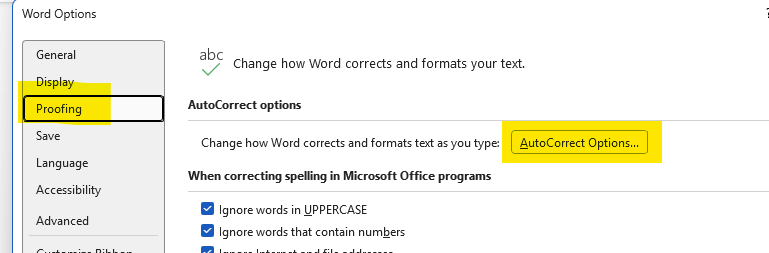
2. On the AutoCorrect tab, uncheck boxes for Capitalize first letter of sentences (1) and Automatically use suggestions from the spelling checker (2).
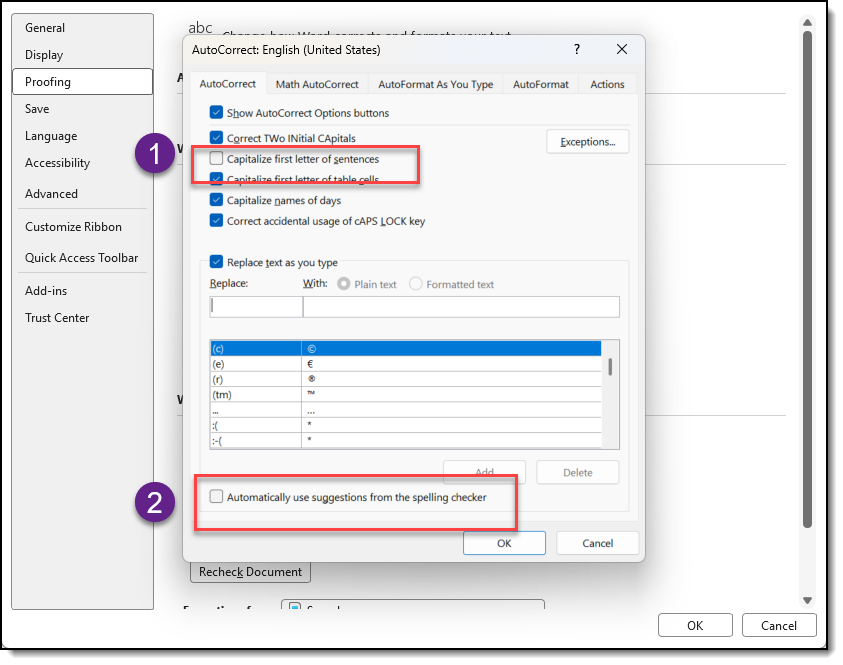
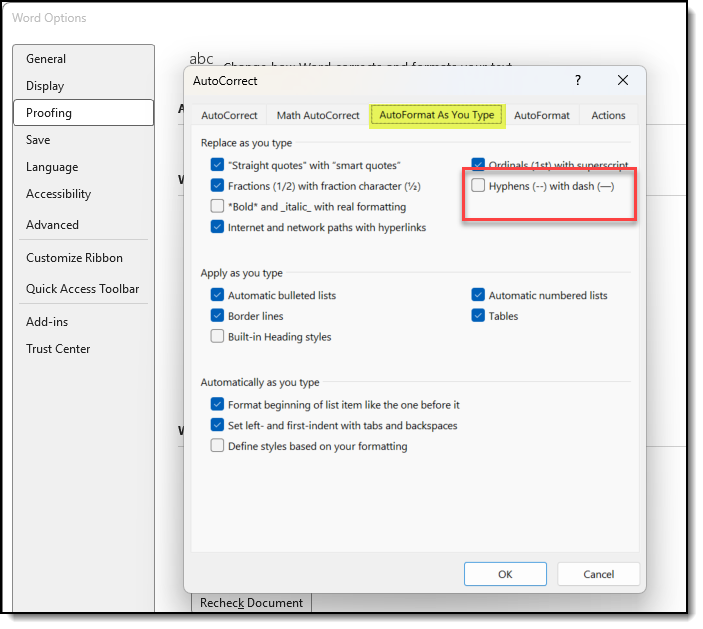
3. Next, open the AutoFormat As You Type tab. Uncheck the box for Hyphens with dash.
Once you follow all of these rules inside of Word, you should have no problem editing and adding your own Word templates!
