How to Embed Power BI Dashboard in Dynamics 365 Customer Engagement



After you have crafted a great Power BI Dashboard, the next step is to embed it into Dynamics 365 so your CE users can access and use it. This article will walk through the steps necessary to get a Power BI visual inside of CE for CRM users.
- Step 1: Enable Power BI Embedding
- Step 2: Add Dashboard to CE
Pro tip: Ensure users have a Power BI Pro license and proper access to both Dynamics 365 and the Power BI workspace.
Enable Power BI Embedding
The first step in this process is to enable Power BI Visualizations inside of your Dynamics 365 environment. To do this, first navigate to the Power Platform Environment Settings App.
Once in the app, select the Administration area on the left-hand side, then click Reports.
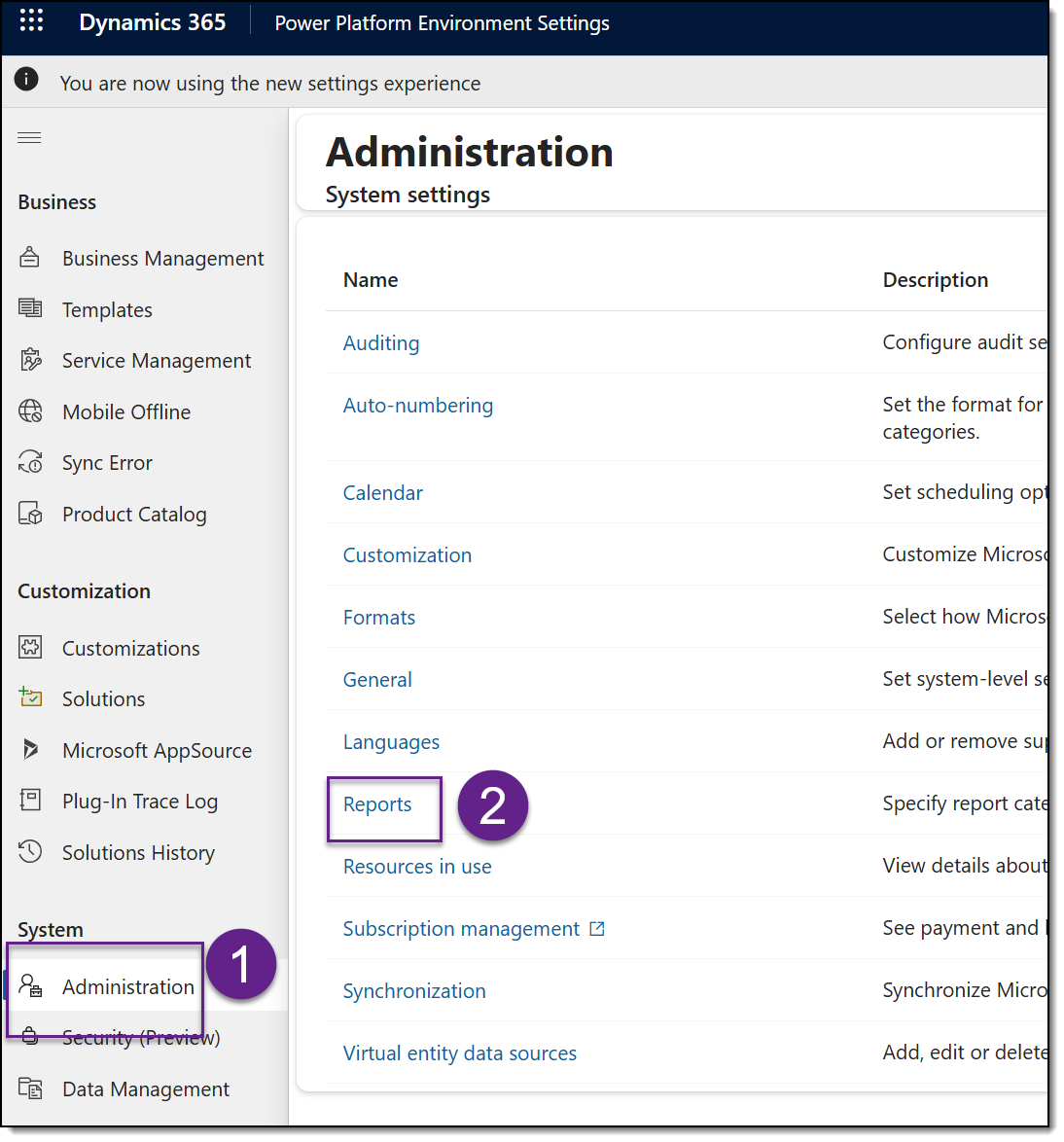
This opens the classic system settings in a new window. Here, you will toggle Allow Power BI visualization embedding to yes:
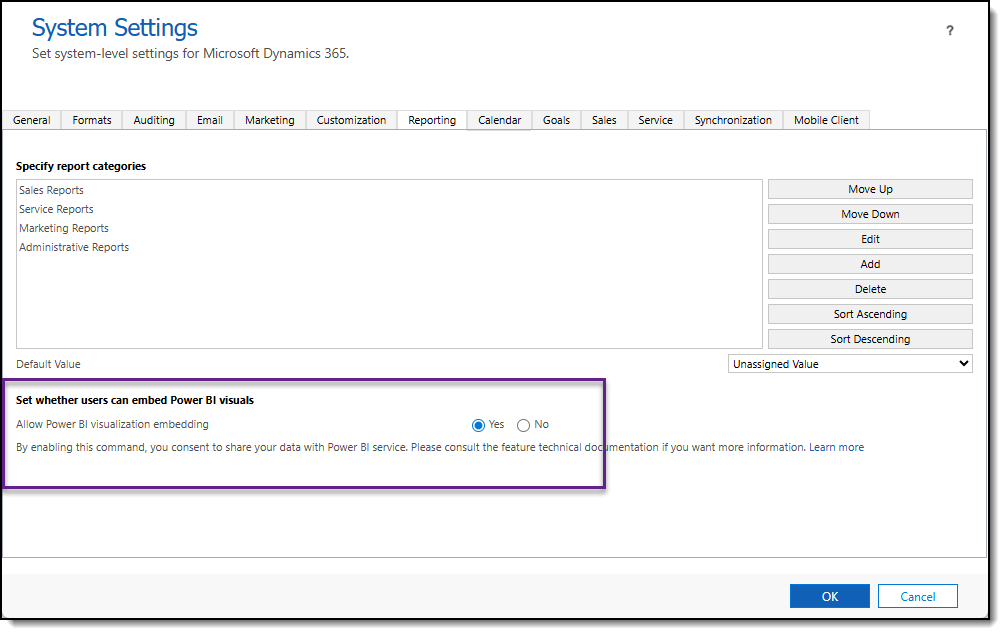
Click OK at the bottom of this dialog box.
Add Power BI Dashboard to Dynamics 365
Once that setting is on, it’s time to add your Power BI dashboard to Dynamics 365 for your users to use.
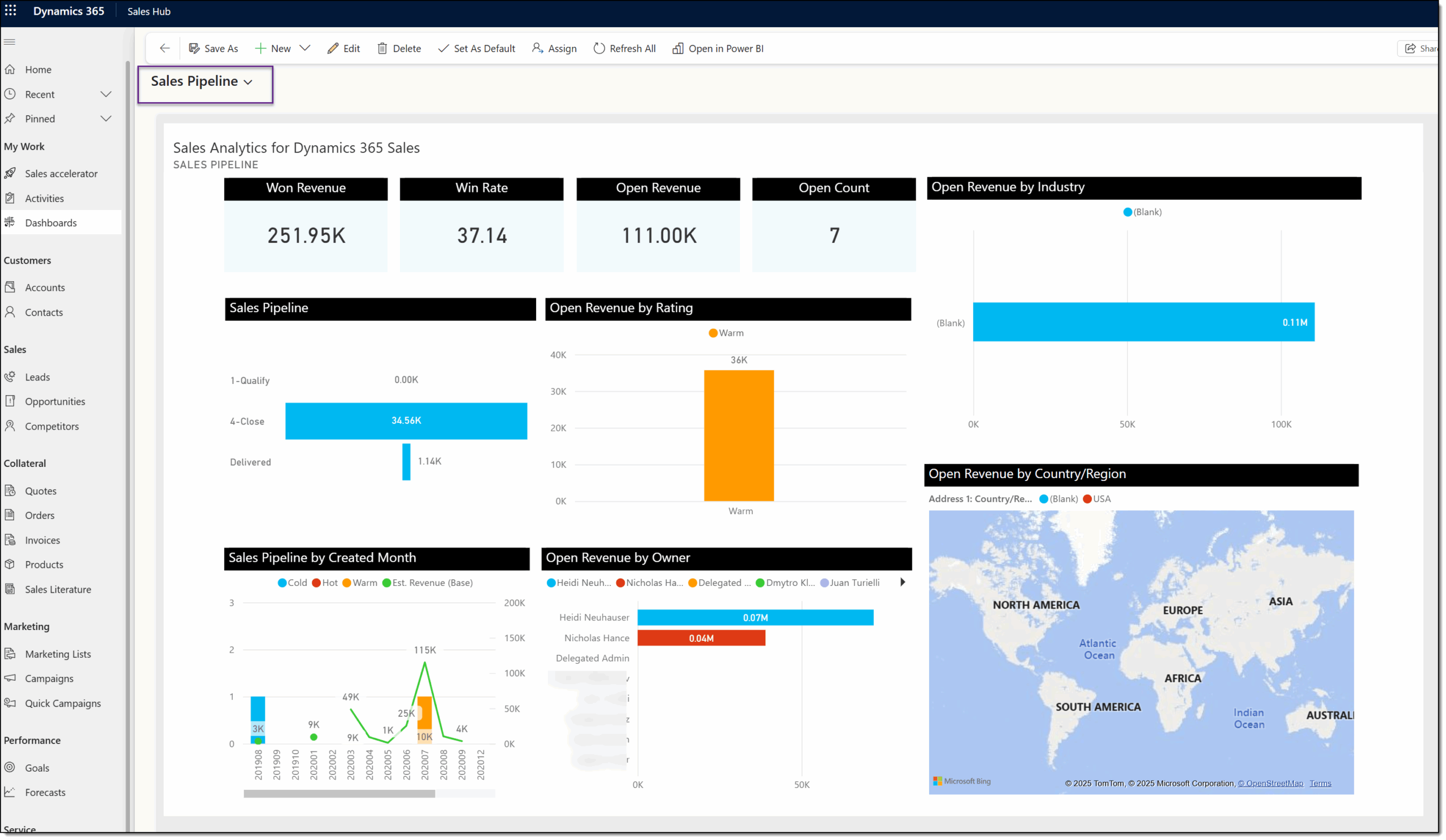
Navigate to Dashboards in your model-driven app (for example: the Sales Hub or Customer Service Hub). Once there, click + New and select Power BI Dashboard. 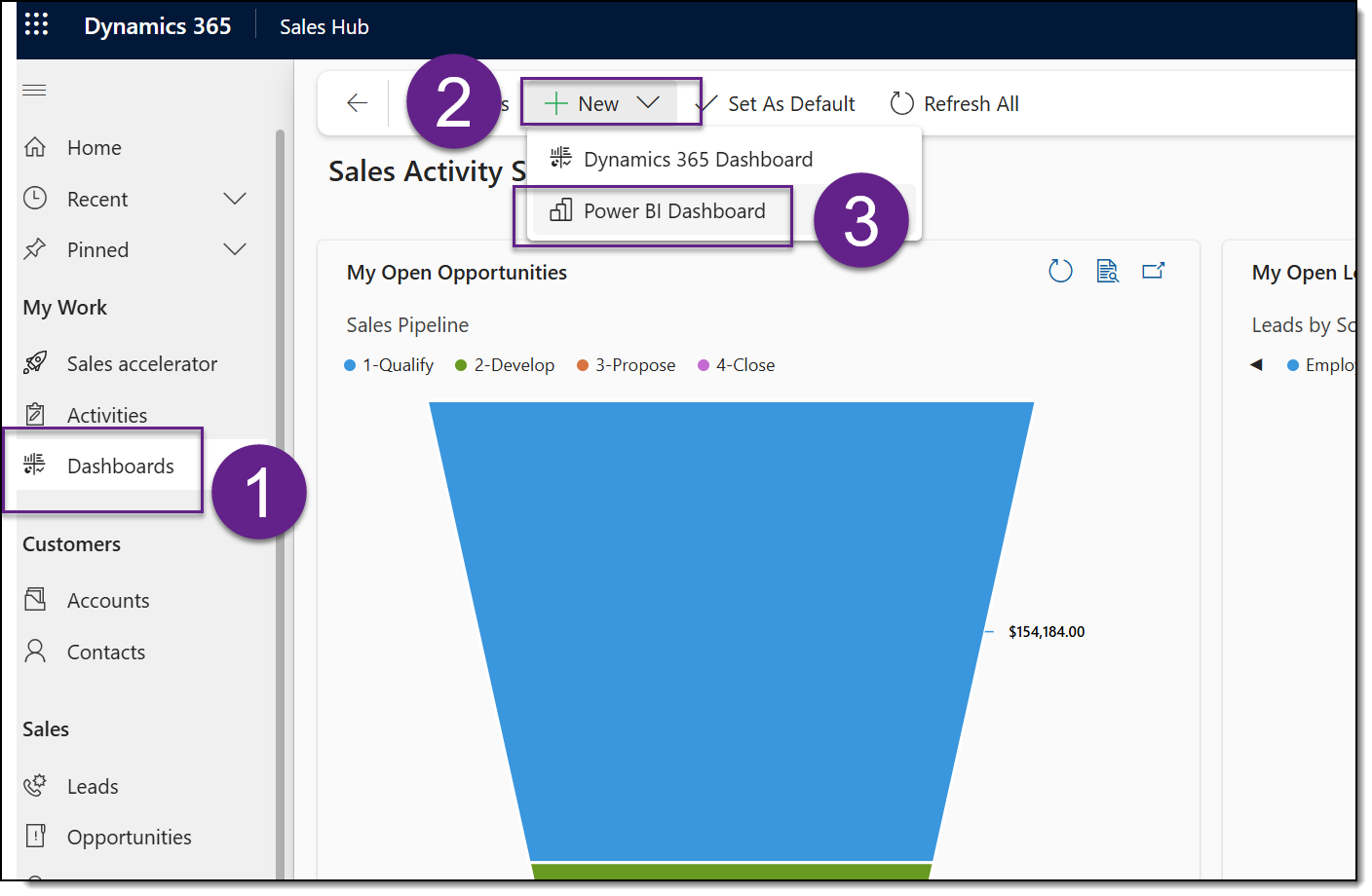
A dialog will appear prompting you to select a workspace. Choose the workspace where your Power BI dashboard is published. Select the dashboard you want to embed, then click Save.
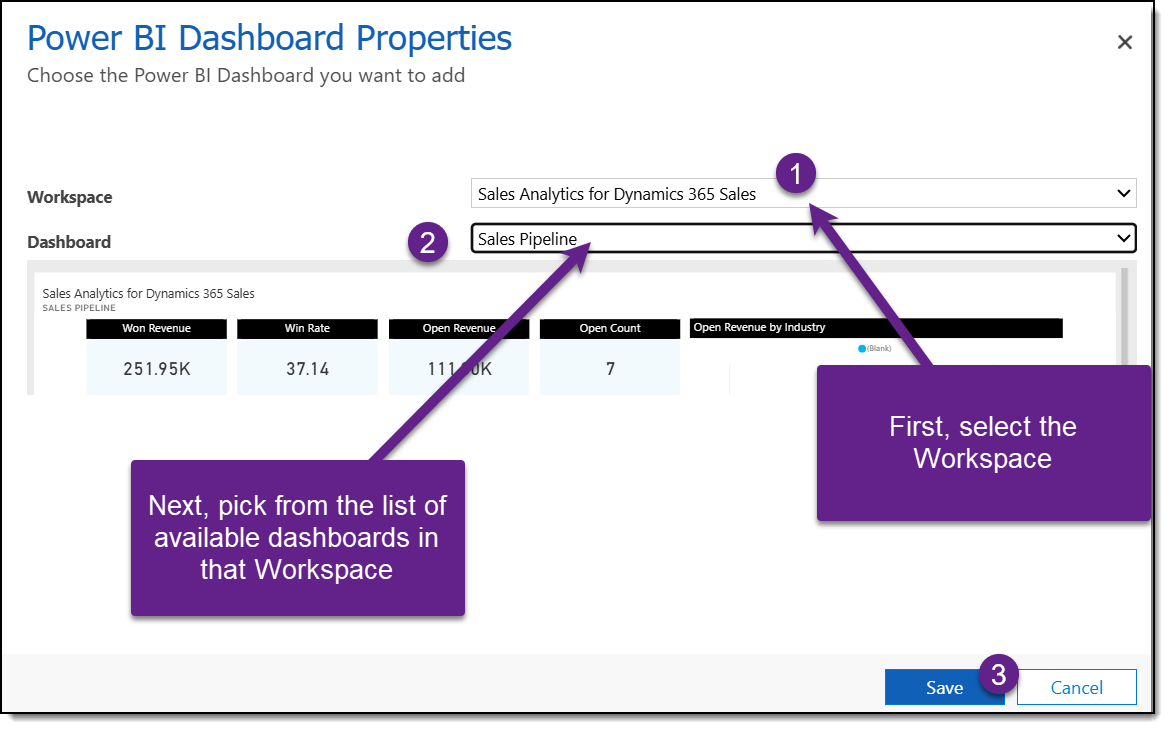
Your Power BI dashboard is now embedded inside Dynamics 365 and available from the Dashboards area. It will honor the same security and filtering settings defined in Power BI.
Tips & Best Practices
- Use descriptive visual names for better user context.
- Match visual themes to CE UI for a seamless look.
- Avoid overly complex visuals for performance reasons.
Troubleshooting
Visuals not loading? Re-check embed settings and licenses.
Permissions issues? Validate sharing and access levels.
Dashboard missing in dropdown? Confirm it’s shared with you.
Embedding dashboards helps bring insights to users where they work; start using yours today.