Dynamics 365 Solutions 101: What They Are & How to Build One


Dynamics 365 environments rarely stay static. New requirements pop up, processes change, automations are added, forms and views are updated, new columns are added, and organizations refine the system to better support their users. The challenge is not simply making those changes; it becomes making them in a controlled, repeatable way without disrupting the live system. That’s where Application Lifecycle Management (ALM) comes in!
In Dynamics 365 and the broader Power Platform, ALM provides a structure for managing those changes. It begins with the initial requirement and follows it through development, testing, maintenance, and future updates. At the center of this process are solutions.
This post serves as the first of a series targeted on ALM in Dynamics 365, starting with the foundation of ALM: solutions.
What Is a Solution?
A solution can be thought of in two ways:
- It is a way to package changes so they can be moved from one environment to another.
- It is a container where the customizations and components associated with a project or enhancement are stored.
Instead of making changes throughout an environment with no clear way to identify or move them, administrators and makers can organize related work inside a solution.
As an example, let’s consider an organization making updates to its Lead management process. This set of enhancements includes new fields, modifying a form, changing several views, adding a business rule and creating a Power Automate cloud flow. All of these components can be made in one solution and treated as a single package of changes. This solution can then be tested and moved to another environment.
Creating a New Solution
Solutions are created in the Power Apps maker portal (make.powerapps.com). First, make sure you are working in the correct environment. Then navigate to Solutions and select + New solution. You’ll provide a few pieces of information:
- Display Name: Give your solution a name that describes the project or enhancement.
- Name: The schema or database name, which will auto-populate when you enter a display name.
- Publisher: Every solution is associated with a publisher. We’ll dig further into publishers later in this ALM series, but for now, know that you’ll need to select one when creating your solution.
- Version: The version number will also automatically populate.
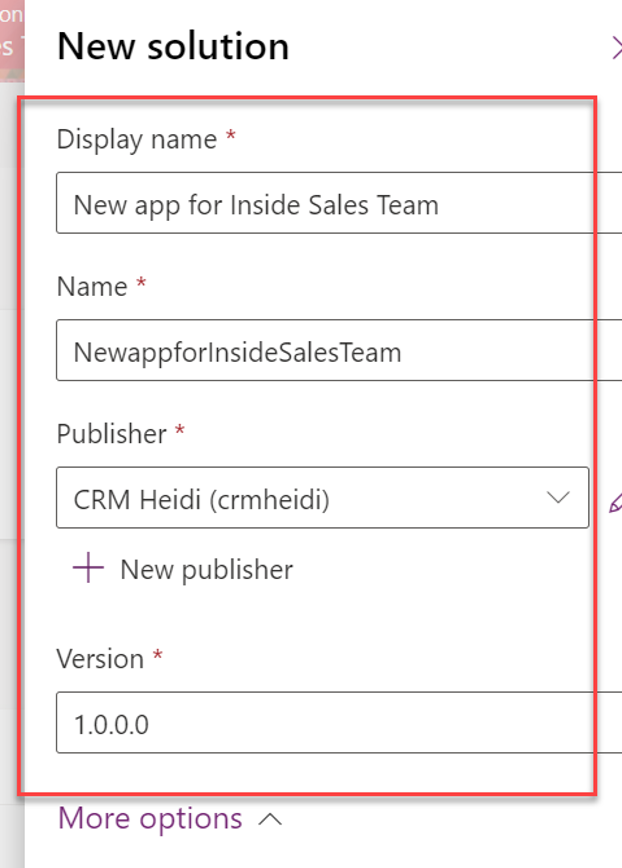
A new solution being created.
Once everything is entered, select Create. You now have an empty solution ready for your changes.
What Can You Add to a Solution?
A solution can contain many different types of Dynamics 365 and Power Platform components. Some that I use often are:
- Tables
- Power Automate flows
- Business rules
- Business process flows
- Security roles
- Dashboards
- Model-driven apps
Many of these components also contain their own subcomponents.
For example, a table can include:
- Columns
- Relationships
- Business rules
- Views
- Forms
- Dashboards
- Charts
- Messages
- Keys
- Commands
This is important because you don’t necessarily need to include every piece of a table in your solution.
New Components vs. Existing Components
When working within a solution, there are two basic scenarios:
- You are creating something new that does not exist anywhere in the environment.
- You are adding to or modifying something that already exists.
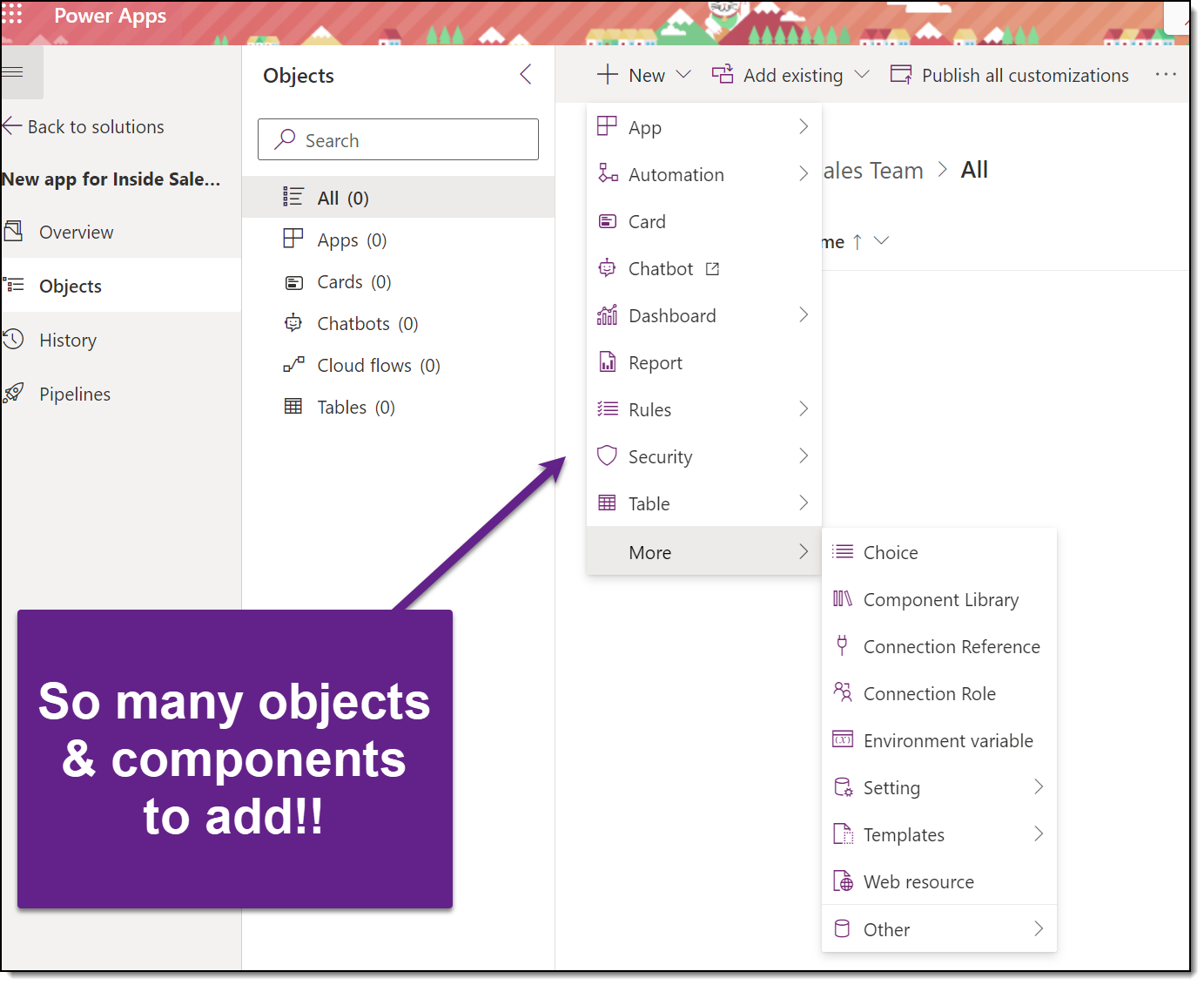
Adding a New Component
A new component is something that does not currently exist in the system. Maybe your Lead management enhancement requires a new Yes/No column to identify whether a Lead has completed a particular step. Because that column doesn’t exist yet, you can create it directly from within your solution. The new component becomes part of that solution as you build it.
Adding an Existing Component
Existing components already exist in Dynamics 365, but you need to make a change to them.
Going back to our Lead management example, perhaps the Lead table and its Main form already exist, but you need to add your new column to the form. You would add the existing Lead table and the appropriate form to your solution, then make the required changes.
This is a common scenario in Dynamics 365. You are often not building something entirely from scratch, you are adding to or modifying components that are already there.
Be Selective About What You Add
When you add an existing table to a solution, you can choose which pieces of that table you want to include.
Suppose your Lead management project requires:
- One new column
- Changes to one Main form
- Changes to two views
You don’t need to add every column, form, relationship, view and every other component associated with the Lead table. Instead, include the pieces that are actually relevant to the work you are doing.
Keeping solutions focused makes it easier to understand what a project changes and what should eventually move with it.
A good rule to follow is to add what you need, not everything you can.
Why Solutions Matter
Solutions give structure to your Dynamics 365 changes. Without them, it becomes much harder to answer questions such as:
- What did we change for this project?
- Which existing components were modified?
- Which components were created specifically for this enhancement?
- What needs to move together when the changes are ready?
Solutions give you a way to organize all those pieces into one logical package. And that is why they sit at the center of ALM in Dynamics 365.
Creating the solution, however, is only the beginning. There are still important decisions to make around how those solutions are managed, what happens when components need to be removed, and one of the biggest solution concepts of all: managed versus unmanaged solutions.
That’s where we’ll go next in this ALM series.