How to Delete Expired Sales Quotes in Dynamics 365 Business Central



We recently discovered that we had a lot of open sales quotes when we do not use sales quotes. We believe our EDI process created these and did not purge them. This made me wonder if there was a way to delete sales quotes in batch, and I discovered that you can!
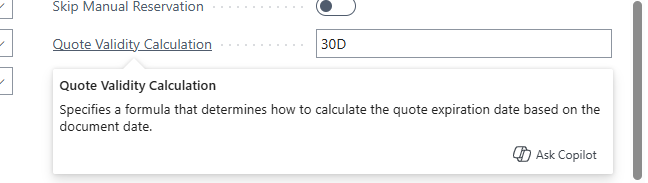
The key is a setting in the Sales & Receivables Setup. The field is called “Quote Validity Calculation.” This field can be found on the General tab. If you don’t see it, click Show More at the top of the Fast Tab. When this field has a date formula value, any newly created sales quote will have a Valid To Date (expiration date). Some date formula examples are: 30D = 30 days, 1W = one week, 3M = Three Months, 1Y = one year, etc.
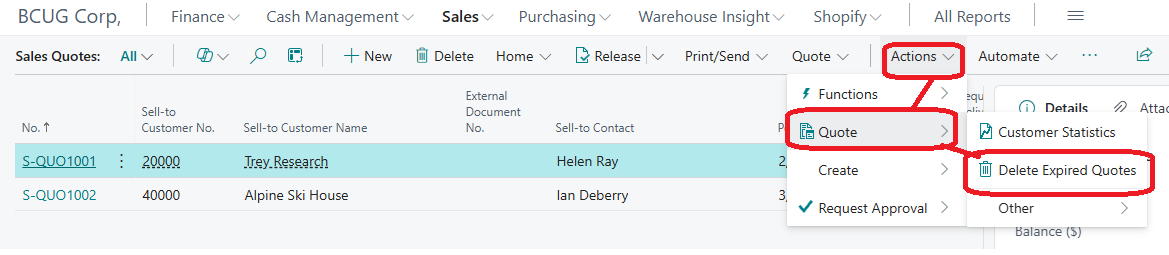
Now that your sales quotes are being assigned a Valid To Date, you can delete all expired sales quotes at any time by going to the sales quote list. From the Actions drop-down menu in the ribbon, select Quote and then Delete Expired Quotes.
This process will ask for a Valid To Date and any other filters you wish to apply.
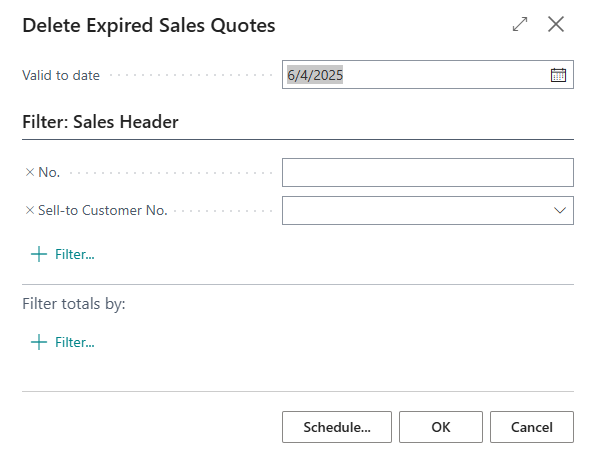
If you find that you accumulate expired quotes, it would be beneficial to run this practice at the end of each period. The report can be added to your queue, but the Valid To Date is a static value so you cannot apply a date formula like 1M (for one month) when scheduling it. Therefore, running it manually is more practical.
If you have a list of sales quotes with no expiration date, you or your Business Central Administrator can use a Configuration Package to apply expiration dates to those quotes, or you can use the Edit in Excel functionality.
To learn more or have any questions answered, please reach out to me or post your questions and comments on this Dynamics Communities discussion forum.