Moving From Dynamics GP to Business Central? Start With These 6 Customer Data Checks



Over and over again in Dynamics GP-to-Business Central migration projects, the one thing I see that can significantly speed up the implementation is when customers make an investment in cleaning their own data before an implementation even starts. It seems like a little thing, but it is a little thing that has a huge impact on the project from a time and cost perspective. No one knows your data the way you do.
You’ll find customer names entered in different ways, addresses that haven’t been used in years, inconsistent state and country values, missing information, and records that may be duplicates. Some will be easy to fix. Others will require someone in the business to decide what the correct information should be.
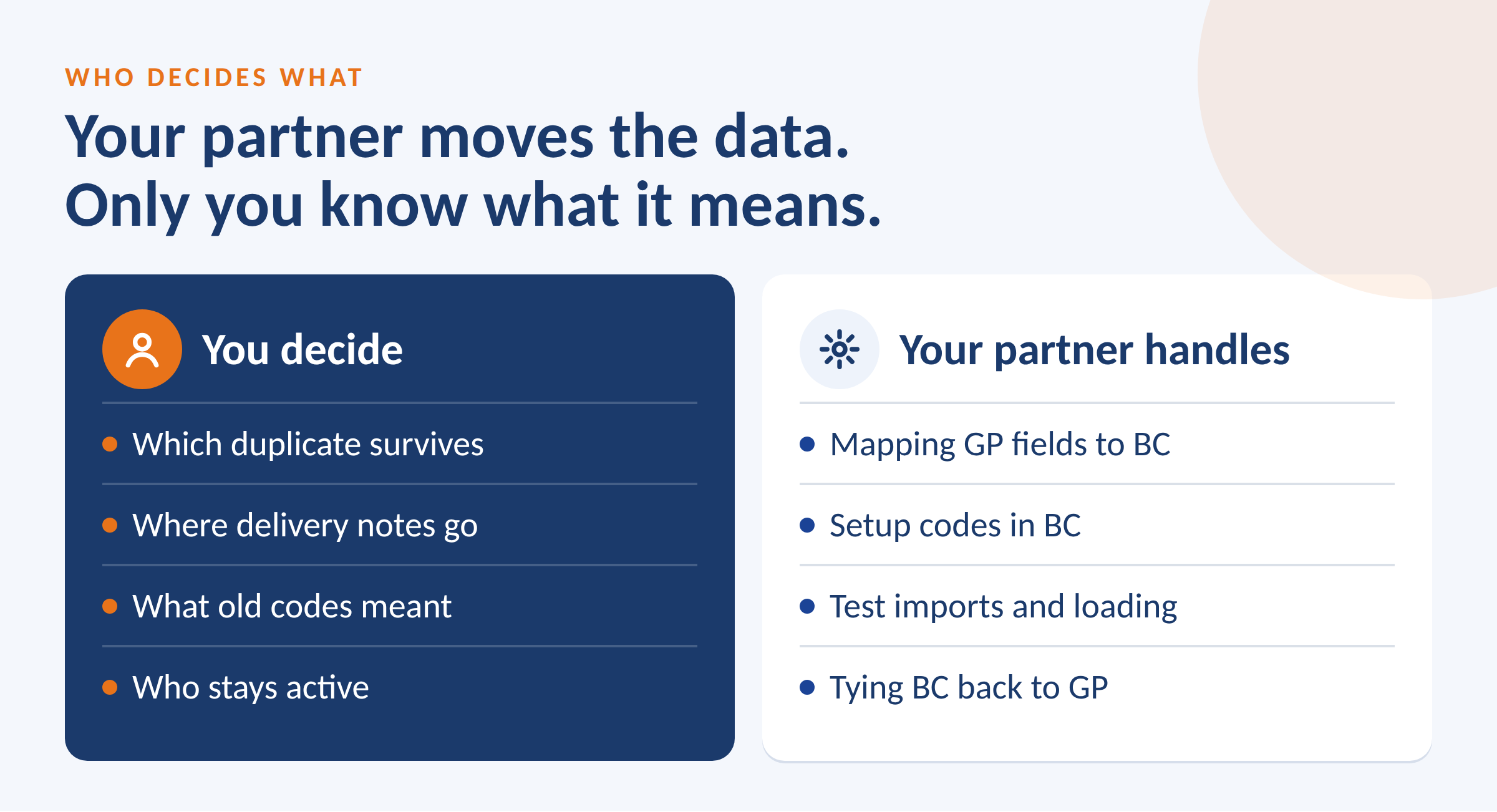
Your implementation partner can help map fields, transform data, and test the migration. But your team knows the story behind the data. They know whether Acorn Manufacturing and Acorn Mfg. are the same customer, which ship-to address is still active, and why a customer has a separate billing account.
The earlier you identify those questions, the more time you have to get the answers before the data moves to Business Central. The checks below will help you find the records worth looking at.
Start With a Copy of Your Data
Export your customer data from GP to Excel. SmartList is one option. Keep a copy of the original export unchanged so you always have the source data to reference. In your working file, include the GP Customer ID and Address ID so every record can be traced back to GP.
Make sure the export includes all the customer address records you may need for Business Central, including additional and ship-to addresses, rather than only the primary customer address.
The following checks are designed to help you find records that need attention before migration. Each check creates a review list so you can focus your cleanup on the exceptions instead of reviewing every record manually. Finding an exception is the first step. The record can then be verified against GP, source documents, the customer, or another trusted source before it is changed.
The following checks are designed to help you find records that need attention before migration. Each check creates a review list so you can focus your cleanup on the exceptions instead of reviewing every record manually. Finding an exception is the first step. The record can then be verified against GP, source documents, the customer, or another trusted source before it is changed.
The examples below assume these Excel columns:
D = Address 1
E = Address 2
F = Address 3
H = State
I = ZIP
J = Country
K = Phone
M = Email
Adjust the column references to match your export.
The phone and ZIP examples use the REGEXTEST function available in newer versions of Microsoft 365 Excel. If your version does not support REGEXTEST, the same checks can be performed with filters, helper columns, or alternative formulas.
Standardize State Values
For US mailing addresses, standardize state values using the USPS two-letter abbreviations. Compare the existing GP values against the official USPS list so variations such as Illinois, Ill, and IL can be identified and standardized.
In Business Central, state information is stored in the County field. Depending on the country and address configuration, the field caption and how it is used may vary. Consistent state codes will make filtering, reporting, and address management easier. Review sales tax setup separately since the state value alone does not determine the correct tax jurisdiction.
Create a worksheet named States and place the approved USPS abbreviations in cells A2, including any applicable territory and military mail codes. For US addresses, use this formula to flag values that need review:
=IF(AND(LEN(H2)=2,EXACT(H2,UPPER(H2)),SUMPRODUCT(--(States!$A$2:$A$100=H2))>0),"OK","Review")
Ask an AI assistant:
“Compare the State values with the supplied USPS abbreviation list. Show the original value and proposed standardized value. Flag missing or ambiguous records for review.”
For missing or unclear state values, use the complete address and source data to determine the correct value. Apply the appropriate state, province, or regional format for international addresses.
Agree on Country Codes
Business Central uses a Country/Region Code from the Countries/Regions configured in your BC environment. Before migration, decide which codes you will use and standardize the GP data to match them.
For example, GP may contain values such as USA, United States, U.S., and US that all represent the same country. Map these variations to the agreed BC code, such as US. Group and review the existing country values first so international addresses, territories, military addresses, and uncertain records are handled correctly.
Blank country values should also be reviewed against the rest of the address before assigning a country.
For records already confirmed as US addresses, use this formula to identify values that still need to be standardized:
=IF(EXACT(J2,"US"),"OK","Review")
Ask an AI assistant:
“Group the original Country values and show how often each value occurs. Using the supplied Business Central Country/Region Codes, propose a mapping for each value. Separate international, blank, and uncertain addresses for review.”
Phone Numbers and Extensions
Phone cleanup should start with the actual data, not how the phone number is displayed in GP. Review the exported values to understand whether they contain a phone number, extension, country code, or padding added by the export.
For example, a value such as 61555501420000 might represent 615-555-0142 followed by an unused four-digit extension, but confirm that pattern in the source data before changing it. Preserve real extensions and international country codes.
For confirmed US phone numbers, use a consistent format such as 615-555-0142 in the working file. If extensions are present, separate them into a review column so you can decide how they should map to BC. BC’s standard Customer Phone No. field supports up to 30 characters, so confirm how extensions and international numbers will be managed in your target BC environment and integrations.
Use this Excel formula to identify numbers already in the proposed US format:
=IF(REGEXTEST(K2&"","^[0-9]{3}-[0-9]{3}-[0-9]{4}$"),"OK","Review")
Numbers with extensions, international formats, missing digits, or other variations will be flagged for review.
Ask an AI assistant:
“Show each original phone value beside a proposed phone number and separate extension. Identify patterns that may represent export padding and explain which records need verification. Flag international numbers separately and preserve all original values.”
Review Phone 2, Phone 3, and fax numbers at the same time. Decide which numbers are still needed and where each should be stored in BC.
Keep the Leading Zeros in ZIP Codes
Excel may remove leading zeros from ZIP codes when it treats them as numbers. For example, 03101 can become 3101. Format ZIP code columns as Text before importing or working with the data. If leading zeros have already been removed, verify the original value against the source data or USPS.
For US addresses, look for five-digit ZIP codes or ZIP+4 values in the format 12345-6789. Keep valid ZIP+4 information when it is available.
Use this Excel formula to flag values that need review:
=IF(REGEXTEST(I2&"","^[0-9]{5}(-[0-9]{4})?$"),"OK","Review")
The formula checks the format of the ZIP code. It will flag blanks, letters, and values with the wrong number of digits. Review flagged records against the source data to determine the correct ZIP code.
Ask an AI assistant:
“Flag US ZIP codes that are not five digits or ZIP+4. Suggest corrections in a separate column and identify which records need verification. Leave international postal codes unchanged.”
Make Room for the Whole Address
The standard BC customer record supports 100 characters in Address and 50 characters in Address 2. Since there is no standard Address 3 field, review longer addresses before migration and confirm how they will map into BC.
Keep apartment, suite, floor, and building information as part of the mailing address. Separate delivery instructions, such as “Receiving Dock B, deliveries 7am–3pm,” and decide where that information should be stored in BC so the right people can see it. Use ship-to records when a customer has an alternate delivery address.
Ask an AI assistant:
“Flag Address 1 over 100 characters, Address 2 over 50 characters, and any records containing Address 3. Suggest how each address can fit completely within BC’s two address lines. Identify delivery instructions separately so we can decide where they should be stored.”
BC customer field | Standard maximum |
Address | 100 characters |
Address 2 | 50 characters |
City / County | 30 characters each |
Post Code | 20 characters |
Country/Region Code | 10 characters |
Customer No. | 20 characters |
These are the current standard field lengths.
Review Duplicates
A shared email address can be a sign of a duplicate customer, but it doesn’t mean the accounts should automatically be combined. Separate branches or legal entities may use the same accounts-payable inbox, and some customers legitimately have more than one billing account.
Ask an AI assistant:
“Find possible duplicate customers using normalized email, phone number, name, and address. Explain why each record may be a duplicate and retain both customer IDs. Do not merge or delete any records.”
Have the account owner review the results and confirm which records are true duplicates. Before making changes in GP, agree on which customer record will be kept, how existing transactions will be managed, and the appropriate merge process with your GP partner.
Be especially careful with accounts that have a zero net balance. They may still have open invoices and credits that offset each other.
After any approved changes are made, rerun the duplicate and transaction checks to make sure nothing was missed.
Build a Customer Number Map
If you plan to change customer numbers, record one row per GP company and customer ID, with the proposed BC number, decision, and reason. BC’s standard Customer No. is Code [20], which allows up to 20 characters.
|
|
|
ACORNMFG0001 | C10010 | Keep; new numbering |
ACORNMFG0002 | C10010 | Only after an approved merge |
BLUEGRASS001 | C10020 | Keep; new numbering |
OLDHICKORY01 | Leave blank | Exclude only after review |
Illustrative mapping only. Keep exclusion status in its own column; do not import “not migrated” as a customer number.
The map documents your decisions. Your partner still needs to implement them in the chosen migration process. Two source IDs pointing to one target ID do not automatically combine transactions, history, or balances.
Agree where the old GP IDs will be searchable, including every old ID in a many-to-one merge. Evaluate reports, integrations, and EDI with the new numbers. Keep access to the history you need. Use the same planning approach for vendors and items, checking their own target fields and dependencies.
Keep Approved Corrections Repeatable
Correct ordinary master-data errors in GP through supported screens or approved tools when practical. For changes that belong only in BC, keep a documented, repeatable transformation. Hand-editing each fresh export is an easy way to undo your own work.
Evaluate bulk updates and merges in a copy first, with a backup and a reconciliation plan. Agree which system is the source of truth during testing and cutover.
Write down the entry standards and share them with the people maintaining the data. For example, for phone numbers, explain GP’s entry mask separately from the desired export format. Recheck new and changed records monthly and before each test load and cutover.
Use AI as a Review Helper
An AI assistant can suggest cleanup rules and explain exceptions. Give it a defined set of rows and ask for a before-and-after list with the original IDs. Check row counts, review proposed changes, and verify uncertain values. It can miss records or make plausible but incorrect guesses.
Use your company’s approved tools and data-sharing rules. Excel formulas can run locally, but a workbook stored in a synced folder or used in Excel for the web may already be in the cloud. Keep the original export and the decision log whichever method you use.
10 More Cleanup Reviews to Assign
You can prepare these lists now. Have the responsible accounting or operations owner approve changes and involve your partner where the process or migration impact is unclear. Age alone is not a reason to delete data.
- Review customers with no recent sales. Two years can be a starting filter, not a GP rule. Check open documents and commitments before inactivating them; GP restricts inactivation when invoices remain outstanding.
- Review unused vendors, including outstanding POs, receipts, and payments. GP has additional inactivation restrictions involving purchase orders, balances and 1099 amounts; keep the year-end reporting requirements in view.
- Review discontinued items with inventory, open orders, returns, service needs or manufacturing dependencies. Confirm the supported status change and migration treatment before retiring them.
- Review old purchase orders and lines with purchasing and accounting. Received-but-uninvoiced quantities and accruals need attention; closing a PO does not always reverse accrued purchases.
- Review stale sales orders, quotes, and back orders with their owners. Check deposits, allocations, shipments, and customer commitments before closing or cancelling them.
- Apply receivables cash and credits to the correct documents. Use the approved write-off policy for small differences, with the proper posting date and accounts.
- Apply payables credits and unapplied payments after confirming the supporting documents. A net zero vendor balance does not mean every document is settled.
- Investigate old unposted batches. Post valid transactions in the correct period; delete only confirmed duplicates or abandoned work under your normal approval process.
- Review unused terms, shipping methods, salespeople, price levels, and GL accounts. Check references and history before changing them. GP account deletion has specific restrictions; do not purge history just to shorten a list.
- Reconcile bank, receivables, payables, and inventory balances to the GL at the agreed cutoff. Investigate differences and retain the supporting reports for comparison after migration.
What to Hand Your Partner
Bring the original export, reviewed corrections, number map, unresolved questions, and reconciliation reports. Then adapt the checks for vendors, using their column layout and business rules. Start with one customer list this week.