
Managing Updates in Dynamics 365 Business Central



Microsoft releases updates for Business Central on a monthly basis. These include hotfixes and small improvements. There are two major releases per year (April and October) that include significant improvements and new features. You need to at least update to the two major releases each year. You can defer the minor releases if there are no changes that you require within limits.
You will need access to the Business Central Admin Center. The user will need to have an appropriate role assigned in Microsoft Entra. Typically, you will want to limit both the number of users with access and their level of access. The “Dynamics 365 Business Central Administrator” role is often used.
Considerations
Here are some key things to consider when considering scheduling an update:
- Test the update in a Sandbox before you update your Production Environment.
- Check the release notes for the new version, so you will know what areas are impacted. If you have skipped minor releases, then you need to check each version between current and the target version.
- Within the environment that you are updating, check the Apps to ensure that they are up-to-date. There are three types to check (Global, Per Tenant Extensions (PTEs), Dev). If needed you can schedule App updates to take place during the next update window or immediately.
- Schedule your environment to update.
- Perform structured (or ideally automated) testing to ensure that the affected functional areas are fully functional. Deal with any issues prior to updating the Production environment. Here are some key areas to check you integrations, job queues, report layouts and permissions.
- Check the notifications for any update errors if you environment does not get updated when scheduled.
Updating Business Central
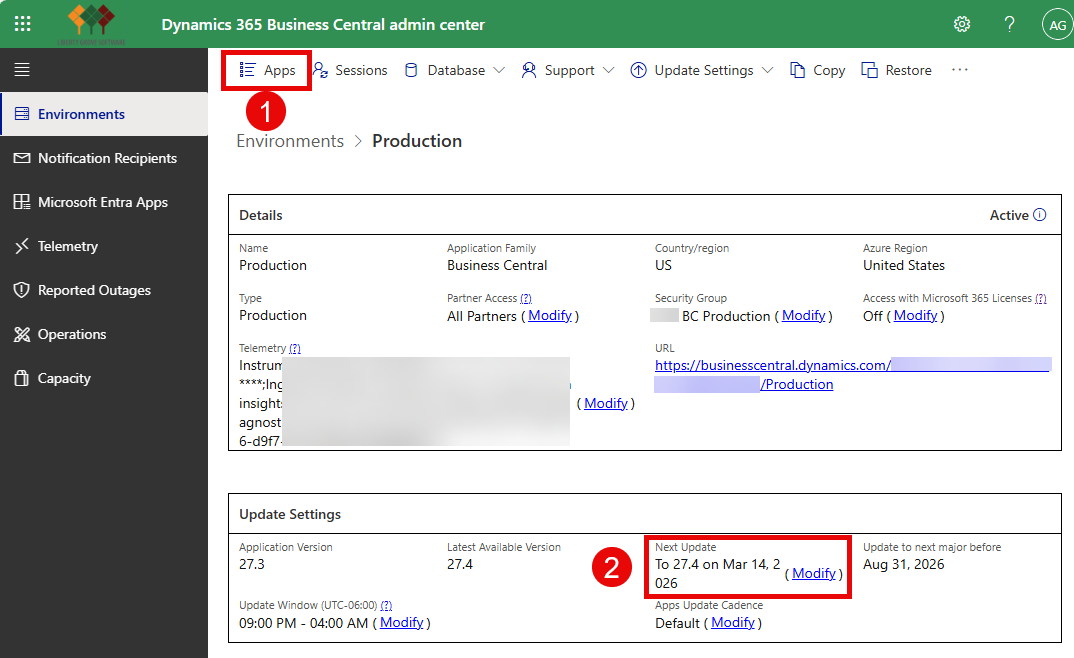
From within the Business Central Admin Center, you will get access to your environments and settings. The update settings and details are contained within each environment. Below, you can see where to get access to your Apps and where to schedule your update. Updates occur within the “Update Window” (which needs to be at least 6 hours) unless you explicitly override that during scheduling.
You should verify that the “Notification Recipients” are set up. These are emails where messages are sent related to your Business Central environment and updates.
Finally, once the environment is updated, check “Feature Management” from within Business Central to preview and/or activate new features. Note that features will become mandatory and will be automatically activated at a specific version.
