Business Central Planning Engine Decisions: Item Card Configuration



In Business Central, the Item Card’s Planning tab includes key fields that control how and when items are replenished. These fields guide the planning engine’s decisions on supply orders.
Core Planning Fields on the Item Card
Item Card / Planning FastTab

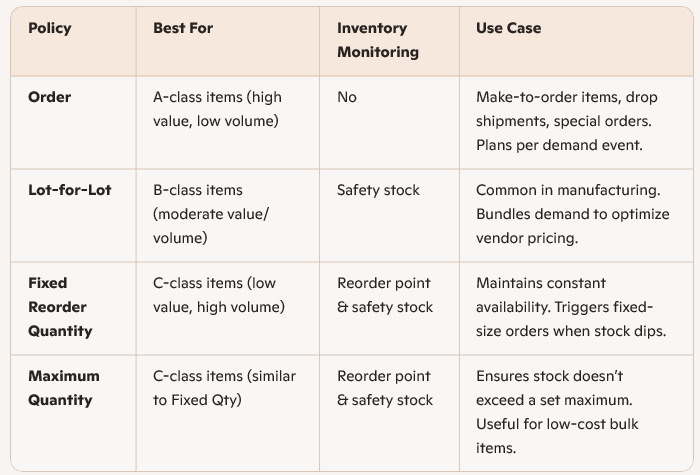
Reordering Policy
- Purpose: Defines how the system calculates replenishment.
- Options:
- Fixed Reorder Quantity
- Maximum Quantity
- Order
- Lot-for-Lot
- Fixed Reorder Quantity
- Impact: Determines which other fields become editable and how supply is planned (e.g., per demand or in batches).
Reserve
- Controls reservation behavior: Never, Optional, or Always.
Order Tracking Policy
- Enables tracking of supply-demand links, affecting performance and visibility.
Time Bucket
- Defines the interval for checking inventory levels under reorder point policies.
Dampener Period
- Prevents frequent rescheduling by setting a buffer period.
Safety Stock Quantity
- Buffer stock to prevent stockouts.
Safety Lead Time
- Extra time added to ensure timely delivery before the demanding due date.
Lot for Lot
Lot Accumulation Period
- Bundles multiple demands into one supply order within a defined period.
Rescheduling Period
- Time window for adjusting existing supply orders to meet demand changes.
Fixed Reorder Qty and/or Maximum Qty
Reorder Point
- Minimum inventory level before triggering a reorder.
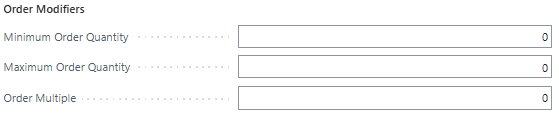
Order Modifiers
- Minimum Order Quantity
- Maximum Order Quantity
- Order Multiple: Ensures order quantities align with packaging or production constraints (e.g., multiples of 25).
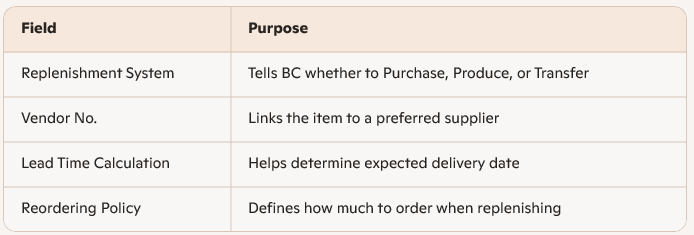
Replenishment System
Tells Business Central whether to Purchase, Produce, or Transfer.
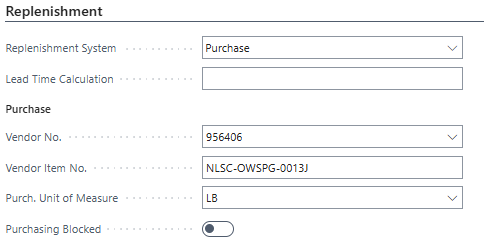
Purchase
- Restocked by purchasing it from a vendor—not by production or transfer
Manufacturing Policy
- Make-to-Stock or Make-to-Order — influences how supply is triggered.
These fields work together to ensure that Business Central’s planning engine can generate accurate and efficient orders based on demand, inventory levels, and business rules. If you’re configuring items for planning, it’s crucial to understand how each field interacts with others to avoid unexpected results in MRP or requisition worksheets.
Sample Item Setup: “Blue Widget”
We will sell a product called a Blue Widget. You want to ensure it’s always in stock but not overstocked.
Item Step-by-Step Configuration
Reordering Policy: Fixed Reorder Quantity
- This means the system will always order a fixed quantity when inventory drops below the reorder point.
Reorder Point: 50 units
- When inventory falls below 50, the system triggers a reorder.
Reorder Quantity: 200 units
- Each time a reorder is triggered, 200 units are ordered.
Safety Stock Quantity: 25 units
- Acts as a buffer to prevent stockouts due to unexpected demand.
Safety Lead Time: 2 days
- Adds 2 days to the expected delivery time to account for delays.
Lot Accumulation Period: 7 days
- Combines all demand within a 7-day window into one supply order.
Order Modifiers:
- Minimum Order Quantity: 100
- Maximum Order Quantity: 500
- Order Multiple: 50 (ensure orders are placed in multiples of 50)
Dampener Period: 3 days
- Prevents frequent changes to supply orders unless demand shifts significantly.
Rescheduling Period: 5 days
- Allows the system to suggest rescheduling supply orders within a 5-day window.
Manufacturing Policy: Make-to-Stock
- Items are produced or purchased in anticipation of demand.
How It Works in Practice
- If inventory drops to 45 units, the system sees it’s below the reorder point (50) and triggers a reorder.
- It checks modifiers: the reorder quantity is 200, which fits within the min/max and is a multiple of 50.
- If multiple sales orders are due within the next 7 days, they’re bundled into one supply order.
- If a supply order is already scheduled but demand shifts slightly, the dampener period prevents constant rescheduling.
This example will simulate how the Blue Widget behaves in a Planning Worksheet in Business Central based on the setup defined. This will show you how the system reacts to inventory levels and demand.
Scenario: Planning Worksheet Simulation
Setup Recap:
- Reorder Point: 50 units
- Reorder Quantity: 200 units
- Safety Stock: 25 units
- Current Inventory: 60 units
- Sales Order: 30 units due in 3 days
- Reordering Policy: Fixed Reorder Quantity
- Lot Accumulation Period: 7 days
Step-by-Step Simulation
1. Demand Hits
- A sales order for 30 units is placed.
- Inventory drops from 60 → 30 units.
2. Planning Engine Triggers
- Inventory (30) is now below the Reorder Point (50).
- Planning Worksheet suggests a Purchase Order or Production Order for 200 units.
3. Lot Accumulation
- If another sales order for 20 units is due within the next 7 days, it’s bundled into the same supply order.
- Total demand = 50 units → still triggers one supply order of 200 units.
4. Safety Stock Consideration
- The system ensures that after fulfilling demand, at least 25 units remain in stock.
5. Order Modifiers Check
- 200 units is:
- Above the Minimum Order Quantity (100)
- Below the Maximum Order Quantity (500)
- A multiple of 50
- Above the Minimum Order Quantity (100)
6. Rescheduling & Dampener
- If the delivery date shifts slightly, the system checks:
- Is it within the Rescheduling Period (5 days)?
- Is it outside the Dampener Period (3 days)?
- Is it within the Rescheduling Period (5 days)?
- If yes, it may suggest rescheduling the supply order.
Planning Worksheet Output

Customer Item Card Configuration
Replenishment = Purchase
Lead Time = 5D
Safety Stock = 2,450#: Minimum Order and Order Multiple = 2,450#
Start Production Use = 10/13/2025 – Lead Time 5D = Purchase Date Due 10/08/2025
Calculate Regenerative Plan MRP

No Supply Demand – Customer
Supply Demand = Safety Stock 2,450#
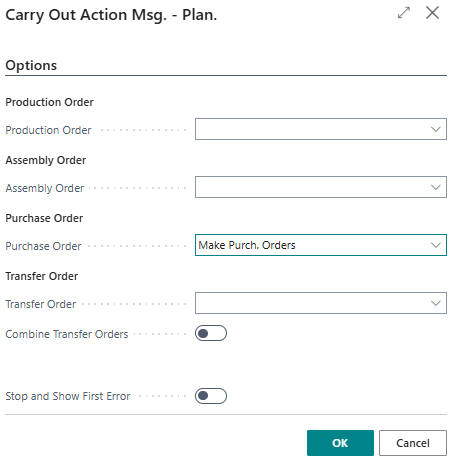
Purchase Order Requirement = Order Date 10/08/2025 to have Expected Receipt 10/13/2025
Carry out Action Message = New
Create the Purchase Order Automatically
The Planning Worksheet in Microsoft Dynamics 365 Business Central is fundamentally a date-driven supply and demand engine. Every planning suggestion it creates is based on calculating:
- When demand occurs
- When supply is available
- How long replenishment takes
- What dates must be used to avoid shortages or excess inventory
Understanding how dates are calculated is the key to understanding why Business Central creates:
- Action Messages
- Requisition lines
- Transfer suggestions
- Production Orders
- Purchase Orders
- Reschedule messages
- Cancel messages
1. Core Planning Concept
Planning works backward from demand dates. Business Central asks:
“When must supply exist so inventory is available on the demand date?”
Then it subtracts:
- Lead times
- Safety lead time
- Manufacturing times
- Queue times
- Vendor times
- Transfer times
- Calendars
- Dampener rules
- Rescheduling rules
The result becomes:
- Order Date
- Starting Date
- Ending Date
- Due Date
2. The Three Most Important Dates in Planning
Demand Date
The date inventory is required.
Examples:
- Sales Shipment Date
- Production Component Need Date
- Transfer Shipment Date
- Service Order Date
- Forecast Date
This is the anchor date.
Due Date
The date replenishment must be available.
For:
- Purchase Orders → Expected Receipt Date
- Production Orders → Ending Date
- Transfer Orders → Receipt Date
Usually:
Due Date = Demand Date
Unless offsets or safety time exists.
Order Date
The date planning says you must start procurement or production.
Calculated backward from Due Date.
3. The Master Date Calculation Formula
The general planning formula is:
Purchase Orders
Order Date = Due Date – Vendor Lead Time – Safety Lead Time – Inbound Warehouse Handling Time
Production Orders
Starting Date = Ending Date – Routing Times – Queue Time – Move Time – Wait Time – Safety Lead Time
Transfer Orders
Shipment Date = Receipt Date – Transfer Time – Outbound Warehouse Handling – Shipping Time
4. Planning Worksheet Date Flow
The Planning Worksheet processes dates in this sequence:
Demand Date
↓
Projected Inventory
↓
Netting
↓
Reorder Policy Logic
↓
Lead Time Calculation
↓
Calendar Validation
↓
Action Message Creation
5. Where Business Central Gets Date Information
A. Item Card
Reordering Policy
Determines HOW dates are generated.
Common:
- Fixed Reorder Qty.
- Maximum Qty.
- Lot-for-Lot
- Order
- Blanket Order
Safety Lead Time
Extra protection days added before demand.
Example:
Demand Date = May 30
Safety Lead Time = 3D
Adjusted Due Date = May 27
Lead Time Calculation
Default replenishment lead time.
Can represent:
- Vendor time
- Internal production time
- Assembly time
Example:
Lead Time = 14D
Due Date = May 27
Order Date = May 13
Dampener Period
Controls sensitivity to date changes.
Prevents nervous planning.
Example: If the supply moves only 1 day and the dampener is 3 days:
- No reschedule message created.
Rescheduling Period
Defines acceptable date movement window.
6. Vendor Dates and Purchasing
Vendor Card and SKU can override dates.
Vendor Lead Time Hierarchy
Planning uses:
- SKU Vendor Lead Time
- Item Vendor Catalog
- Vendor Lead Time
- Item Lead Time Calculation
Purchase Order Example
Demand:
Sales Order Shipment Date = June 30
Settings:
Vendor Lead Time = 10D
Safety Lead Time = 2D
Inbound Handling = 1D
Calculation:
Need By Date = June 30
Adjusted Due Date = June 27
Order Date = June 17
Result:
PO Order Date = June 17
Expected Receipt Date = June 27
7. Manufacturing Date Calculations
Manufacturing is more complex because routing drives dates.
Planning uses:
- Routing Setup Times
- Run Times
- Wait Times
- Move Times
- Queue Times
- Calendar Capacity
8. Forward vs Backward Scheduling
Backward Scheduling (Most Common)
Starts from demand date.
Need Finished Good on June 30
↓
Subtract manufacturing time
↓
Start Production June 20
Forward Scheduling
Starts today and calculates finish date.
Used when:
- Late orders
- Capacity overloads
- Manual scheduling
9. Low-Level Code and Pegging Impact on Dates
Planning processes:
- Parent demand
- Then component demand
Using: Low-Level Codes
This creates dependent dates.
Example
Finished Good:
Need Date = June 30
Production requires component 5 days earlier.
Component Demand Date: June 25
Vendor lead time: 7 days
Purchase Order Date: June 18
This is called:Dynamic Date Pegging
10. Action Messages and Date Logic
Planning compares:
- Existing supply dates vs Required dates
Then generates messages.
Reschedule Forward
Supply too early.
Example:
PO Receipt = June 1
Need Date = June 20
Suggestion:
Reschedule Forward to June 20
Reschedule Back
Supply too late.
Example:
PO Receipt = June 28
Need Date = June 20
Suggestion:
Reschedule Back to June 20
Cancel
Supply no longer needed.
Change Quantity
Dates remain valid but quantity incorrect.
11. Planning Flexibility and Dates
Supply orders can be:
- Unlimited
- None
Unlimited: Planning can move dates.
None: Planning cannot modify dates.
This is critical. Frozen orders prevent date optimization.
12. Calendars and Working Days
Business Central adjusts dates using:
- Base Calendars
- Vendor Calendars
- Location Calendars
- Shop Calendars
Example
If calculated order date lands on Sunday: June 15
Planning moves to: June 16
Depending on calendar setup.
13. Time Buckets and Date Consolidation
For Lot-for-Lot:
- Each demand can create separate dates.
For Time Bucket:
- Demands inside bucket consolidate.
Example
Time Bucket = 7D
Demands:
June 1
June 3
June 5
Planning creates: Single supply date, instead of three separate orders.
14. Safety Stock and Date Effects
Safety stock creates earlier replenishment.
Planning protects: Projected Inventory >= Safety Stock
This often shifts dates earlier than actual demand.
15. Forecast Dates
Forecast entries become demand dates.
Planning calculates:
Forecast Date
↓
Net Demand Date
↓
Supply Due Date
↓
Order Date
Forecast consumption modifies these dates dynamically.
16. Planning Worksheet Calculation Sequence
When you run:
Calculate Regenerative Plan
Business Central:
Step 1
Explodes BOM demand dates.
Step 2
Calculates projected inventory timeline.
Step 3
Applies reorder policies.
Step 4
Calculates replenishment dates.
Step 5
Applies calendars.
Step 6
Creates action messages.
17. Dynamic Tracking and Date Changes
One sales order date change can ripple through:
- Production Orders
- Purchase Orders
- Transfer Orders
- Component demand
This is why planners experience nervousness
18. Why Dates Sometimes Look Wrong
Usually caused by: Incorrect Lead Times
Most common issue: Missing Calendars
Causes unrealistic weekends.
Incorrect Routing Times
Production dates compress incorrectly.
Safety Lead Time Too Large
Everything shifts earlier.
Dampener Settings
Suppresses expected changes.
Planning Flexibility = None
Prevents optimization.
19. Critical Fields That Affect Dates
Item Card
- Lead Time Calculation
- Safety Lead Time
- Reordering Policy
- Dampener Period
- Rescheduling Period
- Lot Accumulation Period
SKU Card
- Lead Time
- Vendor
- Transfer Time
Vendor
- Lead Time Calculation
- Base Calendar
Manufacturing Setup
- Default Dampener
- Combined MPS/MRP
- Dynamic Low-Level Code
20. Example Full End-to-End Date Calculation
Scenario
Sales Order:
Shipment Date = July 30
Qty = 100
Finished Good:
Production Time = 5D
Safety Lead Time = 2D
Component:
Vendor Lead Time = 10D
Step 1 — Finished Good Due Date
July 30
Step 2 — Production Start Date
July 30
– 5D
– 2D
= July 23
Step 3 — Component Demand Date
Component needed at production start:
July 23
Step 4 — Purchase Order Date
July 23
– 10D
= July 13
Final Result
Planning Worksheet creates:
Order Type | Order Date | Due Date |
|---|---|---|
Purchase Order | July 13 | July 23 |
Production Order | July 23 | July 30 |
21. The Most Important Planning Concept to Teach Users
Planning is NOT:
“What do I need?”
Planning is:
“When do I need it?”
Everything in Business Central planning revolves around:
- Demand dates
- Supply dates
- Lead times
- Calendar logic
- Dynamic pegging
22. Best Practice Recommendations
Always Maintain:
- Accurate vendor lead times
Accurate routing times
Calendars
Safety lead times
Planning flexibility rules
Avoid:
- Zero lead times
- Blanket use of Lot-for-Lot
- Ignoring dampeners
- Frozen supply orders
- Missing SKU planning parameters
23. Advanced Planning Concepts
Emergency Orders
Created when:
Order Date < WORKDATE
Date Conflict Resolution
Planning prioritizes:
- Demand fulfillment
- Safety stock
- Existing supply reuse
- Rescheduling before new orders
Planning Horizon
Orders outside horizon may not generate.
24. Key Teaching Message
The Planning Worksheet is essentially a giant date calculation engine that:
- Calculates shortages over time
- Offsets supply dates backward
- Dynamically links supply and demand
- Continuously recalculates based on changing dates
Understanding:
- Lead times
- Due dates
- Starting dates
- Calendars
- Pegging
is what separates basic users from expert planners in Microsoft Dynamics 365 Business Central.
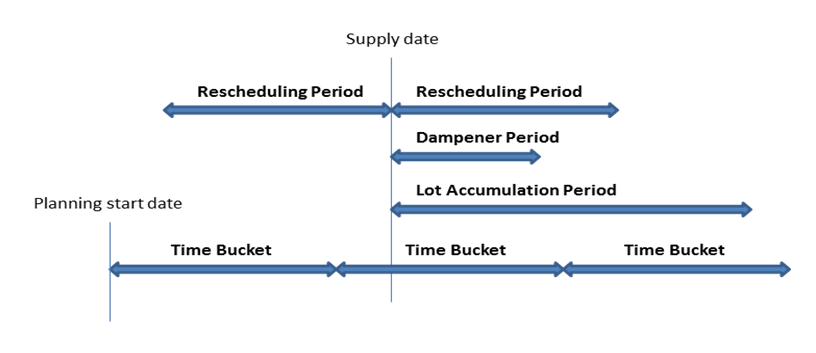
The timing of rescheduling period, dampener period, and lot accumulation period is based on a supply date. The time bucket is based on the planning start date, as shown in the following illustration.
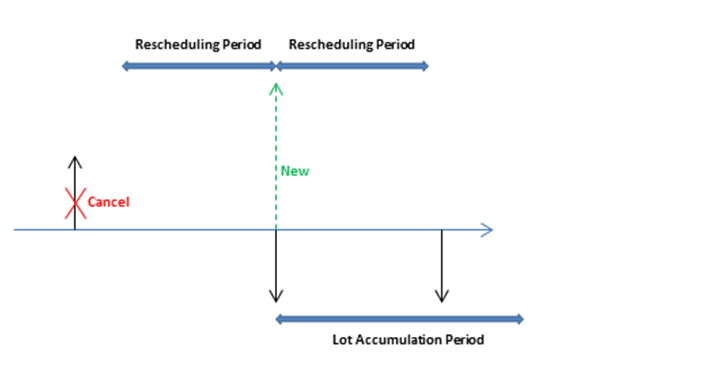
In the following examples, the black arrows represent existing supply (up) and demand (down). Red, green, and orange arrows are planning suggestions.
Example 1: The changed date is outside the rescheduling period, which causes the existing supply to be canceled. A new supply is suggested to cover the demand in the lot accumulation period.
Example 2: The changed date is in the rescheduling period, which causes the existing supply to be rescheduled. A new supply is suggested to cover the demand outside the lot accumulation period.
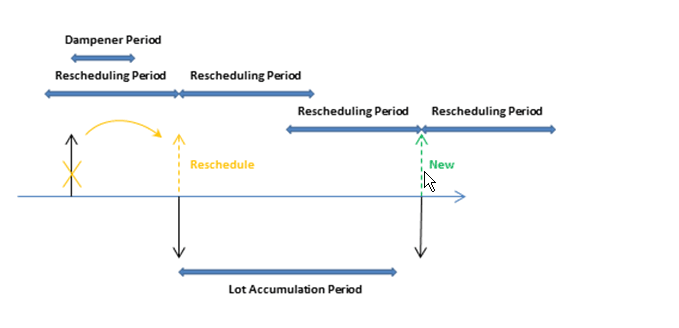
Example 3: There’s a demand in the dampener period and the supply quantity in the lot accumulation period matches the supply quantity. The next demand is uncovered and a new supply is suggested.
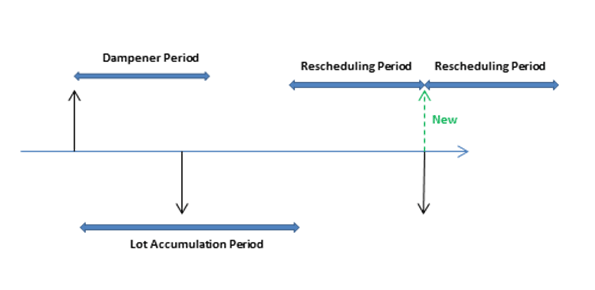
Example 4: There’s a demand in the dampener period and the supply remains on the same date. However, the current supply quantity doesn’t cover the demand in the lot accumulation period. A change quantity action for the existing supply order is suggested.
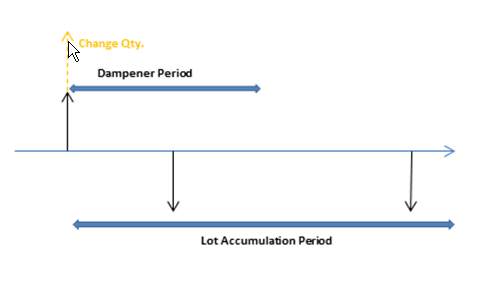
Default values: The default value of the Time Bucket field and the three reorder period fields are blank. For all fields, except the Dampener Period field, this means 0D (zero days). If the Dampener Period field is blank, the global value in the Default Dampener Period field on the Inventory Setup page is used.