Back to Basics: How to Ship from a Sales Order in Business Central


Shipping from a Sales Order is used when you are ready to fulfill goods or services. You can ship Items, Resources, and G/L Account lines, either partially or in full, with or without invoicing. This post reviews the steps for shipping from a sales order in Dynamics 365 Business Central.
Step 1: Open the Sales Order
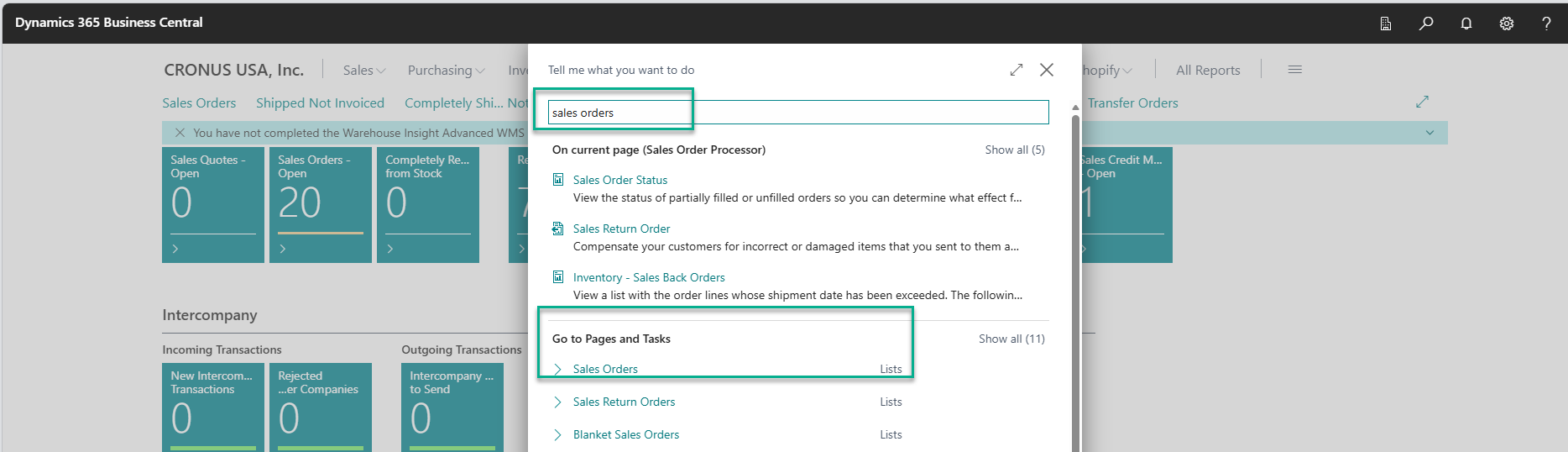
- Select the search (🔍) icon
- Type Sales Orders
- Select Sales Orders from the list
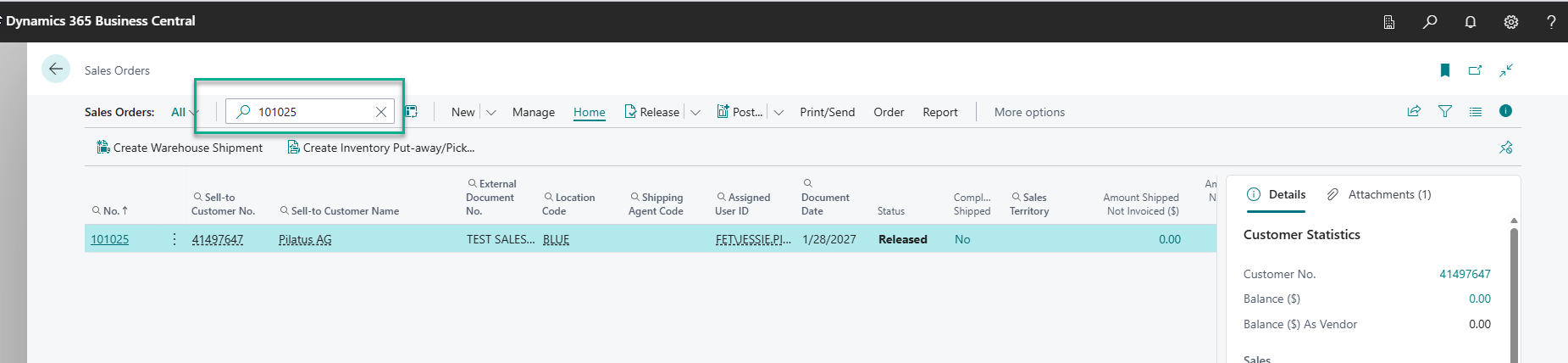
Open the existing sales order you want to ship.
Step 2: Verify Sales Order Status
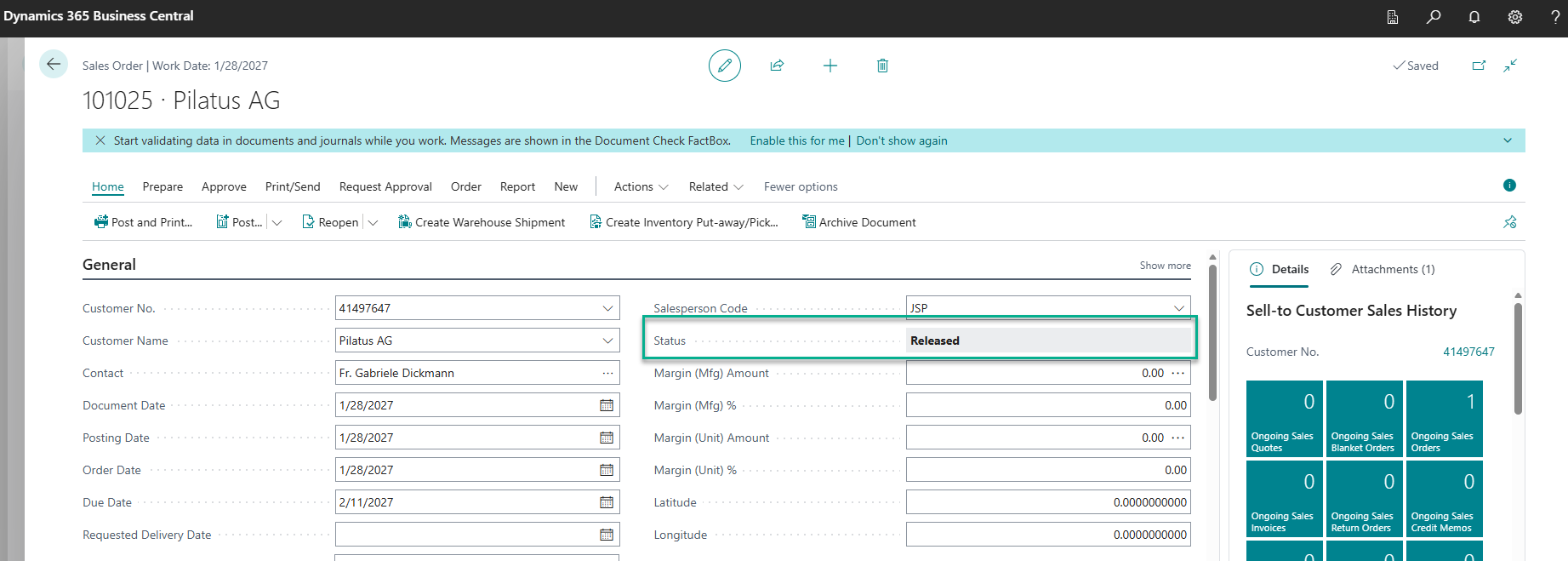
Ensure the sales order is:
- Status = Released
- If not released:
- Click Release
- Status will change from Open → Released
- Click Release
Only Released orders can be shipped.
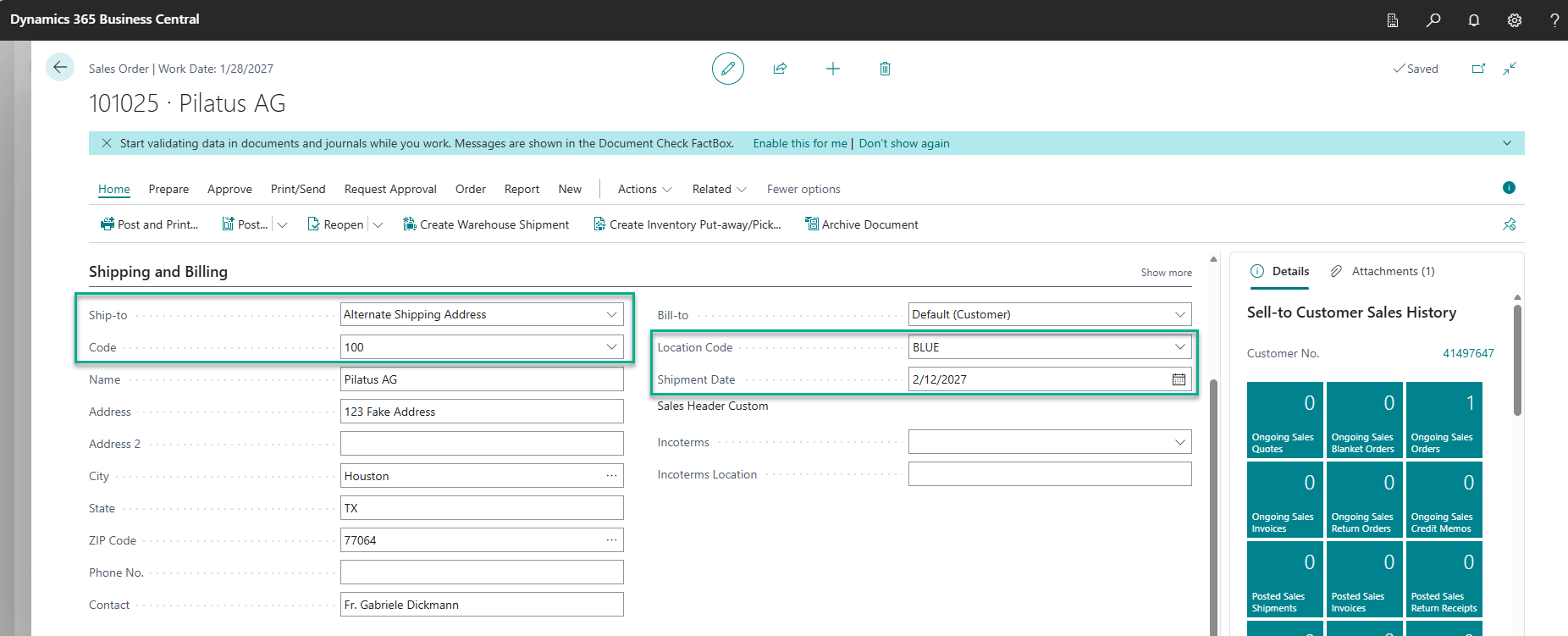
Step 3: Review Shipping Details
In the Shipping and Billing section:
- Confirm Ship-to Address
- Review Shipment Date
- Validate Location Code (if applicable)
These fields determine where and when the shipment is posted.
Step 4: Review Sales Lines (Items / Resources / G/L)
In the Lines section, confirm each line type:
- Item → Physical goods (affects inventory)
- Resource → Labor/services
- G/L Account → Charges (freight, fees)
Verify:
- Quantity
- Unit Price
- Description
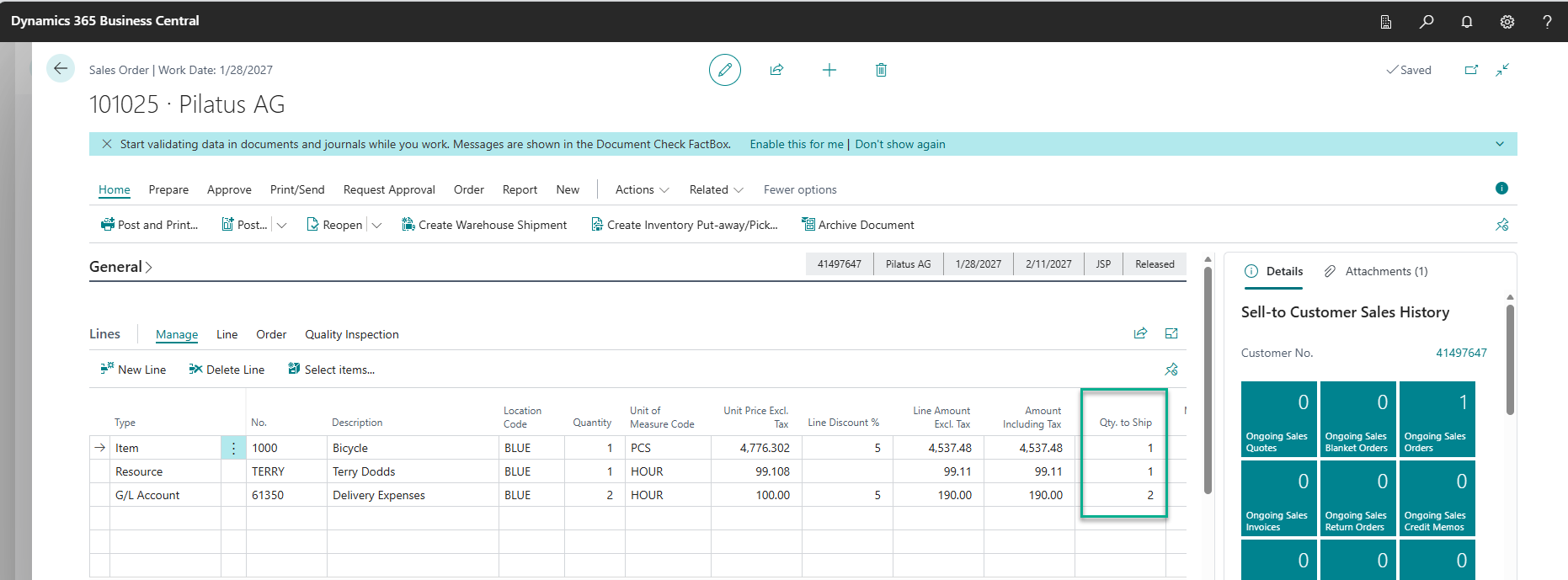
Step 5: Enter Quantities to Ship
For each line:
- Locate Qty. to Ship
- Enter:
- Full quantity → full shipment
- Partial quantity → partial shipment
- Full quantity → full shipment
System behavior:
- Defaults to remaining outstanding quantity
- Can be adjusted for partial shipments
Step 6: Check Inventory Availability (Items Only)
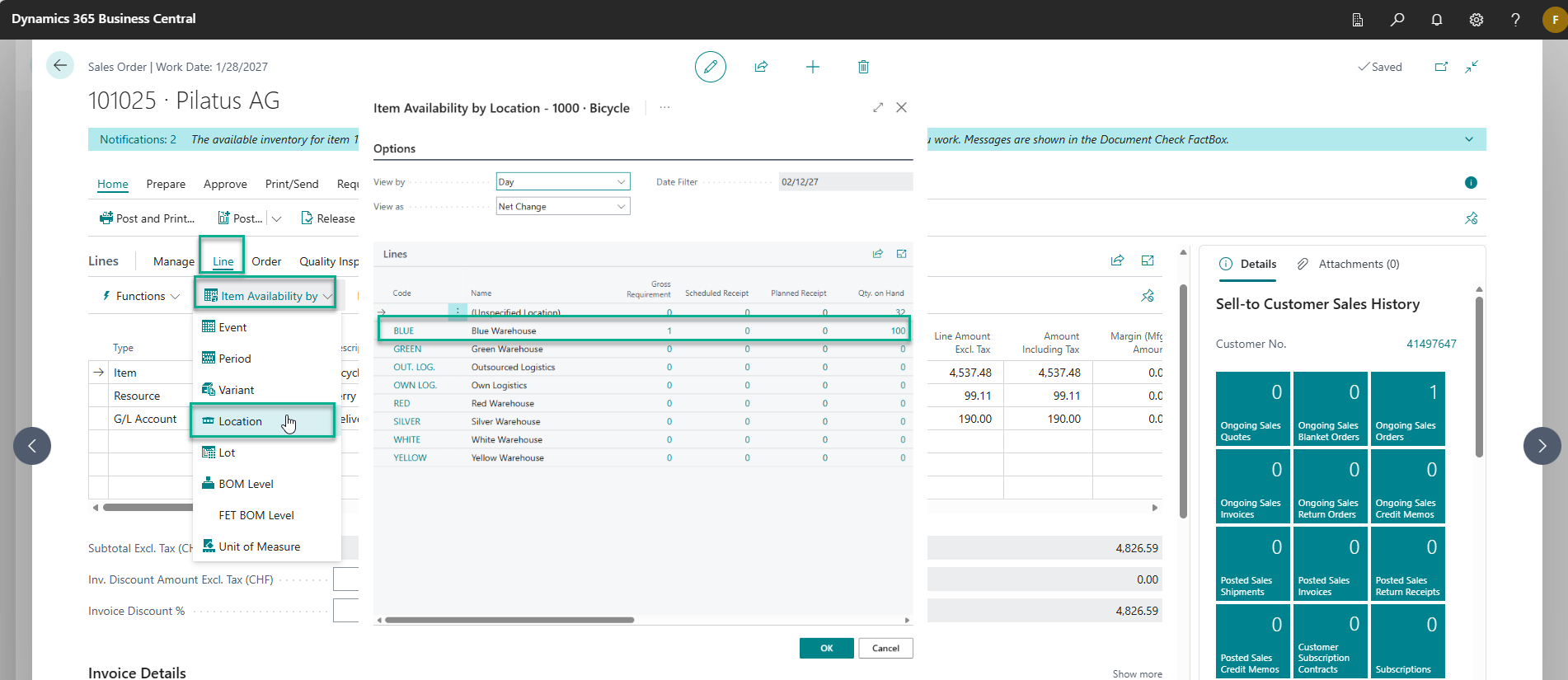
For Item lines only:
- Select the line
- Click Line → Item Availability
Confirm:
- Sufficient inventory exists
- Stock is available at the selected location
Step 7: Post the Shipment
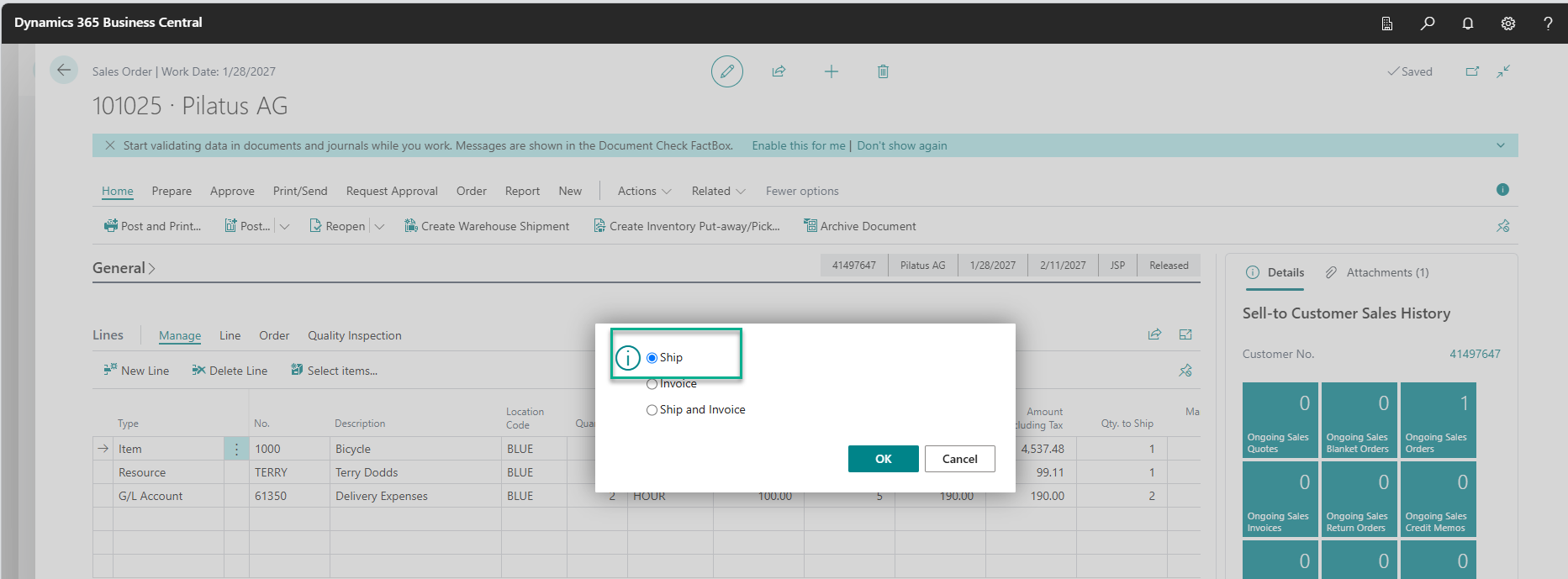
Click Post and select one of the following options:
Option A: Ship
- Ships items only
- Does not invoice
- Ships items
- Creates and posts invoice simultaneously
Option B: Ship and Invoice
Recommended:
- Use Ship only if invoicing occurs later (this example below)
- Use Ship and Invoice for immediate billing
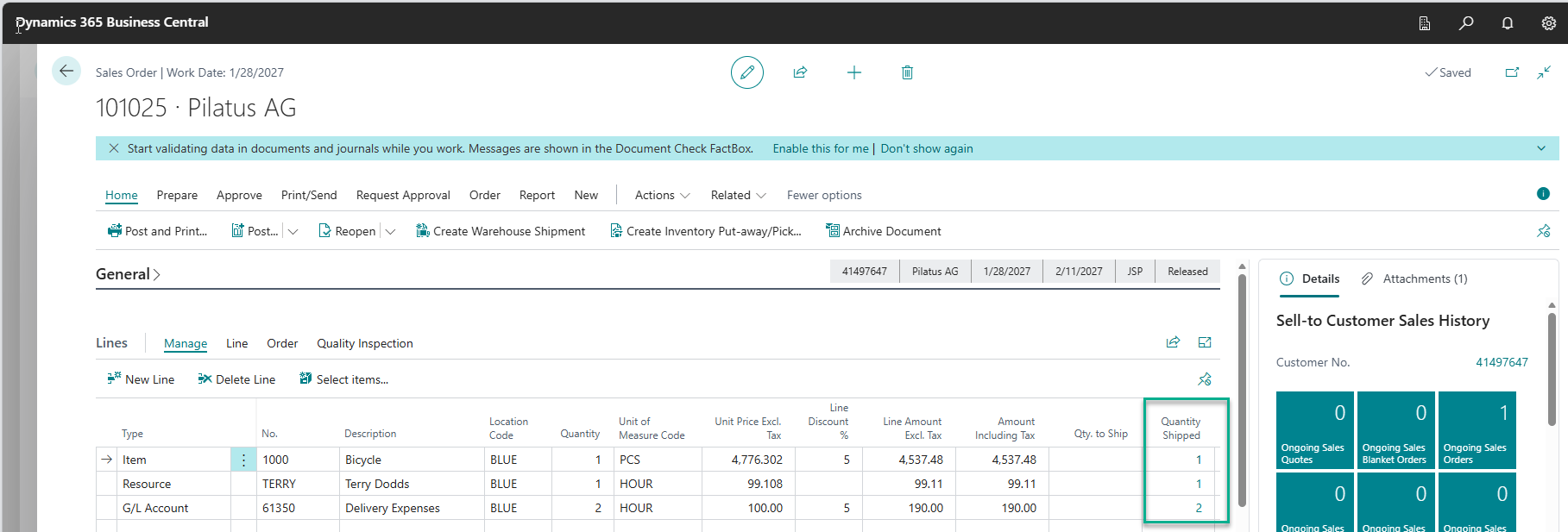
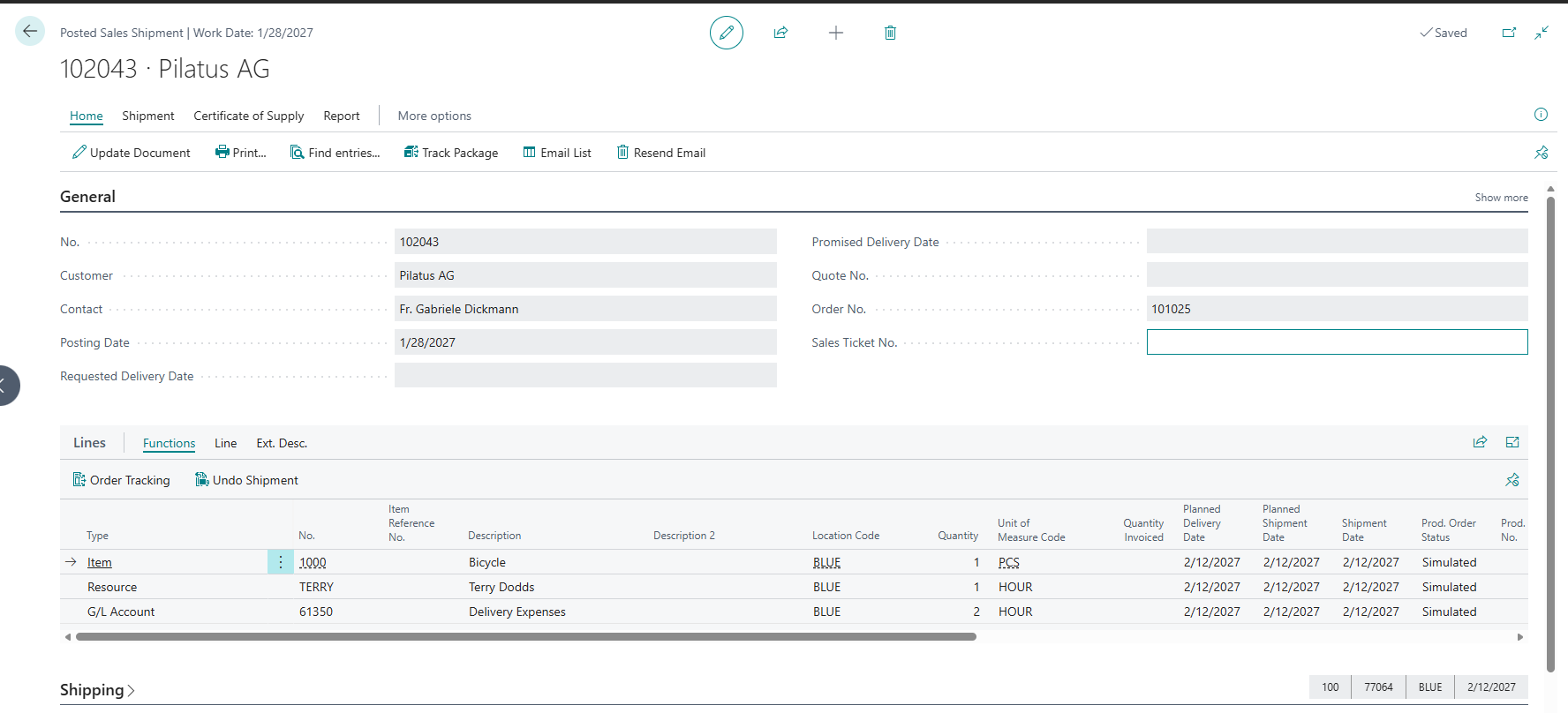
Step 8: Review Posted Shipment
After posting:
- Go to Posted Sales Shipments
- Locate the shipment
- Review:
- Quantities shipped
- Posting date
- Customer details
- Dimensions
- Quantities shipped
This document serves as the official audit record of shipment activity.

Step 9: Partial and Repeat Shipments
If not all quantities were shipped:
- Remaining quantities stay open on the order
- Repeat Steps 5–7 until fully shipped