Back to Basics: How to Invoice From a Sales Order


Invoicing from a Sales Order can be used when goods or services have been delivered and you are ready to create and post the customer Invoice.
Before posting the invoice:
- The Sales Order has been created
- Customer information is correct
- Lines, quantities, prices, and dimensions have been verified
- Items have been shipped (if required by your company’s process)
- Any approvals have been completed
Method 1: Post Shipment and Invoice Together
Use this option when the order has not yet been shipped and you want Business Central to create both the shipment and invoice at the same time.
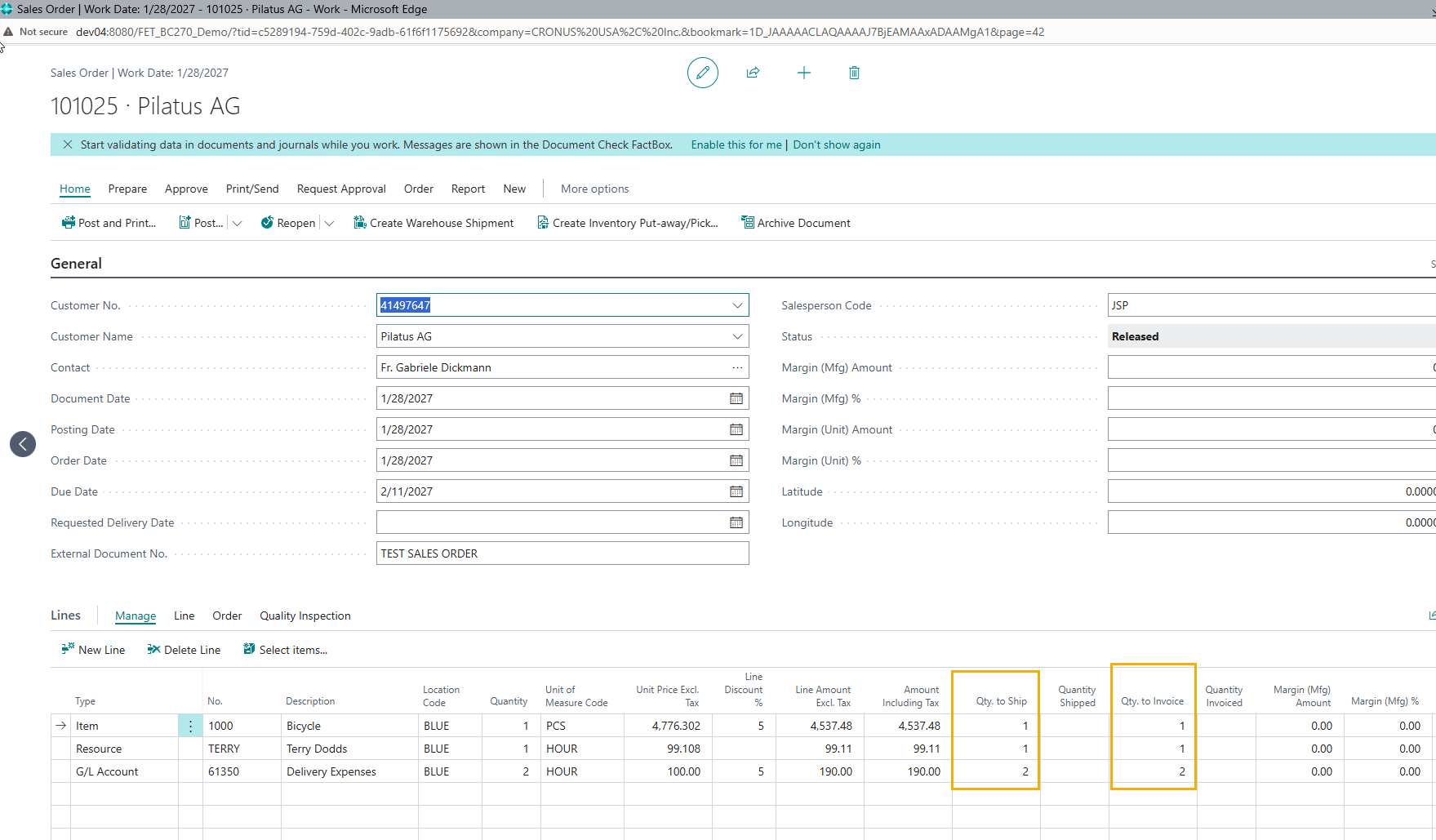
Here are the steps:
- Select Sales Orders from the search bar (Alt+Q)
- Open the desired Sales Order
- Review:
- Customer
- Order lines
- Quantities
- Prices
- Posting Date
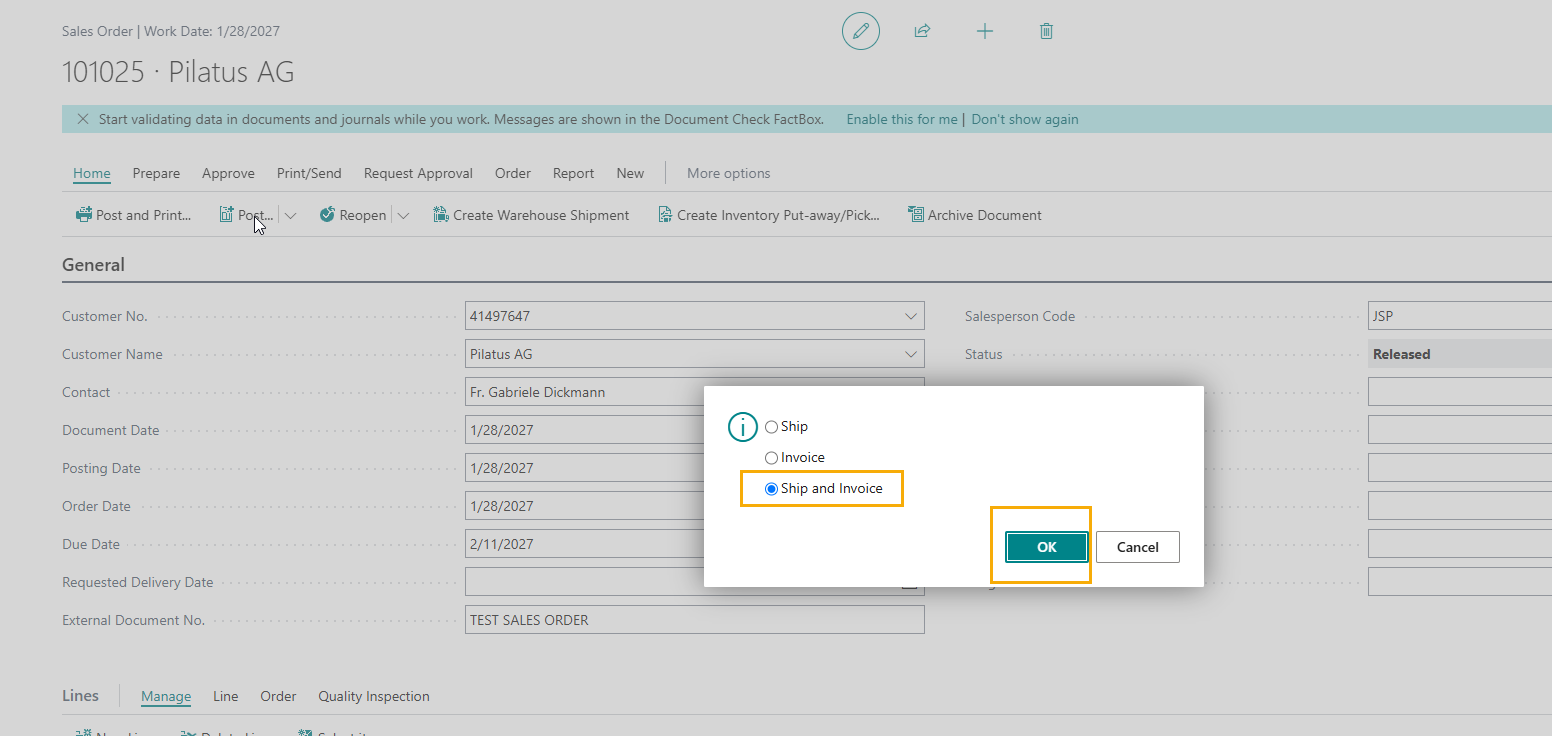
- Select Posting on the action menu
- Select Post
- In the Post Sales Order dialog:
- Choose Ship and Invoice
- Select OK
As a result, Business Central will:
- Create a Posted Sales Shipment.
- Create a Posted Sales Invoice.
- Update inventory.
- Create the corresponding General Ledger entries.
- Create Customer Ledger Entries.
Method 2: Invoice an Already Shipped Sales Order
Use this option when the shipment has already been posted and you only need to create the invoice.
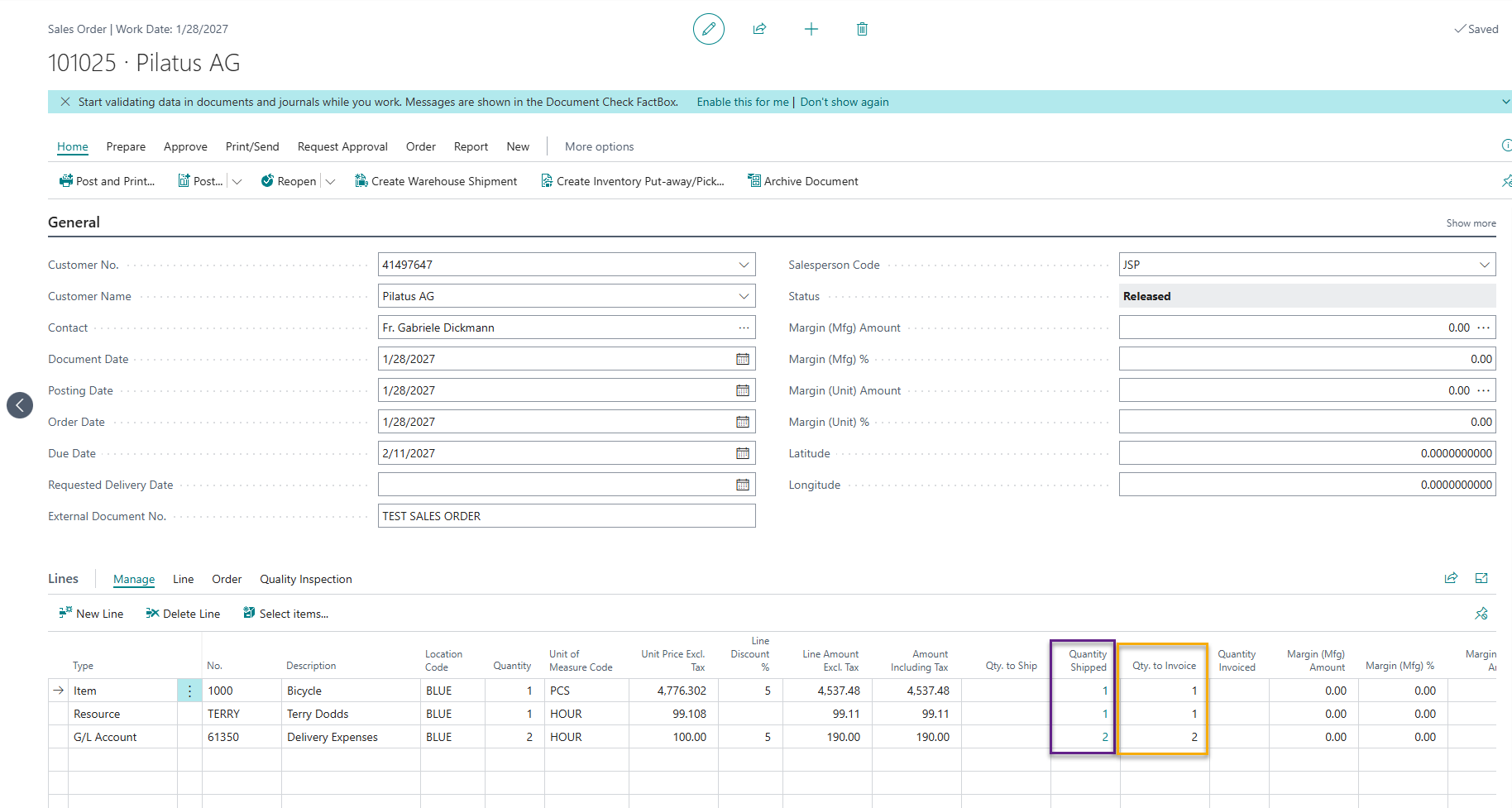
Here are the steps:
- Open the Sales Order
- Confirm that the Quantity Shipped field contains the shipped quantity
- Confirm that the Quantity Invoiced field is blank or less than the shipped quantity
- Select Posting
- Select Post
- In the Post Sales Order window:
- Select Invoice
- Select OK
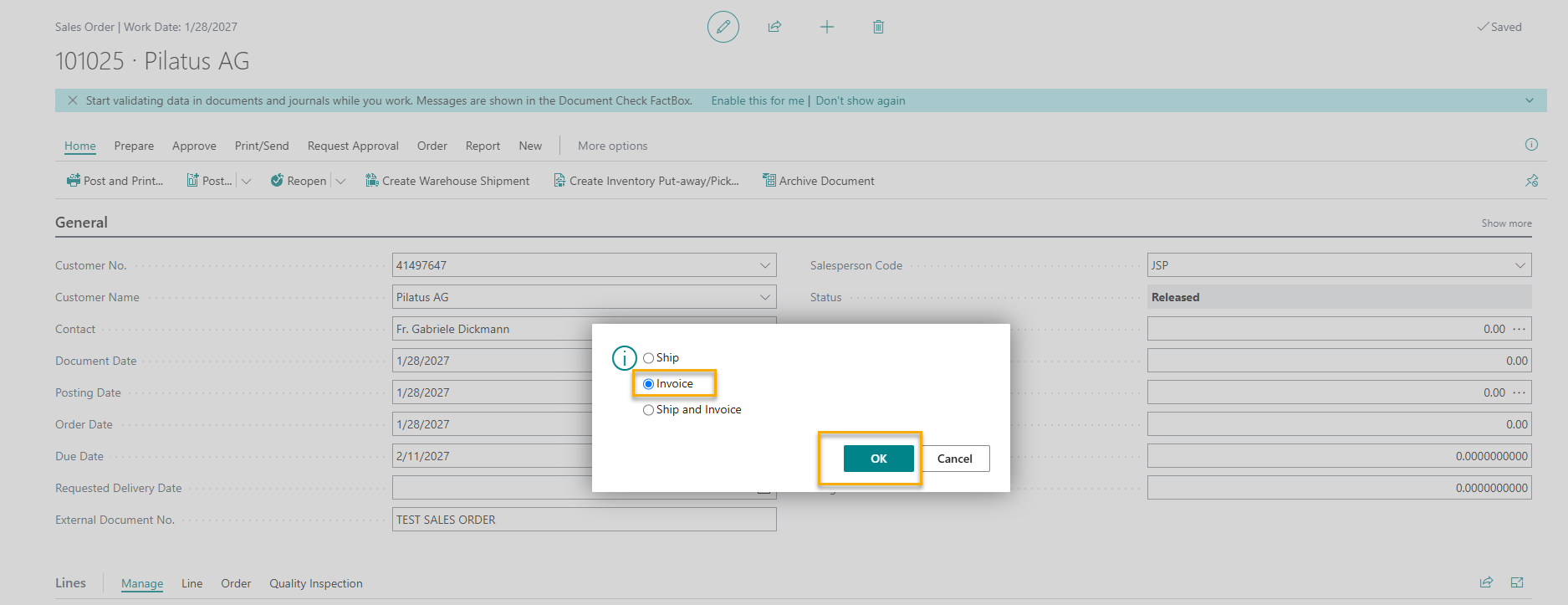
This results in Business Central:
- Creating a Posted Sales Invoice
- Creating Customer Ledger Entries
- Creating Revenue and G/L transactions
- Marking the shipped quantities as invoiced
After posting, verify the posted invoice as follows:
- Select Posted Sales Invoices from the search bar
- Locate the newly created invoice
- Open the invoice
- Verify:
- Invoice Number
- Customer
- Invoice Amount
- Posting Date
- Lines and quantities
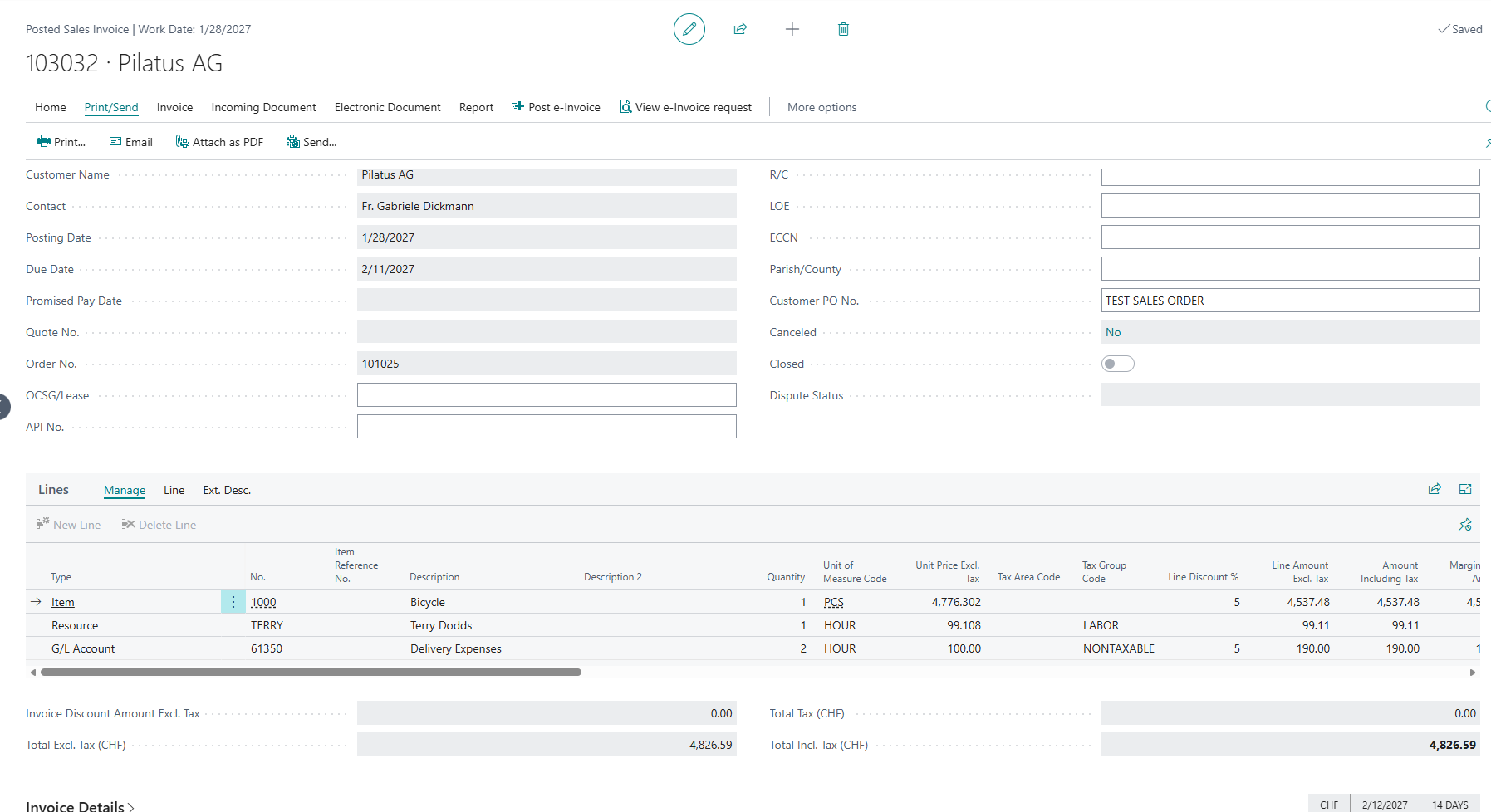
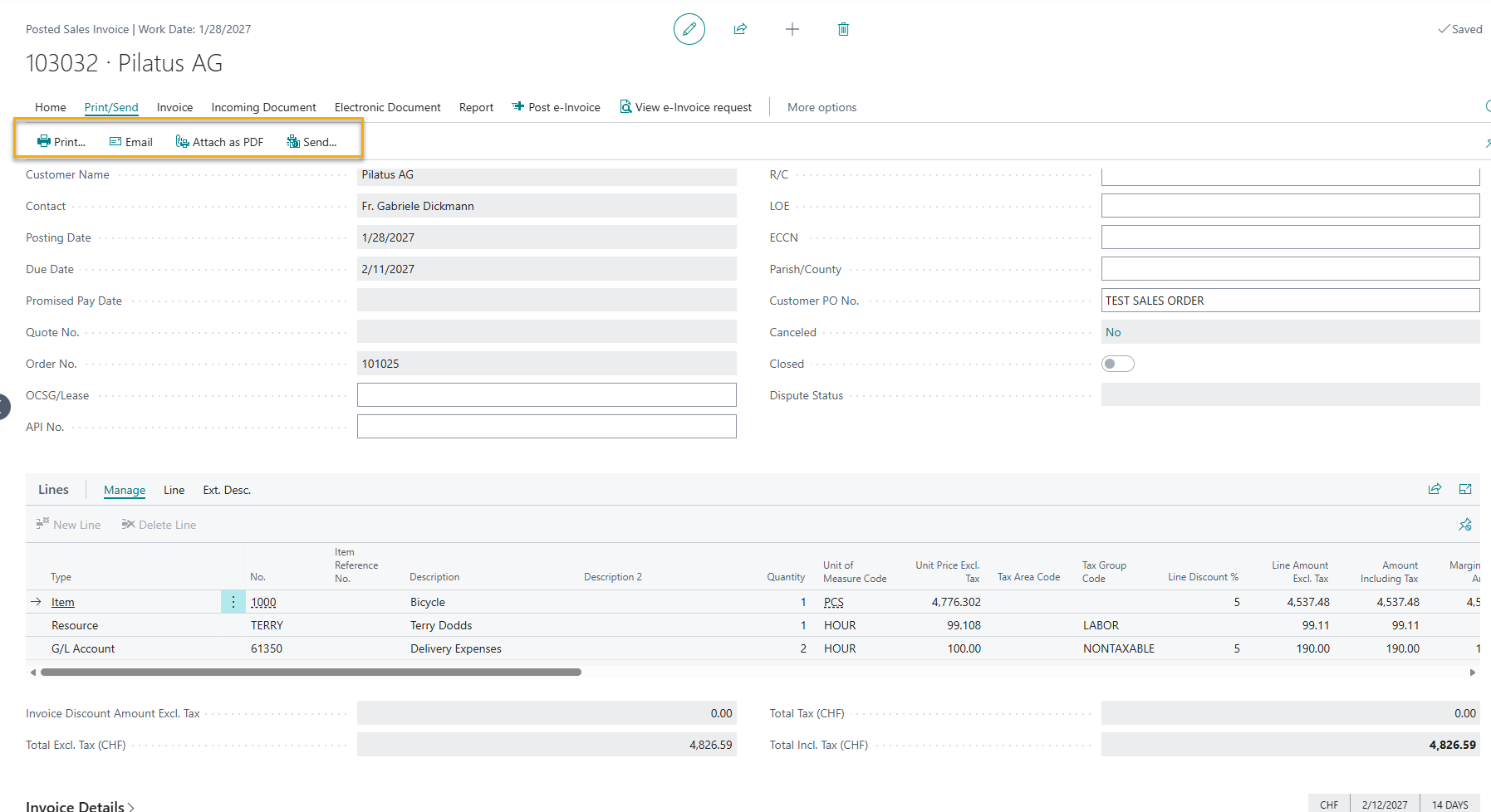
To print or email the invoice, follow these steps.
From the Posted Sales Invoice:
To Print
- Open the Posted Sales Invoice
- Select Print/Send
- Select Print
To Email
- Open the Posted Sales Invoice
- Select Print/Send
- Select Send by Email
- Review the recipient and message
- Select Send