
Undo and Correct Features Every Business Central User Should Know



You post an invoice and realize you picked the wrong customer, or you receive items into the wrong location. That sinking feeling hits. But here’s the good news: Business Central (BC) has your back.
Mistakes happen, and Microsoft knew they would. That’s why BC gives us several built-in “oops buttons” to fix things cleanly without messy workarounds or reversing journal gymnastics. Let’s walk through the big ones you should know.
Correct or Cancel a Posted Sales (or Purchase) Invoice
If you’ve ever opened a Posted Sales Invoice, you may have noticed two magic options: Correct and Cancel. They’re similar but not the same.
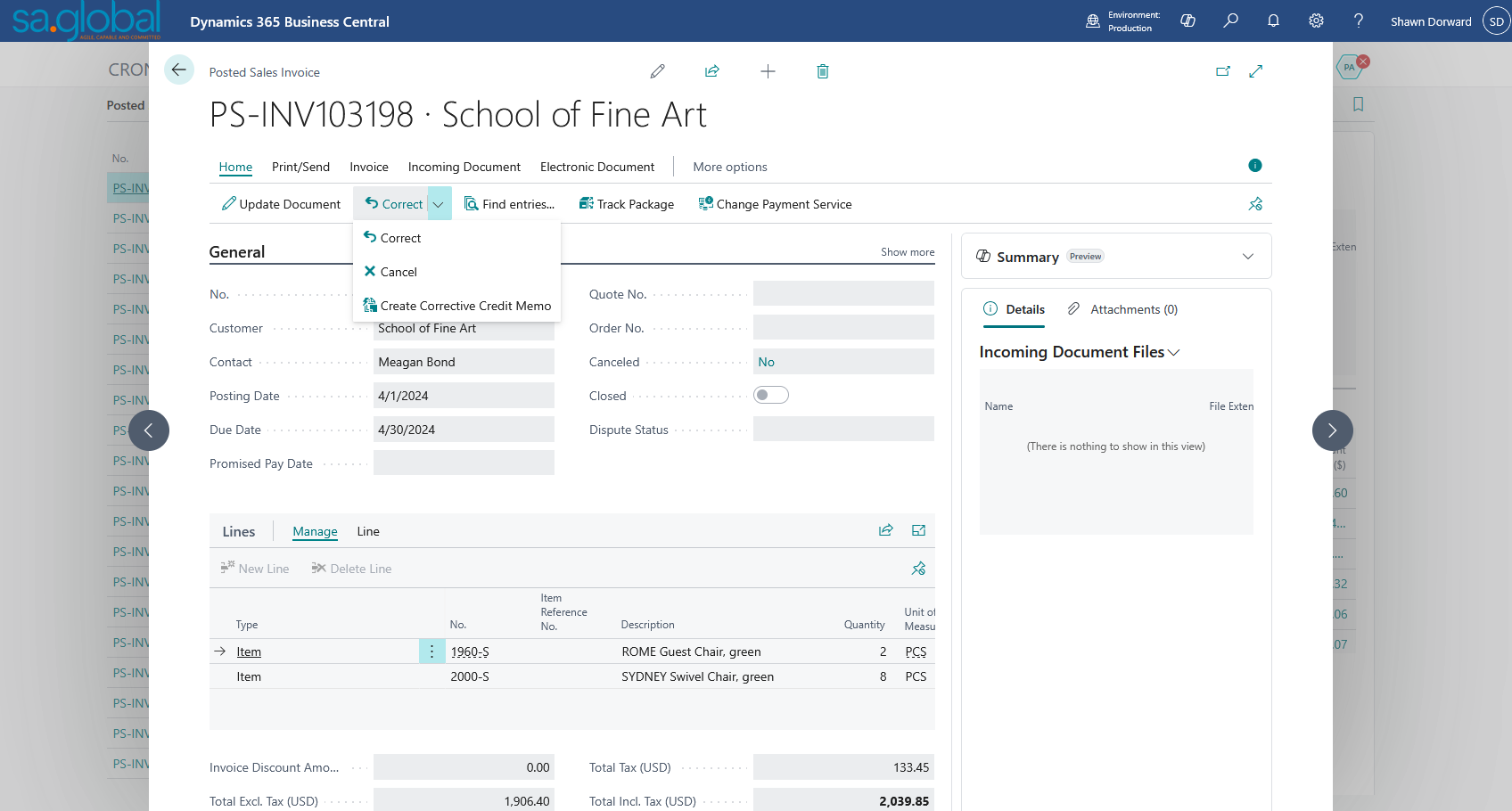
- Correct: BC automatically creates and posts a credit memo that reverses the original invoice and makes a brand-new, editable copy of that invoice. Perfect if you want to fix something small — like a wrong item or description — and re-issue it.
- Cancel: This also creates and posts a credit memo, but it doesn’t generate a new invoice copy. Use this when the invoice was a total mistake and doesn’t need to be reissued.
Both actions keep your audit trail clean and ensure that your financials stay accurate.
Pro tip: The same process works on Posted Purchase Invoices, so AP teams can breathe easy, too.
Reverse General Ledger Entries
Sometimes, the issue isn’t a sales document at all; it’s a journal entry. Maybe you posted to the wrong account or forgot a dimension.
Open the General Ledger Entries page, find the offending entry, and click Reverse Transaction (Actions → Functions → Reverse Transaction). BC posts a new balancing entry that cancels out the original with no manual math required.
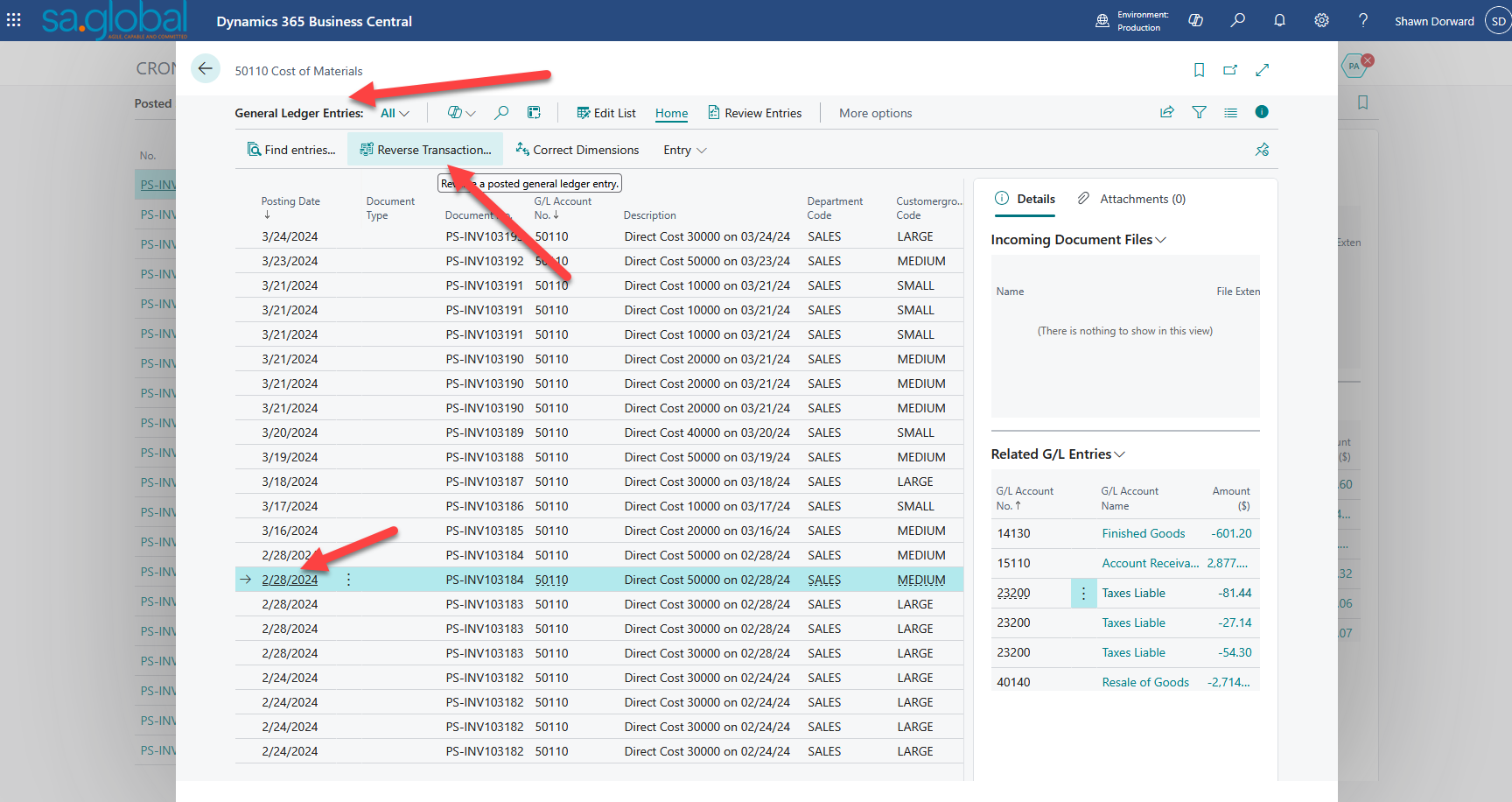
Not every entry can be reversed (for example, if it originated from a closed fiscal year or a subledger that doesn’t allow it), but most user-posted journals are fair game.
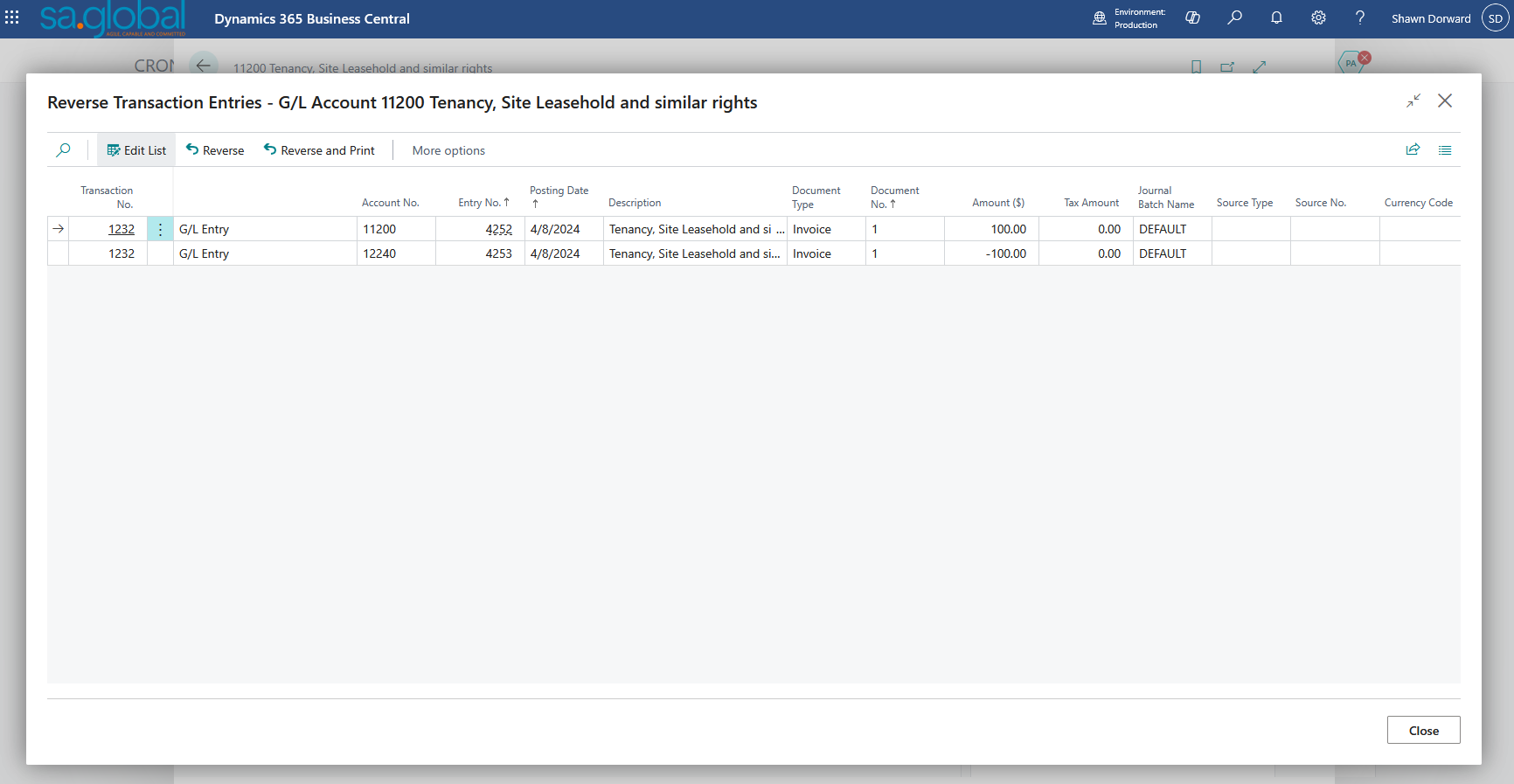
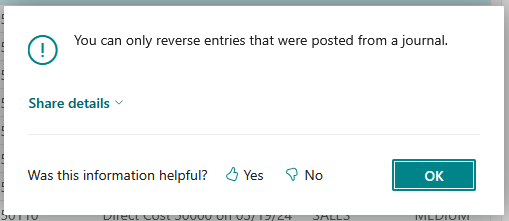
Also, because BC runs a tight ship, you can’t do this unless the transaction originated from a general journal (no sub module changes allowed) — which is a good thing.
Undo Receipt or Undo Shipment
Did you receive inventory at the wrong warehouse? Did you ship too many items? Don’t panic. Business Central lets you Undo Receipt or Undo Shipment directly from the Posted Purchase Receipt or Posted Sales Shipment pages.
Open the document, select the line, and choose Line → Functions → Undo Receipt (or Undo Shipment). BC automatically creates a negative entry to correct the quantity and puts the items back into the correct state.
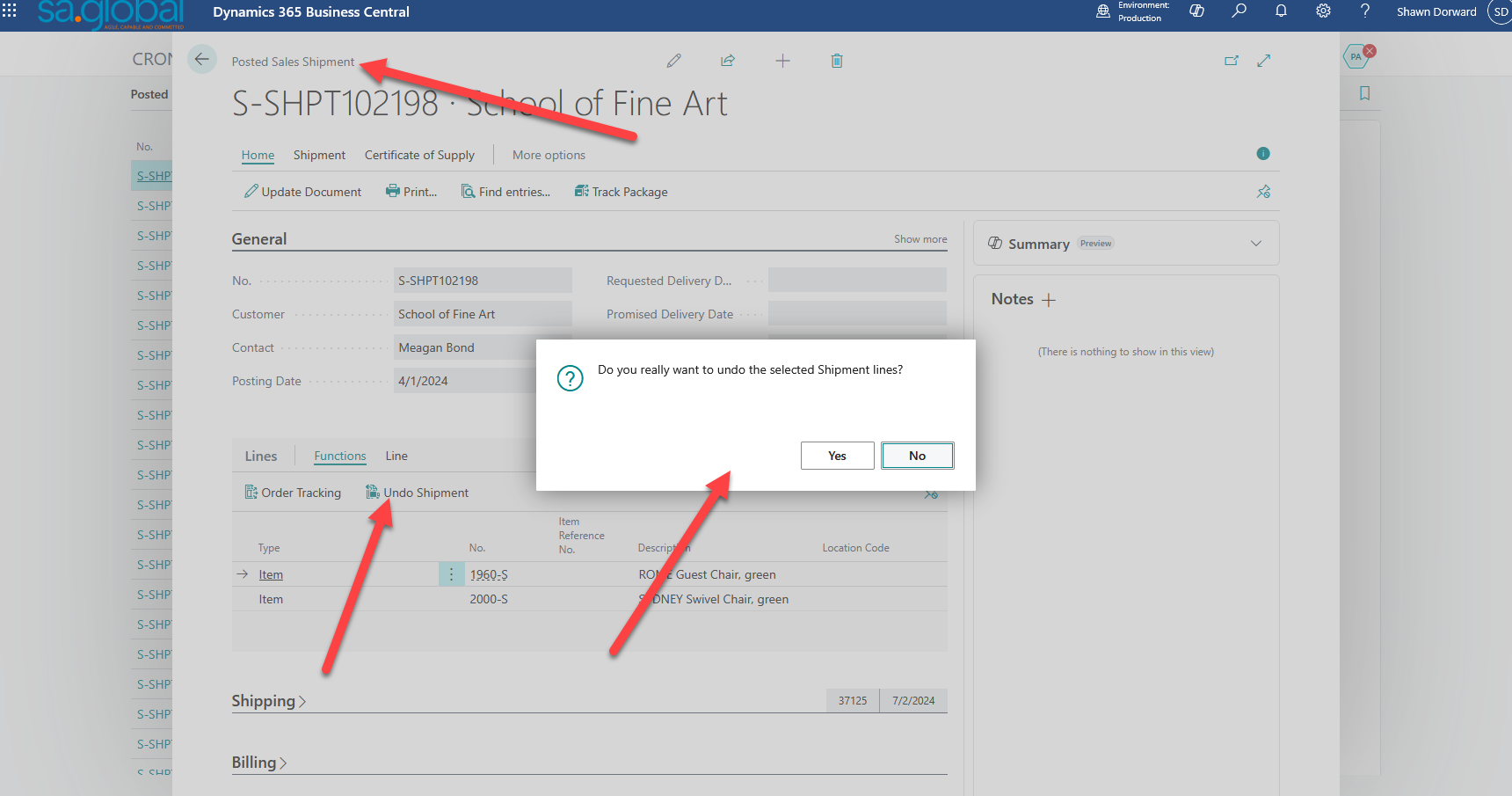
From there, you can re-receive or re-ship the corrected document as needed.
Heads-up: You can only undo if the receipt or shipment hasn’t yet been invoiced. Once an invoice is posted, you’ll need to go through the Correct/Cancel process instead.
Prevent Mistakes Before They Happen
A few small setup tricks can prevent a lot of “oops” moments in the first place:
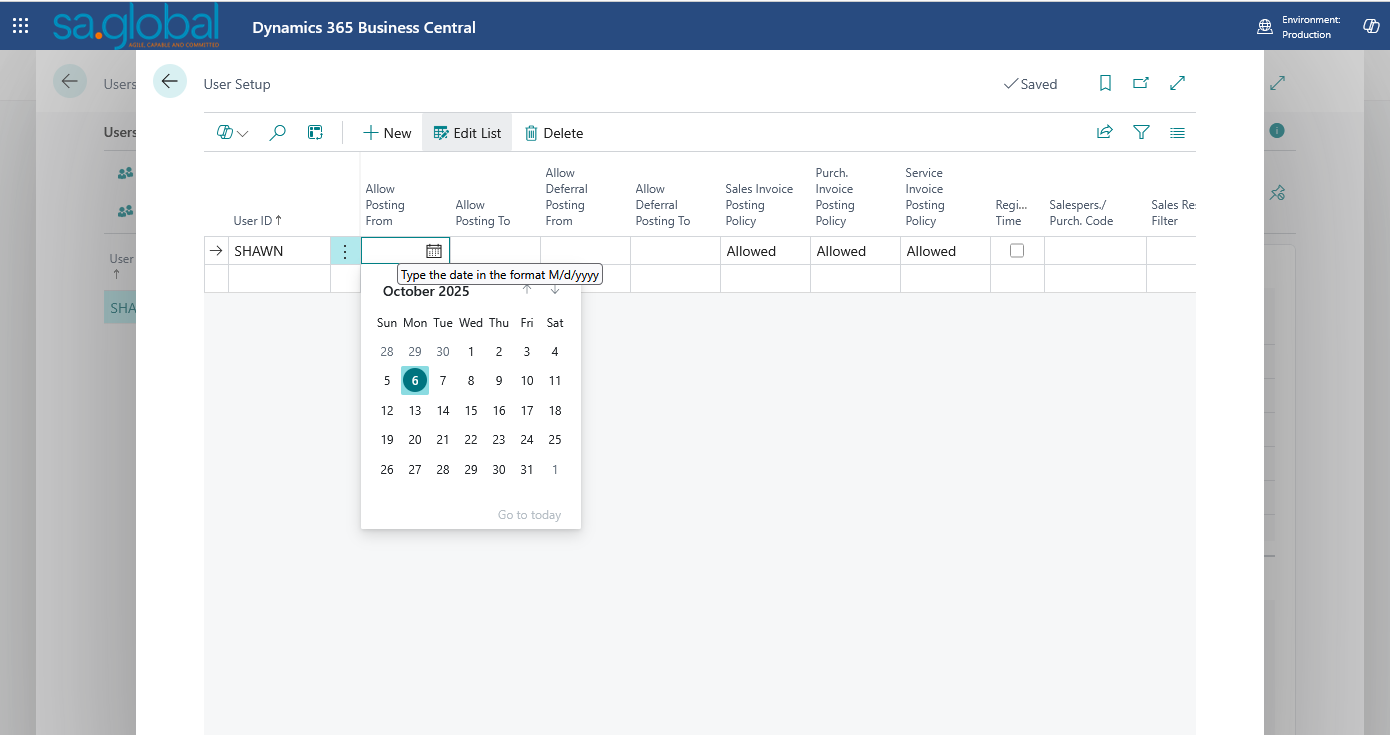
- Use Allowed Posting Dates in User Setup to stop accidental back-posting.
- Turn on Preview Posting to see the impact of your transaction before you commit.
- Run the Test Report (under the Posting menu) for journals and documents. It’s like a dry run before you post.
Prevention is the best correction tool of all.
Turn Oops Moments into Training Moments
Here’s one more piece of advice that isn’t about buttons but about culture.
Every “oops” is a learning opportunity. When you or your team fix something, take a minute to share how you caught it and how you corrected it.
A Teams channel, an internal chat, or a quick huddle at month-end can turn one person’s mistake into everyone’s knowledge. Over time, that builds confidence and consistency across the board.
The more open your team is about learning from mistakes, the fewer mistakes you’ll make, and the faster you’ll fix the ones that happen.
Wrapping Up
The fear of “hitting Post too soon” is real, but it doesn’t have to be. Business Central is designed for real humans doing real work, and that means forgiving a few honest mistakes along the way. Most importantly, with audit logs so others know what is happening and why.
Once you know where to find Correct, Cancel, Reverse, and Undo, you’ll never dread a posting error again. In fact, you’ll start to feel empowered because you’ll know that BC isn’t out to get you; it’s built to help you fix it fast and move on.
So next time you catch an error, skip the panic. Just smile, open the posted document, and let Business Central’s undo tools do their magic.
