
Interactions in Business Central: A Sales Representative’s POV


Documenting interactions is essential for enhancing both recall and sales conversion rates. As a Microsoft MVP, I continually seek straightforward solutions to benefit Business Central users. If a feature lacks intuitive functionality or measurable advantages, user adoption is unlikely. Although Interactions within Business Central offer value across various roles, this post specifically examines their utility in capturing communications throughout the sales process.
Interactions
Each week, sales professionals engage in numerous conversations with customers and prospects. Over time, these discussions may blend together, increasing the risk of confusion about details unless they are documented promptly. Properly recording both electronic and verbal communications preserves their value and supports effective deal closure.
Business Central facilitates documenting communications by enabling users to create Interaction records, which can include generated emails or detailed notes summarizing discussions. During my tenure as an Account Manager for a NAV Partner, I managed seventy accounts, many of which were not actively pursuing new software or services. Nevertheless, maintaining regular contact, whether weekly, monthly, or quarterly, was imperative.
Support Desk assistance, for instance, provided consistent opportunities for follow-up even in the absence of ongoing projects. By diligently recording each exchange as an Interaction, I ensured that subsequent conversations remained relevant and personalized, often referencing details from previous discussions.
A key advantage of the Interactions feature is its ease of use, complemented by the ability to classify different types of engagements through customizable Interaction Templates.
Interaction Templates
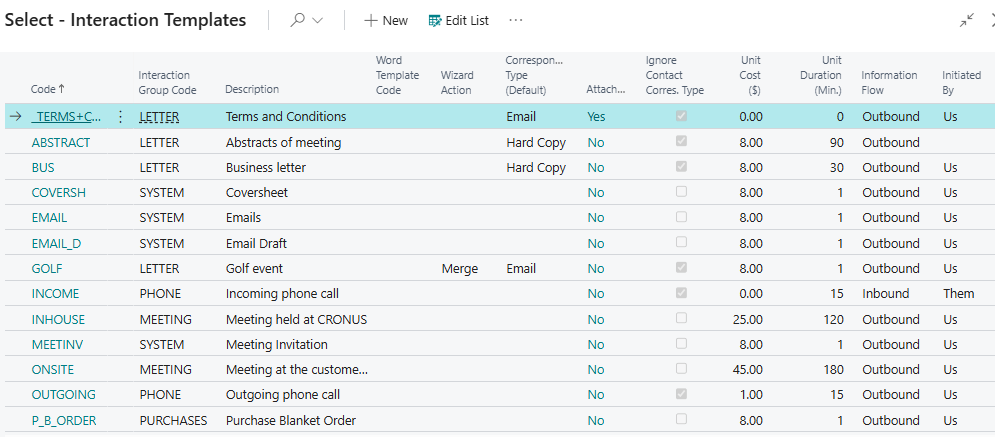
Out of the box, Microsoft provides 31 Interaction Templates that can be configured to record interactions when documents such as quotes, orders, invoices, statements, and notifications are sent to Customers and Vendors. The highlighted TERMS+C Interaction Template is custom and includes an attachment for the company’s Terms and Conditions when Prospects are converted to Customers.
Interaction Template Setup
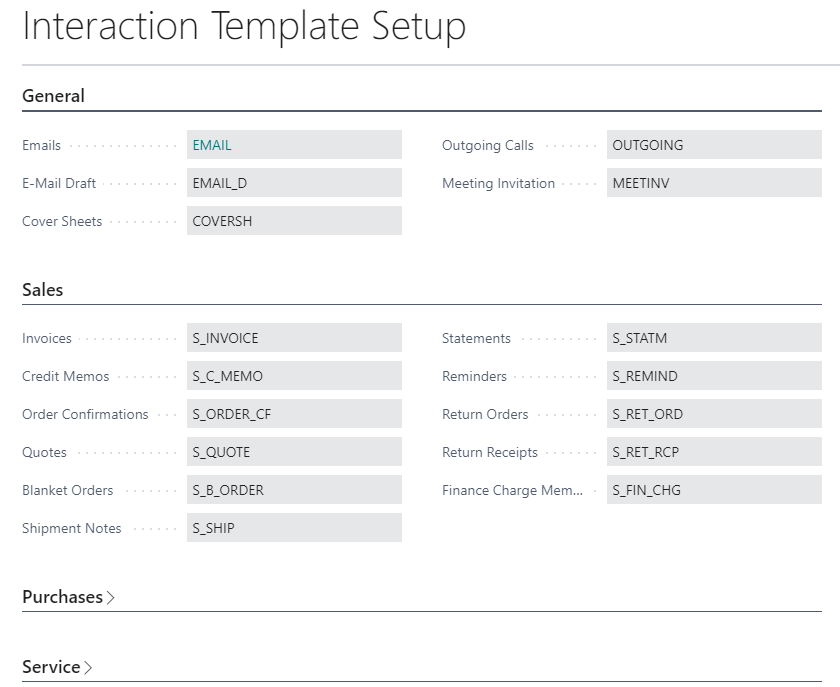
To guide us with these Interaction Templates, Microsoft provides a default Interaction Template Setup for General notification and Sales, Purchases, and Service Documents:
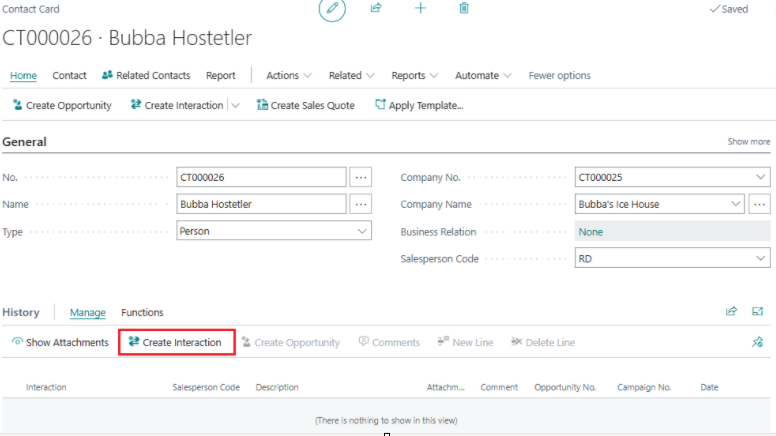
Let’s walk through how interactions help us document communications as we convert a Prospect into a Customer. Below is a newly created Person Type Contact, Bubba Hostetler:
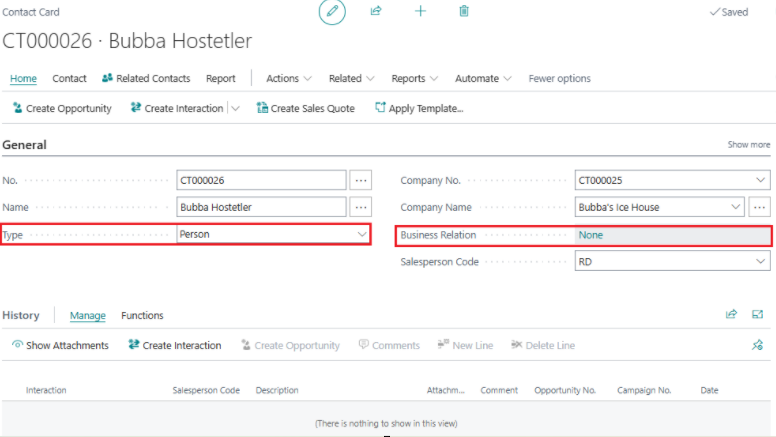
Having just spoken to Bubba on the phone, we need to create an interaction recording the highlights of our conversation:
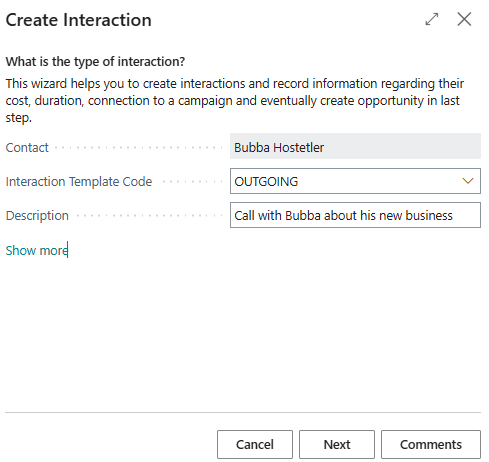
When we select the Create Interaction option, we can choose an Interaction Template Code and enter a description for the Interaction:
Before moving to the next option, we will add a comment about this opportunity:
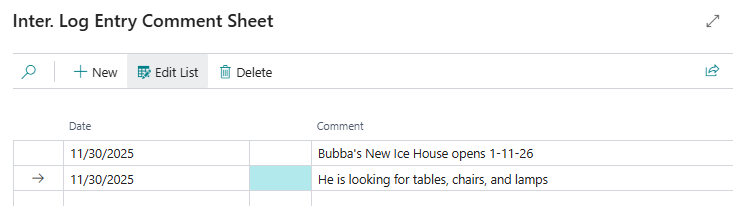
While we didn’t have to add this comment, recording extra information may be useful later.
After adding the comment and clicking Next, you can tag the interaction to a Sales Campaign or Opportunity. Since this is our first call, you may also create an Opportunity, but in this example, we will proceed to evaluate and finish the interaction.
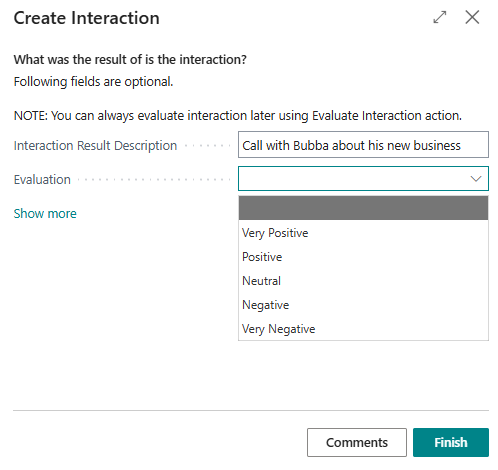
This brings us back to the Contact Card, where the Interaction has been recorded, and we are asked whether we want to create an Opportunity for it.
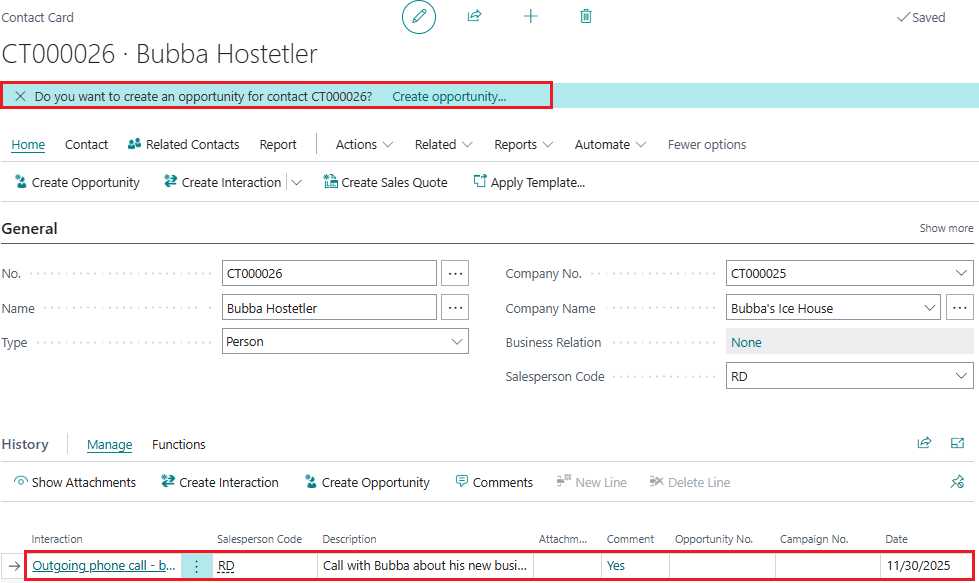
Since this post focuses on Interactions, we will save Opportunities for another article.
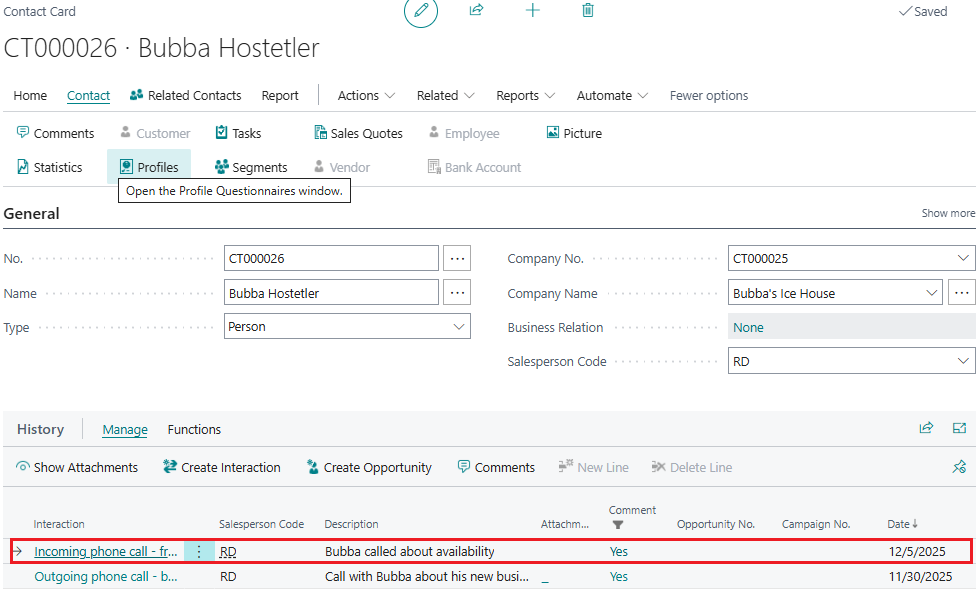
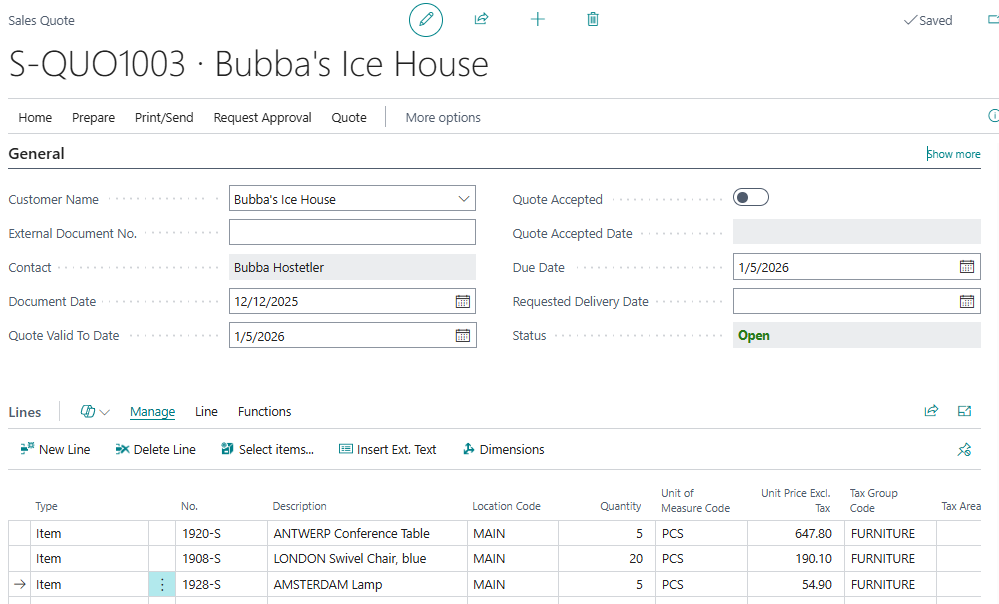
Bubba is anxious for his grand opening. He calls back several days later to inquire about availability for 5 tables, 20 chairs, and 5 lamps, and we record another interaction in the same manner.
One week later, he requested the Sales Quote, which we emailed to him.
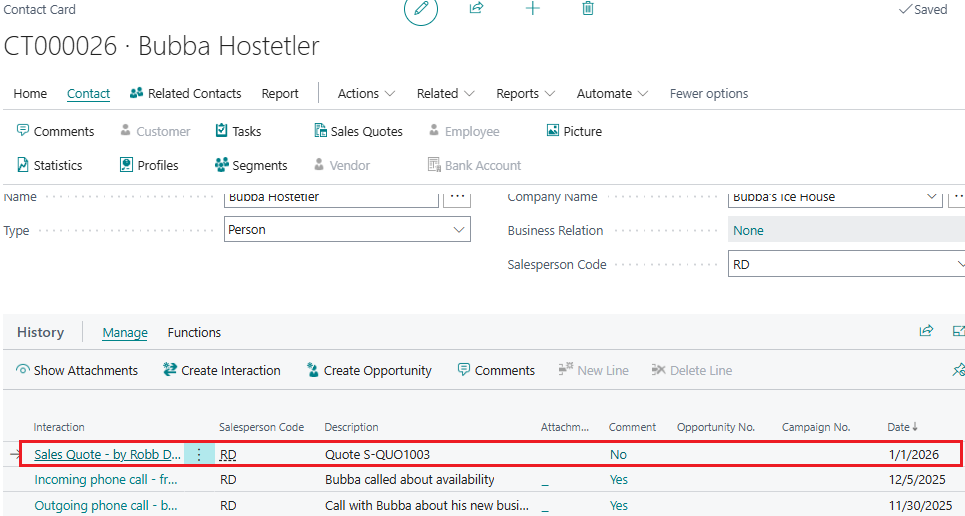
And the Contact Card is automatically updated based on the email sent and the Interaction Template Setup for Sales.
And finally, when he accepts the Sales Quote, we send him the Terms and Conditions via email, convert the Sales Quote to a Sales Order, which then updates the Contact’s Business Relation to Customer.
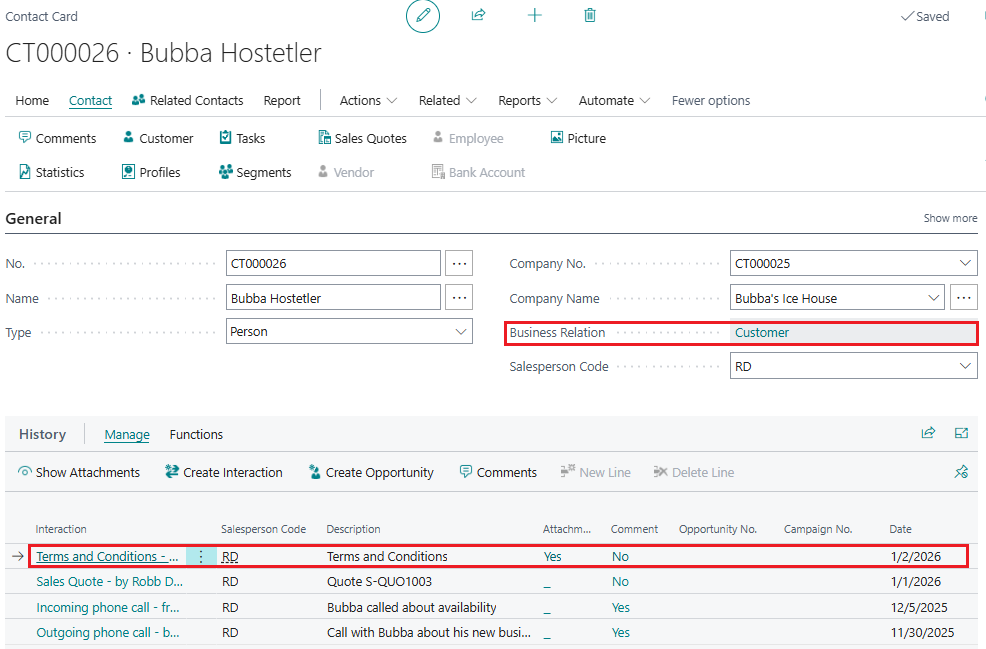
With the Prospect converted to a Customer and the Sales Order fulfillment process underway, we can view the documented interactions of a well-worked Contact card.
Final Thoughts
If you are like me, you believe a great relationship with your Customers and your Contacts creates a reliable Sales pipeline. Interactions keep your past conversations fresh in your mind and help you close those deals, especially those deals that take a long time to reach fruition. I like Interactions because they are easy to use, and when I am traveling, I can access my Contacts on my phone and review my past Interactions before returning a call.
As I noted at the beginning of this post, Interactions are not just a tool for the Sales Team. Look for my next post, where I discuss how the Accounting and Purchasing Teams can use Interactions.
