
Back Orders in Business Central for Dynamics GP Users: How to Find Them Without a “Back Order” Document



If you’re coming from Dynamics GP and you’re looking for the moment where a Sales Order “moves to a Back Order”…you’re not crazy. That workflow was real, it worked, and GP users relied on it for years. But Business Central doesn’t do it that way.
And before you decide that “BC doesn’t have back orders,” I’ll offer another way to think about it: Business Central absolutely supports back orders — it just doesn’t create a separate Back Order document type. Instead, back-order behavior is driven by sales line quantities, shipment dates, and availability.
This article is meant to help GP users reframe the concept, understand what to look at in BC, and adopt a repeatable process for spotting and managing back-ordered demand, especially if you allow partial shipments, which most companies do.
Assumptions
To keep this conversation from veering off into advanced warehousing, and so we’re on the same page, I’m assuming:
- You ship directly from the Sales Order (no Warehouse Shipment / Pick required)
- Partial shipments are allowed (ship what you have, the rest remains open)
That matters, because once you embrace partial shipments in BC, you realize something important: In Business Central, the “back order” is often just the remaining Outstanding Quantity on the original Sales Order line!
The GP Back Order Mindset vs. the Business Central Fulfillment Mindset
In GP, Back Orders are very document-centric. You could point to a “Back Order” and say, “That’s where the unfulfilled stuff lives.” You could sort, filter, print, and work from that list.
In Business Central, the order doesn’t “go somewhere else.” The Sales Order stays put, and the system uses line-level fields to represent what’s still owed.
That creates the classic GP-to-BC moment:
- GP user: “Where are my back orders?”
- BC answer: “They’re still on your sales orders… as outstanding lines.”
That may feel like semantics until you see what BC is really doing:
- Tracking how much is shipped vs. outstanding
- Tracking shipment dates (and whether you’re past due)
- Giving you a way to report “back orders” based on whether you can fulfill by the promised ship date
The Simplest Real-World Example (Partial Shipments) – and Why This is the Key
Let’s do the most common scenario I see in real implementations:
- Customer orders 10
- You have 4 on hand
- You ship 4 now, and the customer waits for the remaining 6
In Dynamics GP, this often resulted in a “Back Order” document state. In Business Central, it results in:
- Quantity Shipped = 4
- Outstanding Quantity = 6
- The Sales Order remains open/released until fully shipped/invoiced
That remaining Outstanding Quantity is your “back order.” And because BC is keeping everything on the original Sales Order, it becomes easier to:
- Keep the original demand intact (no document splitting)
- Run consistent backlog reports
- Communicate real ship date expectations using availability logic
This is where BC starts to feel less like “GP missing a feature” and more like “a different approach.”
So… how do you KNOW what is “back-ordered” in Business Central?
Here’s the clean definition I recommend teams adopt: A sales line is back-ordered when it has Outstanding Quantity, and the order cannot be fulfilled by the line’s Shipment Date based on availability.
Reports & Views: Your Back Order Toolbox in Business Central
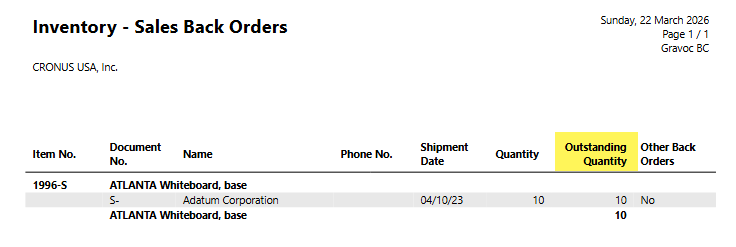
Tool #1 (Closest to GP): Inventory Sales Back Orders Report
This is the closest thing to a GP Back Order report you’re going to get out of the box. It shows sales lines where you can’t fulfill the outstanding quantity by the specified shipment date and includes Quantity on back order. And remember, you can export this to Excel natively with BC!
Why I like this report
It answers the question GP users ask first: “Show me what we can’t ship when we said we would.”
How I’d run it in real life
Typical filters you’ll want on the request page:
- Shipment Date (range, or <= today)
- Location Code (if you have more than one)
- Item (when looking into a SKU problem)
- Customer (when working on a specific account)
Tool #2 (Customer-First): Customer – Order Detail Report
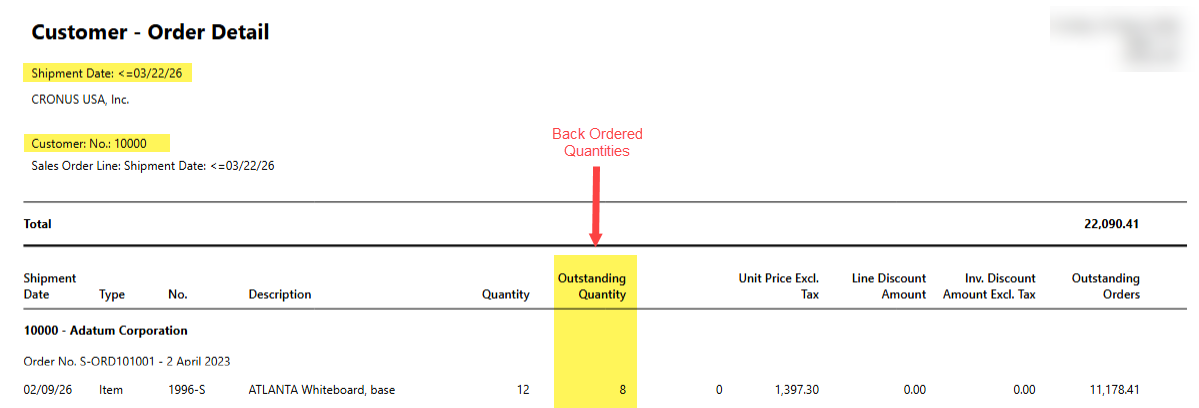
The Customer – Order Detail report gives you a customer-focused view of outstanding sales orders. It also explicitly includes “back order” logic: lines with a shipment date in the past are included in the “quantity on back order.”
Tool #3 (Item-First): Inventory Order Details Report
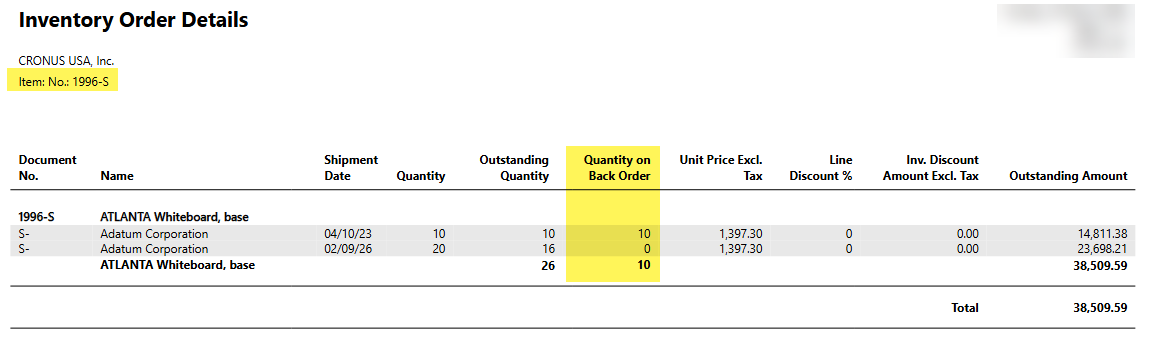
Operations and purchasing teams usually don’t start with customers. They start with the item: “Which items are causing all this pain?”
Inventory Order Details breaks down outstanding sales by item and includes “quantity on back order” logic when shipment dates are in the past.
Tool #4 (Big Picture Backlog): Customer – Order Summary Report
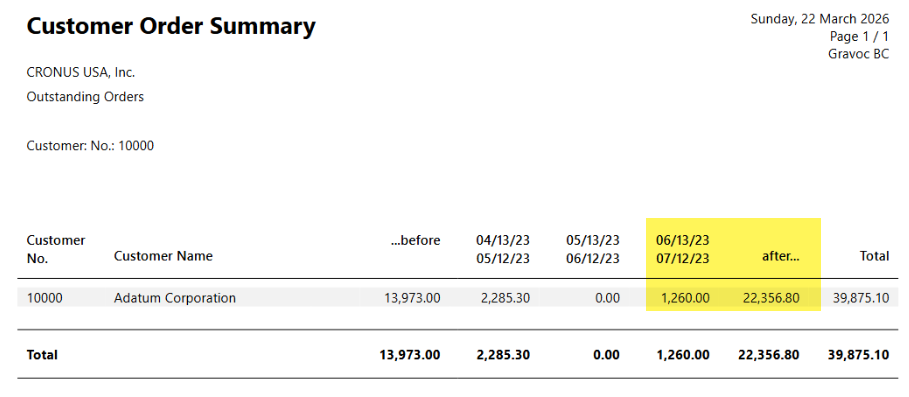
This isn’t a “back order report” per se — it’s more of a backlog pressure gauge. It shows quantities not shipped grouped into time periods, which helps answer:
- “How big is our order backlog?”
- “Which customers have the most unshipped demand?”
- “Are we digging out or falling behind?”
This report can be used to analyze unshipped orders and forecast expected sales volume.
Tool #5 (Filters and Saved Views): The BC Replacement for the GP “Back Order Bucket”
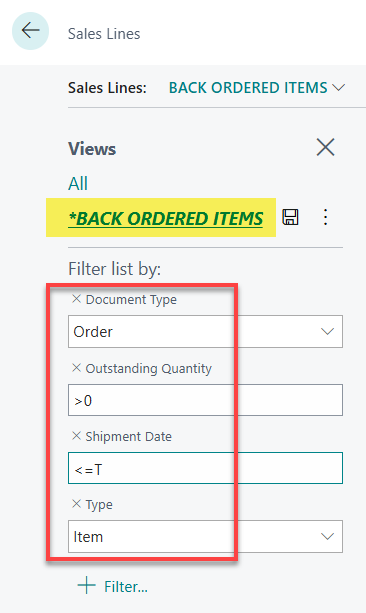
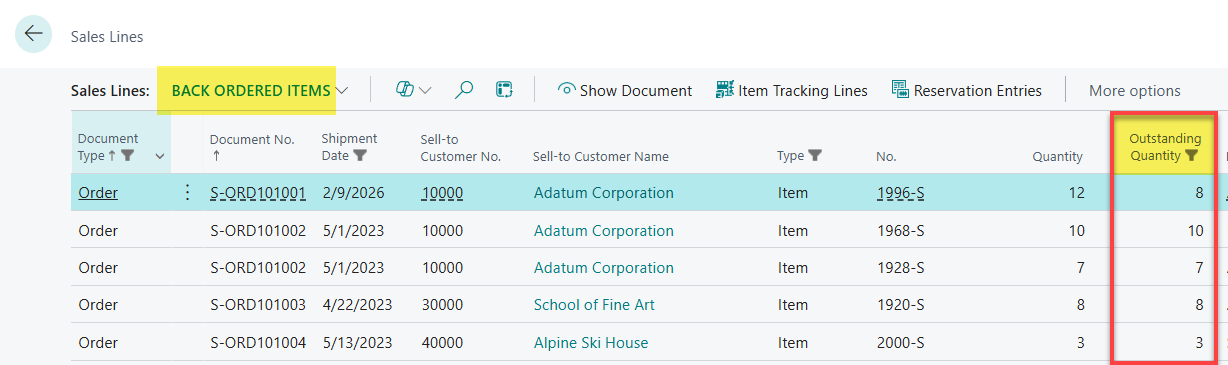
Now we get practical. If you’re used to living in GP windows and sorting lists, you’ll want the BC equivalent: a saved view that acts like a “Back Order queue.”
Here’s the key truth: In BC, “back order-ness” is line-based; so, the best workbench is usually the sales lines, not the sales order headers.
Recommended “Back Order Queue” Logic (Partial Shipments Allowed)
Your saved view should represent:
- Lines still owed
- Lines that should have shipped already (or are coming due)
- Items (not G/L/service)
Tool #6 (The Secret Weapon): Order Promising
Stop guessing and start committing. In GP, back orders were often a polite way of saying: “We’ll ship it when it shows up.” BC gives you a way to turn that into: “We can ship it on this date.”
The Order Promising feature calculates shipment/delivery dates based on known and expected availability (ATP/CTP logic). If you don’t specify a requested delivery date—or if it can’t be met, BC calculates the earliest possible date and puts it into the Shipment Date field.
This matters a lot when partial shipments are allowed:
- You ship what you can now
- For what remains, you compute a realistic promise date
- Then you communicate proactively

Final Takeaways: What GP Users Should Remember
If you only take three things away from this article, take these:
- BC doesn’t have a Back Order document. It has back-ordered sales lines.
- The best “back order list” is either:
- Inventory Sales Back Orders report
- A saved view of sales lines with outstanding qty + overdue ship date
- Order Promising lets you replace “we’ll ship later” with “we’ll ship on this date.”
