Turning Production Data Into Maintenance Schedules in Business Central

Listen to the Podcast
End Maintenance Guesswork with Business Central
Your maintenance team knows the machine needs an oil change every 10,000 cycles. What they don’t always know, until it’s too late, is when that machine actually hit 10,000 cycles. Someone has to check a log, read a meter, or remember to write down a number after a shift. Miss that step often enough, and a piece of equipment runs past its service interval without anyone noticing until it breaks down mid-run.
This is a common problem in shops that track equipment usage separately from the production activity that actually drives it. The runtime, the output count, the cycles: all of that data already exists somewhere in Microsoft Dynamics 365 Business Central, tied to the production orders your team posts every day. The problem isn’t a lack of data. It’s that the data isn’t connected to the maintenance schedule that depends on it.
That disconnect matters because preventive maintenance only works if the trigger for it is accurate. A maintenance schedule based on a calendar guess, or on someone remembering to log a number, tends to drift. Equipment is serviced too early, wasting labor and parts, or too late, after wear has already led to failure. Either way, the plan you built on paper doesn’t match what’s actually happening on the floor.
Maintenance Manager, an app for Business Central from Insight Works, closes that gap by linking maintenance intervals directly to production activity. When you set up a maintenance task, you assign it an interval type: runtime, output count, distance, or duration. For runtime and output count, the interval is tied to a Capacity Type and Capacity No., meaning it’s associated with a specific work center or machine center.
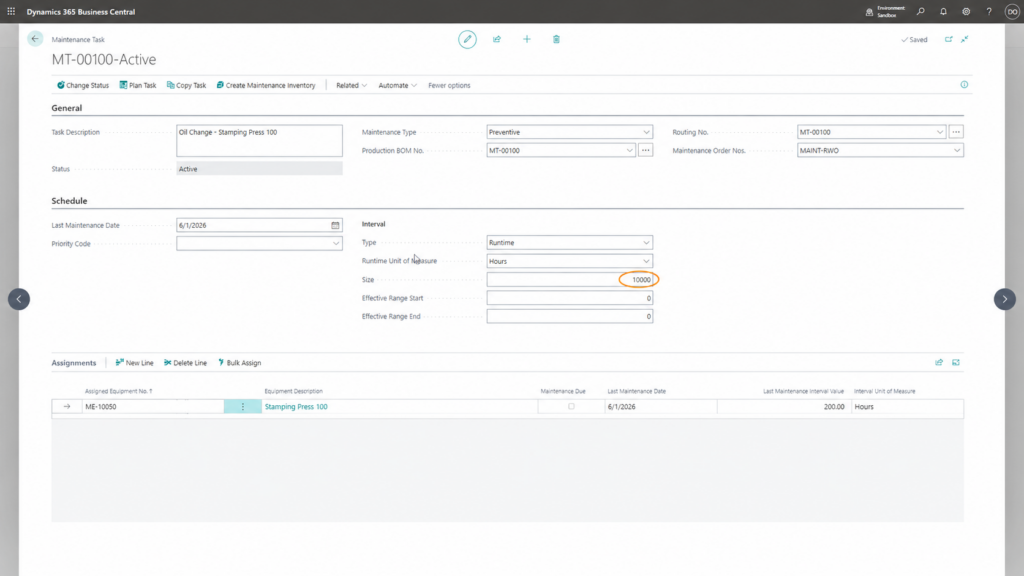
From that point on, whenever your team posts a production order against that equipment, Business Central automatically updates the associated maintenance interval. If a job records ten hours of runtime, that machine’s maintenance record moves ten hours closer to its next service point. If a job completes 5,000 units, the output count moves accordingly.
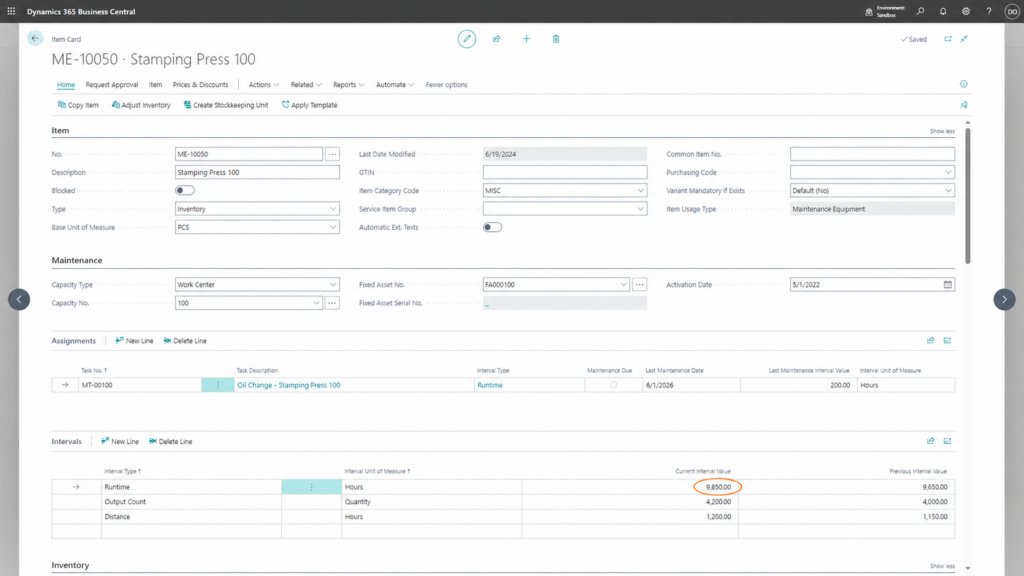
No one has to walk the floor with a clipboard, and no one has to remember to update anything by hand.
Once an interval reaches the threshold you’ve set, the task flags as due. From there, you can plan it individually or use auto-scheduling to review everything due within a date range at once, which then generates maintenance orders directly in the planning worksheet.
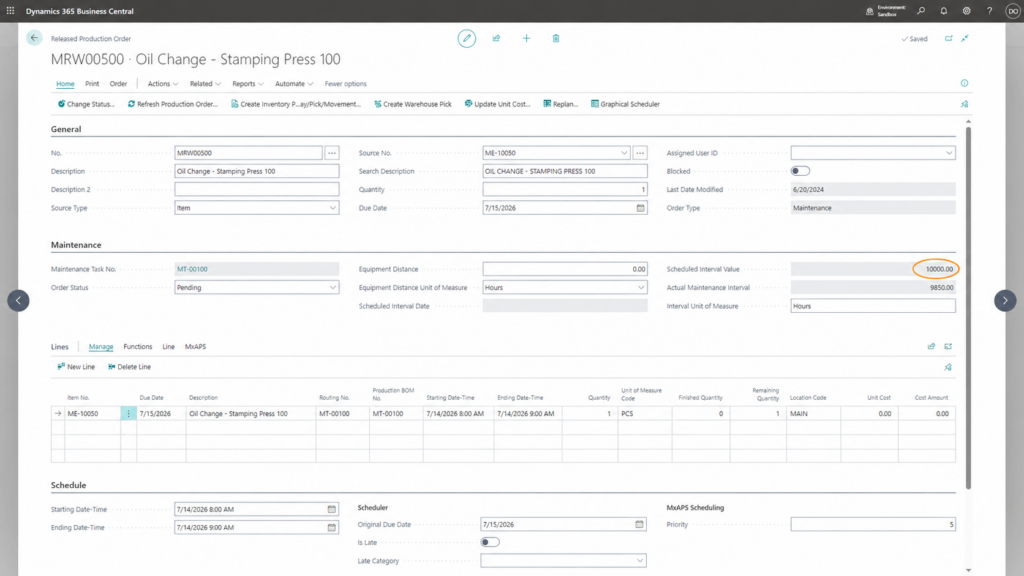
Because a maintenance order in Maintenance Manager is a production order, it also consumes capacity on the equipment’s work center. Scheduling tools that read that capacity, including the Graphical Scheduler app or MxAPS, already account for downtime without any extra setup.
If your team is still updating a spreadsheet after every production run to know when the next service is due, that’s a sign the maintenance schedule and the production data behind it aren’t actually talking to each other. Connecting them doesn’t require a separate system or a manual reconciliation process. It requires the production data you’re already generating to feed the schedule directly, which is what this feature is built to do.
If you’re on Business Central and want to see how this fits into your current maintenance process, talk to your Business Central partner about Maintenance Manager or visit https://MaintenanceForDynamics.com