How to Customize Scheduling Views in Business Central for Maximum Efficiency


Listen to the Podcast
Transforming Production Scheduling in Business Central with Graphical Scheduler
If you’re scheduling production in Microsoft Dynamics 365 Business Central, you know how quickly things can get messy without clear visibility. That’s where Graphical Scheduler shines—a completely free, fully integrated app that helps you visualize, adjust, and manage your production schedule without added complexity.
This isn’t a generic timeline viewer or reporting tool. Graphical Scheduler gives users a real-time, interactive visual interface tailored for production environments. And unlike many tools on AppSource, there are no feature restrictions, trial limits, or paid tiers—it’s free, full-featured, and ready to go.
Why Custom Views Matter
Every team works differently. A planner might want a 30-day capacity view, while a supervisor might just want to see what’s happening this shift. That’s why the ability to create and customize multiple scheduling views is so valuable.
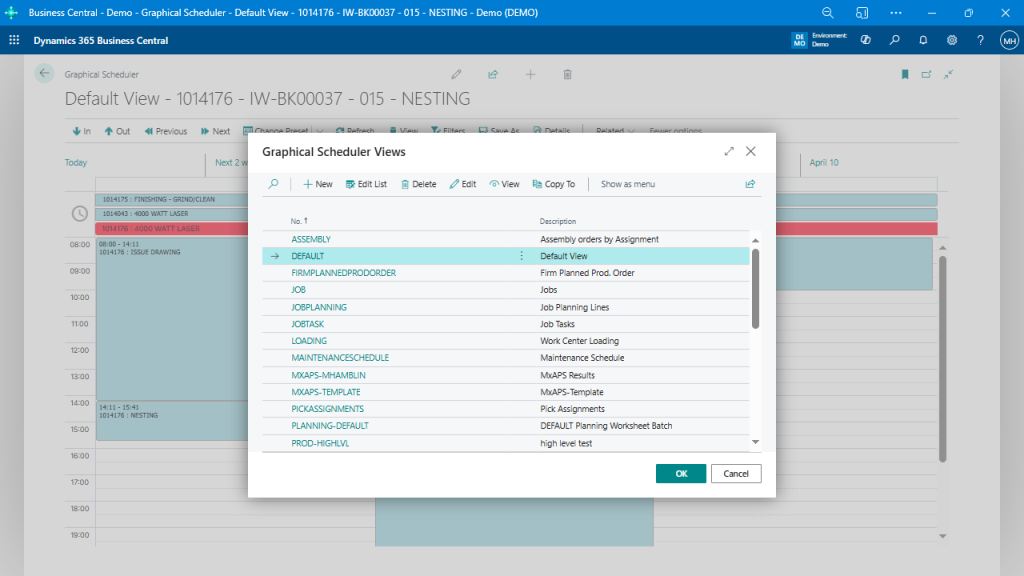
Here you can see an assortment of views configured for different use cases:
- Assembly order assignments
- Maintenance schedules
- Job planning lines
- Warehouse picks
- And more
You can customize each view based on data source, user role, layout, and filters, allowing for laser-focused visibility.
Apply Filters to See What Matters Most
Each view can be fine-tuned with filters—so you’re not stuck looking at irrelevant production lines or outdated orders.
Here, you can see date presets in action. With one click, users can shift between “Today,” “Next 2 Weeks,” “Upcoming Year,” etc. It’s a fast, efficient way to tailor views without editing configurations.
And because views can be restricted by role or department, it also prevents accidental changes from someone outside the team.
Use Color-Coding for Instant Visual Cues
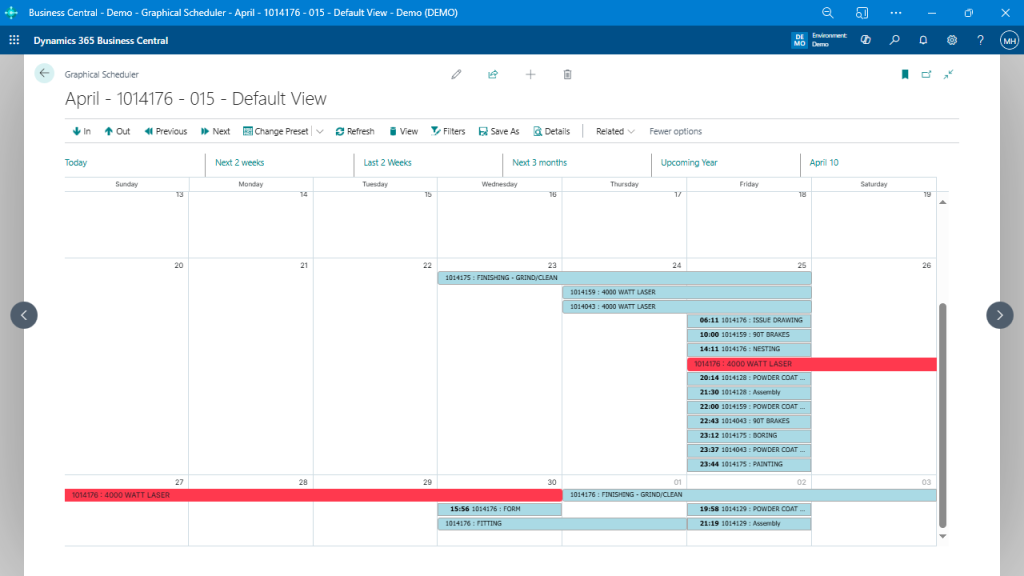
Color-coding turns your schedule into something that’s instantly scannable. Whether it’s highlighting late orders, specific operations, or overbooked work centers, color rules help users make quick decisions.
In this example, operations are color-coded based on logic like status or resource type. Red might indicate late or overloaded, green might show available or completed.
And yes—you define the logic per view. That means engineering can have a different color scheme than the shop floor or warehouse.

Choose a Time Scale That Fits Your Workflow
Graphical Scheduler supports different time scales depending on what level of detail your team needs. Need to zoom into a single day or shift? Or zoom out for a multi-week view? Easy.
This calendar-style view is perfect for high-level production meetings or planning across teams. You can also configure views to show hours, days, or weeks.

Drag-and-Drop for Real-Time Adjustments
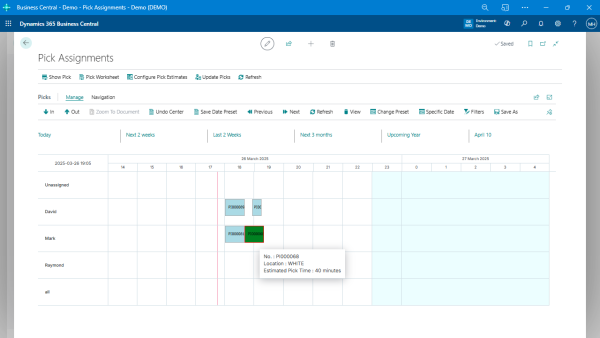
What really sets Graphical Scheduler apart is how interactive it is. With a simple drag-and-drop, users can reschedule operations, change resources, or tweak durations—and those changes are immediately reflected in Business Central.
This is a great example of pick assignments being managed by user—David, Mark, Raymond, etc.—in a real-time schedule layout.
Final Thoughts: Free, Functional, and Flexible
Graphical Scheduler isn’t trying to be everything. It’s not built for advanced planning or AI optimization. What it is is a practical, easy-to-use visual scheduler for the teams who actually need to get things done. And the best part?
It’s completely free—no trials, no limitations, no hidden upsells.
So if you’re looking for a better way to manage production schedules inside Business Central, set up a few views and give your team the visibility they deserve.