


Power Platform
Public Group
Active 2 days ago
Power Platform
Organizer:
- JOSE Organized by
-
-

NAV Calendar and Power BI
-
NAV Calendar and Power BI
Posted by DSC Communities on April 13, 2018 at 3:27 am-

Pyry Kukkonen
MemberApril 13, 2018 at 3:27 AM
Hi, I’ve connected Power BI to NAV Database and otherwise it’s going quite okay but I have a problem with dates which are appearing 1.1.1753 0:0:0:0 and that is of course is not exactly what we want. It’s kind of difficult to e.g. track orders if you don’t have proper dates. I read from elsewhere that either the dates are missing so it interpretes it as 1.1.1753 or there is something weird going on.
Is there somesort of master calendar table in Nav or should I do it myself. Any other suggestions how to solve this issue?——————————
Finland
—————————— -
David Yee
MemberApril 13, 2018 at 11:11 AM
If you’re in desktop, click on the item you want to reformat. I’ll use date in this example. You should see a yellow/orange bar on it.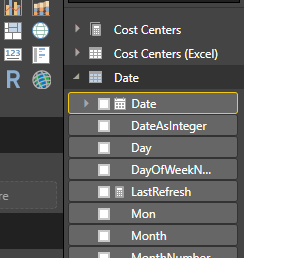
Go to the modeling tab, click Format and click date. This should give you a list of options.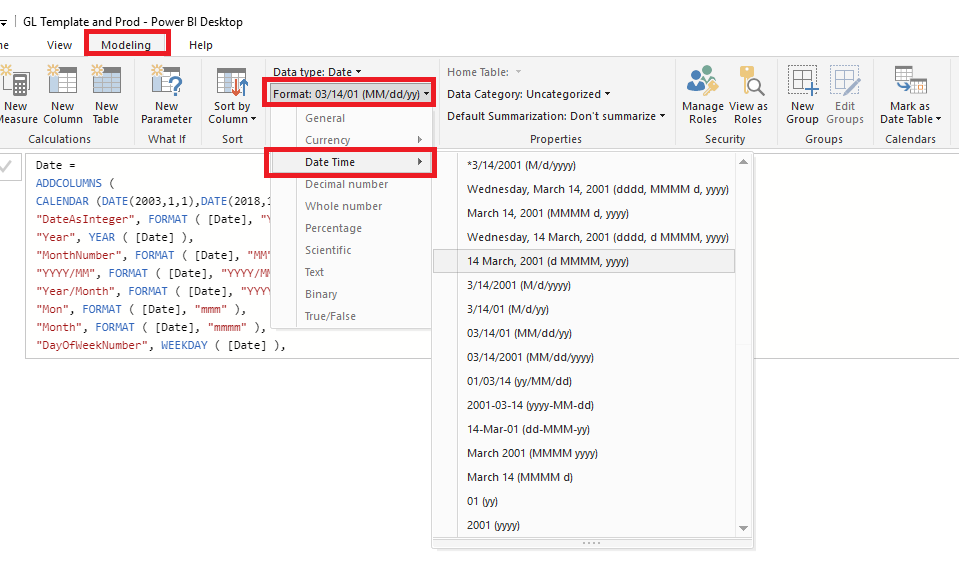 If this is still a problem, you will have to dive into your query editor and mess around with reformatting the dates. If this continues to be a problem, I’d suggest just remaking your own calendar in Navision.
 ——————————
David Yee
Foothill Packing
Salinas CA
——————————
——————————————- -
David Yee
MemberApril 13, 2018 at 11:17 AM
You need to log into edit queries –> new data –> press enter to create a blank table. Click advanced editor and paste the following code:let fnDateTable = (StartDate as date, EndDate as date, FYStartMonth as number) as table =>
let
DayCount = Duration.Days(Duration.From(EndDate – StartDate)),
Source = List.Dates(StartDate,DayCount,#duration(1,0,0,0)),
TableFromList = Table.FromList(Source, Splitter.SplitByNothing()),
ChangedType = Table.TransformColumnTypes(TableFromList,{{“Column1”, type date}}),
RenamedColumns = Table.RenameColumns(ChangedType,{{“Column1”, “Date”}}),
InsertYear = Table.AddColumn(RenamedColumns, “Year”, each Date.Year([Date]),type text),
InsertYearNumber = Table.AddColumn(RenamedColumns, “YearNumber”, each Date.Year([Date])),
InsertQuarter = Table.AddColumn(InsertYear, “QuarterOfYear”, each Date.QuarterOfYear([Date])),
InsertMonth = Table.AddColumn(InsertQuarter, “MonthOfYear”, each Date.Month([Date]), type text),
InsertDay = Table.AddColumn(InsertMonth, “DayOfMonth”, each Date.Day([Date])),
InsertDayInt = Table.AddColumn(InsertDay, “DateInt”, each [Year] * 10000 + [MonthOfYear] * 100 + [DayOfMonth]),
InsertMonthName = Table.AddColumn(InsertDayInt, “MonthName”, each Date.ToText([Date], “MMMM”), type text),
InsertCalendarMonth = Table.AddColumn(InsertMonthName, “MonthInCalendar”, each (try(Text.Range([MonthName],0,3)) otherwise [MonthName]) & ” ” & Number.ToText([Year])),
InsertCalendarQtr = Table.AddColumn(InsertCalendarMonth, “QuarterInCalendar”, each “Q” & Number.ToText([QuarterOfYear]) & ” ” & Number.ToText([Year])),
InsertDayWeek = Table.AddColumn(InsertCalendarQtr, “DayInWeek”, each Date.DayOfWeek([Date])),
InsertDayName = Table.AddColumn(InsertDayWeek, “DayOfWeekName”, each Date.ToText([Date], “dddd”), type text),
InsertWeekEnding = Table.AddColumn(InsertDayName, “WeekEnding”, each Date.EndOfWeek([Date]), type date),
InsertWeekNumber= Table.AddColumn(InsertWeekEnding, “Week Number”, each Date.WeekOfYear([Date])),
InsertMonthnYear = Table.AddColumn(InsertWeekNumber,”MonthnYear”, each [Year] * 10000 + [MonthOfYear] * 100),
InsertQuarternYear = Table.AddColumn(InsertMonthnYear,”QuarternYear”, each [Year] * 10000 + [QuarterOfYear] * 100),
ChangedType1 = Table.TransformColumnTypes(InsertQuarternYear,{{“QuarternYear”, Int64.Type},{“Week Number”, Int64.Type},{“Year”, type text},{“MonthnYear”, Int64.Type}, {“DateInt”, Int64.Type}, {“DayOfMonth”, Int64.Type}, {“MonthOfYear”, Int64.Type}, {“QuarterOfYear”, Int64.Type}, {“MonthInCalendar”, type text}, {“QuarterInCalendar”, type text}, {“DayInWeek”, Int64.Type}}),
InsertShortYear = Table.AddColumn(ChangedType1, “ShortYear”, each Text.End(Text.From([Year]), 2), type text),
AddFY = Table.AddColumn(InsertShortYear, “FY”, each “FY”&(if [MonthOfYear]>=FYStartMonth then Text.From(Number.From([ShortYear])+1) else [ShortYear]))
in
AddFY
in
fnDateTable
then press done and select your time period
——————————
David Yee
Foothill Packing
Salinas CA
——————————
——————————————- -
Barry Crowell
MemberApril 16, 2018 at 9:01 AM
Pyry,I don’t believe you have an issue with the date format or data inside NAV but probably the why that NAV enters dates by default. In NAV, an undefined date is represented by the earliest valid date in SQL server which is 01-01-1753. For example, if your tracking orders in NAV and looking at the Order Date of the order this should have a good date other than 01-01-1753 but since a new order hasn’t even been fulfilled/shipped yet the entry for the Shipment Date field will be 01-01-1753 by default until that order is fulfilled and shipped by warehouse staff.
——————————
Barry Crowell
Senior Business Consultant
KTL Solutions, Inc
Frederick MD
301-360-0001
——————————
——————————————-
DSC Communities replied 7 years, 12 months ago 1 Member · 0 Replies -
-
0 Replies
Sorry, there were no replies found.
The discussion ‘NAV Calendar and Power BI’ is closed to new replies.
