

Dynamics GP
Public Group
Active 2 days ago
Dynamics GP
Organizer:
- JOSE Organized by
-
-

refund check
-
refund check
Posted by DSC Communities on June 13, 2017 at 4:30 pm-

Tanner Carlisle
MemberJune 13, 2017 at 4:30 PM
An office manager requested a check to refund a sales customer that had overpaid. Our payables clerk issued the check through purchasing. Sometime later I noticed the overpayment in the customer’s account. So, because we did not use the refund check process or create a debit memo in the sales module to create the check, this payment in purchasing did not affect the customer’s account in sales. The customer’s account still shows that we owe him; how do I get the customer’s account to reflect the payment?Thanks for any help!
——————————
Tanner Carlisle
American Quarter Horse Association
Amarillo TX
—————————— -
Sheila Jefferson-Ross
MemberJune 14, 2017 at 1:14 AM
Hello Tanner,You need to create a Debit memo in the customer’s account & the offset account that you should use is the same account that was used in AP.
Basically the Refund module will do this process for you automatically. The goal is to move this credit balance from AR to your AP for payment. To do it manually follow these steps:
- Process a debit memo on the customer’s account & use a clearing account in your distribution.
- Apply your credit balance to the debit memo in Apply Sales Documents.
- In AP, process a debit memo for a vendor record created for this customer. Make sure to use the same clearing account in the distribution that you used in the AR debit memo.
- AP – process a check for this vendor to refund the customer.
Hope this helps.
——————————
Sheila Jefferson-Ross
Senior Consultant
Socius
Rocklin CA
——————————
——————————————- -
Tiffany Ziegler
MemberJune 14, 2017 at 5:27 PM
I would issue a debit memo to the customer’s account and apply it to the overpayment. The credit to the entry would most likely be the same account that purchasing used when they issued payment – thus zeroing out the G/L.——————————
Tiffany Ziegler
Vice President & Controller
Velcor Leasing Corporation
Madison WI
——————————
——————————————- -
Yvette Rosser
MemberJune 15, 2017 at 9:13 AM
Hi you can issue a credit memo easily by:
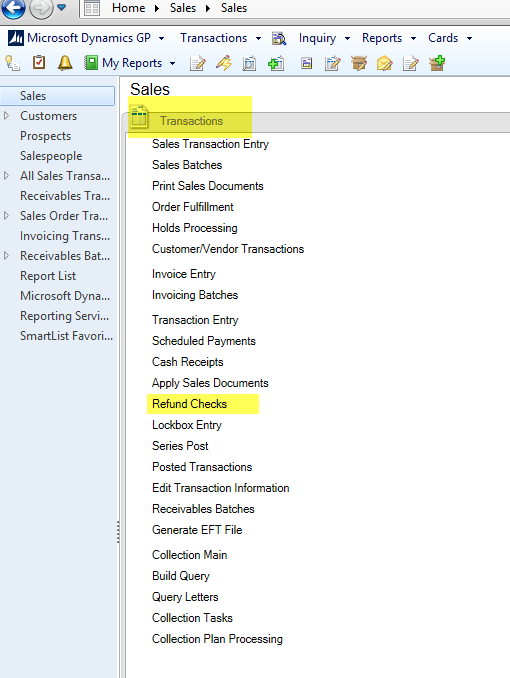
Then, the ensuing steps to create the refund are then as follows:- Create a Select Checks Batch ID
- Enter a Document Date for the resulting transactions
- The Refund Checks process can be done to create a refund for a specific document or customer, and it can also be used to pull in all credits for the processing of multiple refunds at once. Most typically the use is for specific document/customer refund, so the user would choose Create Refund for Specific Documents and then select the Customer
- Click on the Insert button
- A window will appear showing the available credits for refund – checkmark the appropriate credit document
- Click on the row displaying the Customer ID and Check Amount so that it is selected
- If a Vendor ID already exists for this customer, select it in the Vendor ID field
- If a Vendor ID does not yet exist for this customer, click on the Create Vendor button – a new Vendor ID will magically be created per the logic assigned in the Refund Check Setup window – Save and close the Vendor Maintenance window that appears in this step
- Once all is confirmed, click on the Process button
- Sit back and relax while Microsoft Dynamics GP creates, posts and applies all transactions needed for this process!
- The result is a Select Checks batch in Payables that is ready to be printed to a check to send to the customer
In Step 8 above, while the user is sitting back and letting GP do all of the thinking, Microsoft Dynamics GP is creating a debit memo in Receivables Management for this customer, posting the debit memo to the suspense account assigned in the Refund Check Setup window, and applying the debit memo to the credit for the customer.
Microsoft Dynamics GP also is creating a miscellaneous charge in Payables Management for the related vendor, posting the charge to the same suspense account assigned in the Refund Check Setup window, creating the Select Checks Batch ID assigned in the Create Refund Check window, selecting the miscellaneous charge to be paid and saving it to the batch.All that is left for the user to do at this point is to load the printer with a check and click on the Print Check button. Microsoft Dynamics GP has made a daunting task of tedious steps filled with trepidation as to whether both sides of the transaction will actually clear out when completed, into a couple of simple steps where the only decision to be made is what to name the batch and then the pushing of a button.
Here’s a video also:
——————————
Yvette Rosser
Veristor Systems, Inc.
Duluth GA
——————————
——————————————- -
Kate Lucas Stump
MemberJune 15, 2017 at 5:59 PM
?We use the customer refund module for this to streamline it. If you do a lot of customer refunds (such as in instances of claims) this might make it easier in the future.——————————
Kate Lucas Stump
Controller
Total Quality Logistics, LLC
Milford OH
——————————
——————————————-
DSC Communities replied 8 years, 9 months ago 1 Member · 0 Replies -
-
0 Replies
Sorry, there were no replies found.
The discussion ‘refund check’ is closed to new replies.
