


Dynamics GP
Public Group
Active 2 days ago
Dynamics GP
Organizer:
- JOSE Organized by
-
-

Invoice Due Date
-
Invoice Due Date
Posted by DSC Communities on July 15, 2020 at 4:18 pm-

Mary Ellison
MemberJuly 15, 2020 at 4:18 PM
I’m brand new and trying to add the invoice due date to the report called ‘RM Statement on Blank Paper’. We’ve already modified this report to work for our organization, I just want to do a couple of things but am stuck with how to do this. I don’t know what table contains invoice due date. I’ve listened to a few of the webinair’s on this site and I have figured out enough about report writer to be dangerous. Any help you can provide is greatly appreciated.——————————
Mary Ellison
Business Systems Analyst
Blommer Chocolate
Chicago IL
mellison@blommer.com
—————————— -
Hi ,
As a general rule, I recommend working on these customizations when users aren’t in the system to avoid dictionary issues…or that you at least work on a local dictionary during the changes. I also recommend backing up the dictionary just to be safe.
In regards to how to add the field you’re wanting, some notes are below:
You must first create a table relationship so that the table that contains the Due Date (the RM Open file table) is one of the tables you can pull from in your report.
To create the relationship:
1.) On the toolbar, click Tables , and then click Tables
2.) In the Tables dialog box, click RM_Statements_TRX_TEMP , and then click Open.
3.) In the Table Definition dialog box, click Relationships .
4.) In the Table Relationship dialog box, click New .
5.) Click the ellipsis button ( … ) to the right of the Secondary Table field.
6.) In the Relationship Table Lookup dialog box, click RM Open File , and then click OK .
7.) In the Secondary Table Key list, click RM_Open_Key4 .
8.) In the first Primary Table list, click RM Document Type-All .
9.) In the second Primary Table list, click Document Number , and then click OK .
10.) Close the Table Relationship dialog box.
11.) Click OK .
12.) Close the Tables dialog box.Once you’ve created the table relationship, you need to add the table to the report in question. To do that, do the following:
1.) In the Toolbar, click on “Reports” to get a list of modified reports. You should see your RM STatement on Blank Paper listed.
2.) In the Modified Reports list, click RM Statement On Blank Paper , and then click Open. The Report Definition box appears.
3.) In the Report Definition box, click Tables .
4.) In the Report Table Relationships dialog box, click 05.-RM Statement Transaction Temporary File , and then click New .
5.) In the Related Tables dialog box, click RM Open File , and then click OK .
6.) Click Close.Now the table has been added to the report and you should be able to pick fields from it for the report.
1.) In the Toolbar, click on “Reports” to get a list of modified reports. You should see your RM STatement on Blank Paper listed.
2.) In the Modified Reports list, click RM Statement On Blank Paper , and then click Open
3.) Once the Report definition is open, click the “Layout” button. That should bring up the report layout.
4.) A new toolbox should appear including a dropdown list of tables. You should be able to select the RM Open file from it. A list of fields will populate including the due date.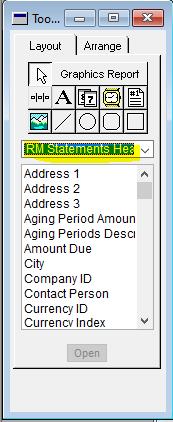
5.) You should be able to drag the Due Date field to wherever you want it to appear – likely near the Document Date, Document Number, etc. There may be other changes you need to make as well -resizing columns, adding a column header for “Due Date”, etc. I won’t go into detail on those right now, but I can if you’d like.6.) Once you have made your changes, close the report layout. When you get the message asking you if you want to save changes, click “Save”.
7.) Close the Report Definition that you opened in Step 2 of this section. If prompted to save changes, choose to do so.
8.) Close Report Writer and return to Dynamics GP. Again, if prompted to save changes, choose to save!You may need to grant access to the modified report, but you had said your organization had already done modifications so users may already have access to the modified report. If you’d like some guidance on that, let me know.
If all goes well, the next time you run the statements, you’ll see the due date. For reference, I walked through the steps and added the field. It’s highlighted in red below.
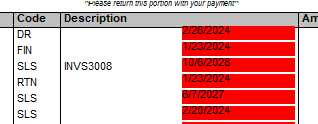
Does that make sense? I know it’s a lot of steps and not a lot of screenshots for reference so if you have any questions, don’t hesitate to ask!
Thanks,
Samantha
——————————
Samantha Higdon ,CPA,CGMA
Consultant
Lagom, LLC
Carmel IN
——————————
——————————————- -
Mary Ellison
MemberJuly 15, 2020 at 5:14 PM
Wow – you are such a wonderful person to go to this length to answer a newbie’s question and in such detail. Thank you so much for doing this. I will check this out and probably be getting back to you or this post with the results!!!!! Again THANKS!——————————
Mary Ellison
Business Systems Analyst
Blommer Chocolate
Chicago IL
mellison@blommer.com
——————————
——————————————- -
,
We were all new to GP at one point. This is exactly the type of thing GPUG is meant for! I’ve said it before on here and I’ll say it again (and again and again…). A win for one of us is a win for all of us!!!
Keep me posted on how the adjustments go. If there’s anything else I can do to help, just let me know.
Thanks,
Samantha?
——————————
Samantha Higdon ,CPA,CGMA
Consultant
Lagom, LLC
Carmel IN
——————————
——————————————-
DSC Communities replied 5 years, 8 months ago 1 Member · 0 Replies -
-
0 Replies
Sorry, there were no replies found.
The discussion ‘Invoice Due Date’ is closed to new replies.
