


Dynamics GP
Public Group
Active 2 days ago
Dynamics GP
Organizer:
- JOSE Organized by
-
-

Integration Manager: How to keep SOP Line Items it order
-
Integration Manager: How to keep SOP Line Items it order
Posted by DSC Communities on July 12, 2020 at 9:11 pm-

Steve Erbach
MemberJuly 12, 2020 at 9:11 PM
I’ve got an SOP Integration working pretty well with Integration Manager. My only concern is that the line items are imported in various orders. That is, the order in which the line items appear in my Excel spreadsheet is not maintained once the line items are imported into GP. The Order headers are in a separate range from the line items.I’m using the eConnect Sales Order Processing Destination Adapter. Should I use the Dynamics GP Adapter instead?
Might it work if I flatten the whole thing and simply have multiple rows per order with all of the order header information repeated for as many line items there are for each order?
Thank you,
——————————
“Sparkly” Steve Erbach – Green Bay, WI
Co-Chair, GPUG WI (Green Bay) Chapter
Blog: https://www.gpug.com/blogs/steve-erbach
Twitter: twitter.com/serbach
—————
Excel Webinar List as of June 10, 2020
—————————— -
Steve Erbach
MemberJuly 13, 2020 at 8:58 AM
More info: I’ve tried merging the line items with the header information. No good! It produces as many orders as there are line items.I’ve done dozens of trial runs in our TEST company. The line items don’t stay in the order they appear in the Excel workbook. I’ve even tried telling Integration Manager that in the Header tab that the Document Number is the key (just a sequential number), and in the Line Items tab the key fields are the Document Number and the Line Number (again, a sequential number in each Order; that is the numbering sequence re-starts at 1 for each new Order). I’ll try a test where the Line number is sequential through the entire list of Orders… maybe even make the Line Number field the key.
At least I’ve answered the question about flattening the Excel file. Doesn’t work.
Regards,
——————————
“Sparkly” Steve Erbach – Green Bay, WI
Co-Chair, GPUG WI (Green Bay) Chapter
Blog: https://www.gpug.com/blogs/steve-erbach
Twitter: twitter.com/serbach
—————
Excel Webinar List as of June 10, 2020
——————————
——————————————- -
Steve Erbach
MemberJuly 13, 2020 at 9:45 AM
Nope! Renumbering the line items into one continuous range of numbers and making that the sole “key” field in the Integration did nothing to maintain the order of the line items in GP. Here’s the way some of the Orders come out: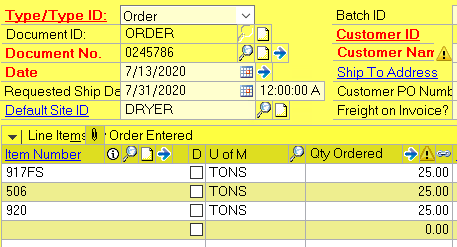
The order in the Excel file (which is what I want) is 506, 920, 917FS.Any ideas?
Regards,
——————————
“Sparkly” Steve Erbach – Green Bay, WI
Co-Chair, GPUG WI (Green Bay) Chapter
Blog: https://www.gpug.com/blogs/steve-erbach
Twitter: twitter.com/serbach
—————
Excel Webinar List as of June 10, 2020
——————————
——————————————- -
Hi Steve,
Have you tried setting the “UseOptimizedFiltering=False” in the Microsoft.Dynamics.GP.IntegrationManager.ini file? That worked for me once.
Thanks
Val——————————
Valerie Sikora
Senior Developer
LBMC Technology Solutions
Brentwood TN
——————————
——————————————- -
Steve Erbach
MemberJuly 13, 2020 at 11:31 AM
,YES!??! Oh, my goodness! That did it! All of that banging my head against the wall was starting to leave a mark! Thank you.
I haven’t awarded one of these in a while. I do this for someone who, like the inimitable , resolves a problem I have with elegance and alacrity. I’m very pleased to award you a Gold LESLIE VAIL badge:

Very truly yours,
?——————————
“Sparkly” Steve Erbach – Green Bay, WI
Co-Chair, GPUG WI (Green Bay) Chapter
Blog: https://www.gpug.com/blogs/steve-erbach
Twitter: twitter.com/serbach
—————
Excel Webinar List as of June 10, 2020
——————————
——————————————- -
Glad it worked! Thank you for the Leslie Vail award, I am honored!
——————————
Valerie Sikora
Senior Developer
LBMC Technology Solutions
Brentwood TN
——————————
——————————————- -
Steve Erbach
MemberJuly 13, 2020 at 12:23 PM
,You join some very good folks:
?– Chrome
– Chrome
– Chrome and Gold
– Alabaster
– Gold
– Bronze and Rainbow
– Gold
– Silver
????????
Sincerely,——————————
“Sparkly” Steve Erbach – Green Bay, WI
Co-Chair, GPUG WI (Green Bay) Chapter
Blog: https://www.gpug.com/blogs/steve-erbach
Twitter: twitter.com/serbach
—————
Excel Webinar List as of June 10, 2020
——————————
——————————————- -
Thomas Hill
MemberJuly 13, 2020 at 10:02 AM
it is the same issue with using Integration Manager to upload my general ledger journal entries. The detail is random and does not match the Excel print out of the Journal Entry. It seems randomness is the order.——————————
Thomas Hill
Staff Accountant
M&A Technology, Inc.
Carrollton TX
——————————
——————————————- -
Steve Erbach
MemberJuly 13, 2020 at 12:46 PM
,Check out ‘s answer to my question!
Regards,??
——————————
“Sparkly” Steve Erbach – Green Bay, WI
Co-Chair, GPUG WI (Green Bay) Chapter
Blog: https://www.gpug.com/blogs/steve-erbach
Twitter: twitter.com/serbach
—————
Excel Webinar List as of June 10, 2020
——————————
——————————————- -
Hi Steve: Long time lurker, first-time poster.
Great answer by Valerie. I’ve implemented this solution a while back when upgrading to GP18. However, be careful with your other integrations. After I implemented this, I started receiving “Syntax error (missing operator) in query expression….. ‘F1 = ….. UCase(F2) = ….'” on a different integration that was working prior.
How I solved this: I found out all columns/fields in the source file needs to have data, EVEN if you don’t need the values. It does not like “” or ” “. So we added “-” to our source file in the empty columns. Fortunately, it has only affected one of our integrations: creating invoices in Sales Transaction integration.
Hopefully, you do not run into this issue; but in case that anyone does, that is the cause and my solution for that syntax error.
Have a great day!!
——————————
Fenel Aldajuste
City of Plantation
Plantation FL
——————————
——————————————- -
GP doesn’t know how to filter Nulls. In many cases it doesn’t know what to do with them at all and just barfs. It’s why I like to have my integrations look at Views where I can replace missing values with defaults where necessary.
——————————
Blair Christensen
Database Administrator
Oppenheimer Companies, Inc.
Boise Idaho GPUG Chapter Leader
——————————
——————————————- -
Steve Erbach
MemberJuly 15, 2020 at 6:54 PM
,>> I like to have my integrations look at Views where I can replace missing values with defaults where necessary <<
I’m trying to picture this.?? Are you saying that your Source is a SQL statement? What database are you pointing to? One that you’ve created specifically for integrations? I like that idea; I just have no time to set up an interface to such a database. I’d love to have new SOP orders be entered into a SQL table, maybe with an Access app.
I know that you’re the Integration Manager king. What are you doing with Advanced ODBC Sources?
Regards,
——————————
“Sparkly” Steve Erbach – Green Bay, WI
Co-Chair, GPUG WI (Green Bay) Chapter
Blog: https://www.gpug.com/blogs/steve-erbach
Twitter: twitter.com/serbach
—————
Excel Webinar List as of June 10, 2020
——————————
——————————————- -
Yes. I typically try to put the prep tables in the company database but in a different schema: INTG instead of dbo. For privileges I usually just give DYNGRP read/write to keep things simple and easy unless the requirements restrict access.
I like to stage all my information to an SQL table because it puts the control and validation of data into a separate part of the routine, e.g. when the users load/prep the data. Most of the time this is done with Excel macro-based workbooks. This lets them control and see the ETL process (in a tool they are comfortable with) and makes sure that the data will flow through the integration without interruption. (I don’t know about you, but trying to debug integration failures from the sparse messages given there… Not my favorite.)
I can send you one of mine if you would like. It lets the user select the file to process and then just reads the file and dumps the necessary information into a staging table for the Integration.
If one is clever, one can write SQL which treats even csv’s and Excel documents like external tables. The trickiest part there is your process to move the document into the proper directory with the appropriate permissions and name. That’s why I typically go with an ETL process via workbook instead.
And yes, I use almost exclusively the Advanced ODBC connections. Once you have a database listed, it always shows in the list. I typically have one per company database. Then you have to create a specific connector for that data source. I like using Views in the connectors because that way if I have to adjust the table structure for whatever reason, I can add columns, etc. without destroying the Integration. The other key is that I can put a WHERE clause in the VIEW which only grabs data with a certain STATUS indicator. Then I use an AFTER INTEGRATION script to change the STATUS indicator on the successfully-integrated lines. This makes it super simple if I need to reload something – I just change the STATUS value back and the user re-runs the integration. (In some cases, I even allow the user to look up and reset the STATUS value themselves.) Having a STATUS column also allows me to track history.
You’re welcome to give me a call about any of this and I can walk you through on of my Excel workbooks. For a guy who built an excel workbook to help him manage his users in Dynamics, I have no doubts that you can handle this.
——————————
Blair Christensen
Database Administrator
Oppenheimer Companies, Inc.
Boise Idaho GPUG Chapter Leader
——————————
——————————————- -
Steve Erbach
MemberJuly 17, 2020 at 9:06 AM
,Having now gotten my feet wet with this (long-delayed) integration, I’m ready to branch out. Yes, I’d like to chat with you about Advanced ODBC connections and After Integration scripts. I was on a Teams call with last night and he helped me create a menu option in GP to perform some clean up queries after this SOP integration. Once we’d tested it successfully, he asked why I didn’t simply use an After Integration script. I had to reveal that I’d never made one??. So, yeah! I’m interested in hearing about your experiences! I’ll email you offline.
Sincerely,
——————————
“Sparkly” Steve Erbach – Green Bay, WI
Co-Chair, GPUG WI (Green Bay) Chapter
Blog: https://www.gpug.com/blogs/steve-erbach
Twitter: twitter.com/serbach
—————
Excel Webinar List as of June 10, 2020
——————————
——————————————- -
Steve Erbach
MemberJuly 15, 2020 at 6:47 PM
,I’m glad that you chimed in! While I was testing, I found that IM doesn’t like Excel tables. It’s Named Ranges ?only.
I also discovered that one can’t name a range with lots of extra blank rows because eConnect doesn’t like not having data to work with!
I’ve also made sure to have values in all of the fields. Thank you.
Sincerely,
——————————
“Sparkly” Steve Erbach – Green Bay, WI
Co-Chair, GPUG WI (Green Bay) Chapter
Blog: https://www.gpug.com/blogs/steve-erbach
Twitter: twitter.com/serbach
—————
Excel Webinar List as of June 10, 2020
——————————
——————————————- -
Beat Bucher
MemberJuly 14, 2020 at 11:41 AM
Hi Steve,
I might recall that this is a bug with the eConnect SOP connector to create sales order in GP.. it doesn’t follow the order they come in the source file.
Not even sure it would be in the right order if you would use the GP direct connector instead of eConnect in IM.. The same is true for POP imports.I think once blogged about that and might even have a script to re-order SOP Line items, but I’m not sure.
See this thread: https://community.dynamics.com/gp/f/microsoft-dynamics-gp-forum/391460/integration-manager-sop-item-sort-order
you may want to try this out in DEX.ini : UseOptimizedFiltering=TrueEdit: just realized I’m late in the game 🙂 but for what it’s worth: https://community.dynamics.com/gp/b/criticaledgegroup/posts/professional-service-tools-library-part-five-sop-tools
?——————————
Beat Bucher
Business Analyst, Dynamics GP SME
Montreal QC/Canada
@GP_Beat http://www.gp-geek.com
Montreal QC GPUG Chapter Leader
MBS MVP (2015-2018)
——————————
——————————————- -
Steve Erbach
MemberJuly 15, 2020 at 7:03 PM
Hello, , mon ami!For now?, I’ve used ‘s suggestion to good effect.
On a related note, I saw a blog post (linked in Twitter) by wherein he points out that IM still has a “feature” that requires that the person running the Integration has rights to the SOP Setup screen. Of course, I’ve been doing my testing with my Superuser account. Now I’ll shift to a restricted account to see for myself.
Regards,
??——————————
“Sparkly” Steve Erbach – Green Bay, WI
Co-Chair, GPUG WI (Green Bay) Chapter
Blog: https://www.gpug.com/blogs/steve-erbach
Twitter: twitter.com/serbach
—————
Excel Webinar List as of June 10, 2020
——————————
——————————————-
DSC Communities replied 5 years, 8 months ago 1 Member · 0 Replies -
-
0 Replies
Sorry, there were no replies found.
The discussion ‘Integration Manager: How to keep SOP Line Items it order’ is closed to new replies.
