

Dynamics GP
Public Group
Active 4 weeks ago
Dynamics GP
Organizer:
- JOSE Organized by
-
-

Integration Manager 16 ODBC error
-
Integration Manager 16 ODBC error
Posted by Debbie-Knoebl on April 7, 2020 at 12:04 pm-
Hi. I am trying to get into Integration manager for a client and I keep getting the error message below when I launch it.
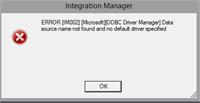
I tried changing the IM dictionary back to the “samples” dictionary. GP works on this server, so I know there is a valid data source on here. I don’t have admin privileges (This is an RDS server that I remote to via a VPN) so I can’t do “run as administrator”. I was going to try to find where the DNS settings were in a config file or something to see what it is even looking for, but I don’t know where that is.Does anyone have any ideas of what else I can try? I know IM worked before, because back in November of 2019 I imported some transactions.Thanks!
Debbie K——————————
Debbie Knoebl
Wipfli
Madison WI
—————————— -
Hi
I have seen that error when you aren’t in GP before trying to get into Integration Manager. The other time I have seen this error is when the IM database has gotten corrupted. If that is the case it is an Access database and you can open it up in Access and do a repair.
?
——————————
Jennifer Wheeler
——————————
——————————————- -
This is an incredibly common error that usually results from someone manually setting up the ODBC connection and getting the name or settings wrong. I’ve had good success creating my own client installer for Dynamics GP (the tool and instructions are on the install media) and making sure to include the ODBC setup. Then make sure when you created your integration that the datasource connections were made using the standard ODBC connection, because unless they match, you will get the error you are seeing. (You can choose to just install the ODBC from the custom installer.)
Also note that for GP, the authentication has to be setup for database authentication rather than Windows authentication or it won’t work – that includes integrations.
Las thing to check is permissions on the tables referenced in your integration, though those usually throw “Access denied” errors instead of connection failed errors.
——————————
Blair Christensen
Database Administrator
Oppenheimer Companies, Inc.
Boise Idaho GPUG Chapter Leader
——————————
——————————————- -
Thanks Blair
I get what you’re saying, but I don’t know where I can go to fix it in integration manager. GP runs fine and l have tried launching IM both from within GP and from the external executable as administrator.I can’t even look at the integrations to see what the Data sources are because I can’t access the IM database. I also tried pointing it to the sample IM dictionary, which I don’t think has any data source connections set up.
Is there somewhere I can edit the IM data sources without being actually IN IM?
Thanks!
——————————
Debbie Knoebl
Wipfli
Madison WI
——————————
——————————————- -
The first thing I would check is the ODBC connection. Look at it on a computer which works – in particular the name. Then go to the workstation which doesn’t work and compare the two. This is completely separate and apart from Integration Manager or Dynamics GP. (You can look at the ODBC by going to the Windows Administrative Tools under programs in Windows 10. In prior versions it is one of the Admin Tools under Control Panel.) Dynamics GP (and Integration Manager) require the 32-bit ODBC connectors. (Double-check this as I have seen sometimes where someone sets up a 64-bit connector.) See the screenshot attached.
After that it you have to start looking at the data sources in Integration Manager. In Integration Manager, open up the Object Browser so you can look at the individual DSN’s. Then look at the connection string for details on the version of ODBC driver it is using and the destination. Those can give you clues on what you need to check next. (see screenshots)
——————————
Blair Christensen
Database Administrator
Oppenheimer Companies, Inc.
Boise Idaho GPUG Chapter Leader
——————————
——————————————- -
I actually figured this out (I couldn’t even open anything to SEE the DSNs before I fixed it). The IMD file was corrupted, but even when I tried to change it under tools/options it was not saving to the integration manager.ini file. I had to manually change that to point to the correct IMD database (I just put it to the sample one) and then I was able to open and use integration manager with no issues. I ran a fix on the original database in Access and it worked on my laptop IM, but I have not reinstalled it on the client’s server yet. I will likely just use the new one anyway, since there were no integrations in theirs that were super tricky that I could not reproduce if necessary.
Thanks for the help!
——————————
Debbie Knoebl
Wipfli
Madison WI
——————————
——————————————-
Debbie-Knoebl replied 6 years, 7 months ago 1 Member · 0 Replies -
-
0 Replies

Sorry, there were no replies found.
The discussion ‘Integration Manager 16 ODBC error’ is closed to new replies.