


Dynamics GP
Public Group
Active 3 days ago
Dynamics GP
Organizer:
- JOSE Organized by
-
-

Where do keyboard shortcuts live?
-
Where do keyboard shortcuts live?
Posted by DSC Communities on October 18, 2019 at 1:24 pm-

Kristy James
MemberOctober 18, 2019 at 1:24 PM
I’ve searched the GP database and haven’t quite seen a clear answer to this… Where do keyboard shortcuts live and how can we see what’s setup? I’m specifically curious for SOP, but other areas would be interested if they knew they existed.Most recently I implemented Avalara AvaTax, which the default setup includes Ctrl+T will calc tax. It doesn’t and I think that’s because Ctrl+T is also setup for “Quick Track”, which I don’t know what that is and it doesn’t do anything. So, how do I get rid of “Quick Track” (and others like this) and is there some way I can see everything that may be setup so we can use these accurately?
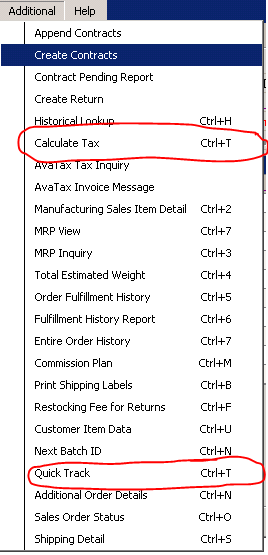
My normal user preference setting is “Action Pane”, in case that makes a difference, so normally I don’t even know that a shortcut is setup. The fun things you find when trying to get a new user’s profile working correctly. 🙂
Thanks in advance!
——————————
Kristy James
Financial Controller
Dairyland Electrical Industries, Inc
Stoughton WI
—————————— -
There are two places in the AvaTax setup that you might wish to check.
#1 AvaTax Configuration. –> Is it turned on for the company? And Set the Shortcut.
#2 AvaTax User Preferences –> Select the User logging in and see if this user is checked to Disable Tax Calculations.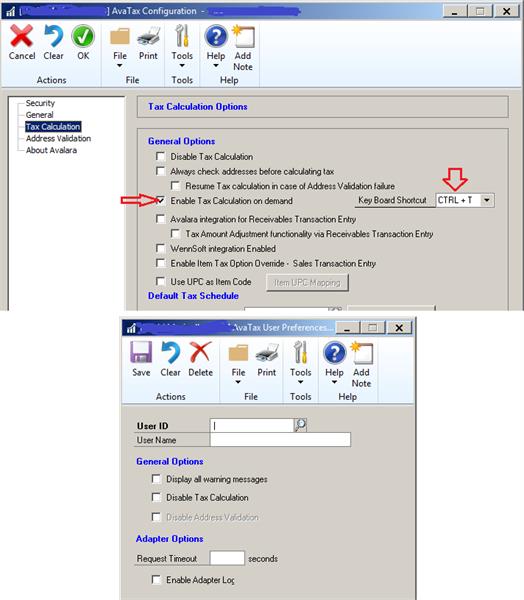
??
——————————
David Morinello
Senior Dynamics GP Systems Architect
Ascend Learning, LLC
Leawood KS
——————————
——————————————- -
Hi
There are a TON of posts (use Google) on Keyboard Shortcuts in GP, but here’s the thing. None of them is a full list.
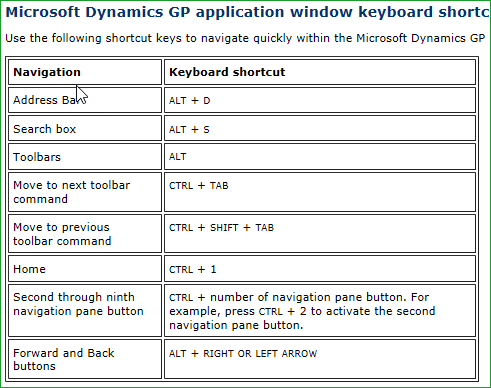
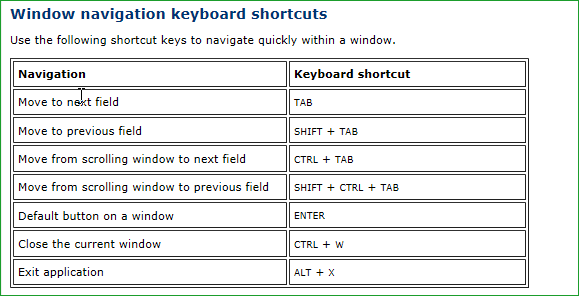
There are general movement shortcuts, like tab to move forward between fields and CNTRL+tab or ALT+tab to move other ways.
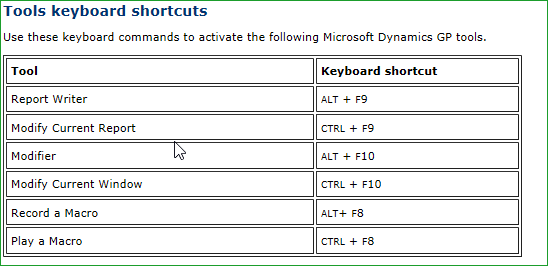
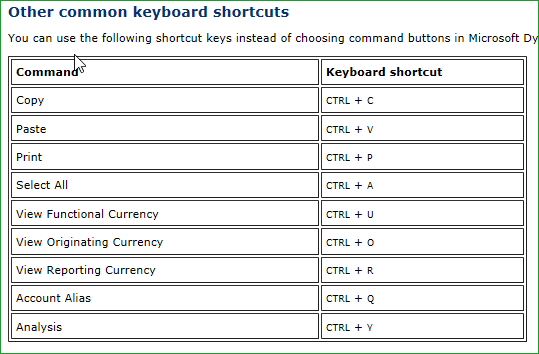
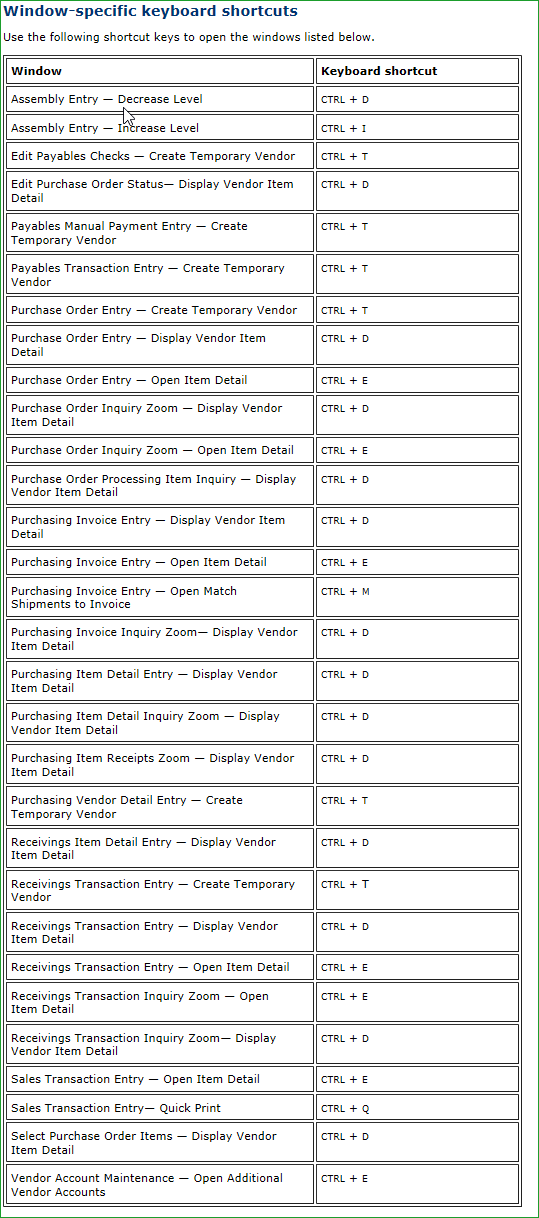
The key is that each window may have a different use for a keyboard shortcut so I would go to Microsoft Dynamics GP>User Preferences and change the menu to menu bar for each user that wants to see the shortcuts (you can always change back), close and re-open GP to see the change in the menu then in each window you can see the shortcuts for that window in the dropdowns for the menu to learn them or make a listing for your users.
Here is what the GP 2013 documentation lists. Keep in mind this is older and there may be many more new shortcuts to find.
?
——————————

——————————
——————————————- -
Keyboard Shortcuts on the Additional menus are defined by the developer of the third party product when they register their triggers on the form to create the additional menu.
There are three possibilities:
1) The keyboard shortcut has been hardcoded. Bad practice as it cannot be changed.
2) The keyboard shortcut has been defined as a message, which means it can be edited with Modifier. You will need to ask the developer for the Message ID to change.
3) The keyboard shortcut has been dynamically defined either using a Dex.ini setting or a value stored in a table. You just need to change it.One final option you have is…
The order that the additional menu items are processed is controlled by the order they appear in the menu, which is controlled by the order they are registered, which is controlled by the order the Startup scripts are executed, which is controlled by the order of the products in the Dynamics.set launch file. So if you re-order the products you can change which of the keyboard shortcuts that clash is activated when you use it.
Hope this helps
David?
——————————
David Musgrave MVP, GPUG All-StarManaging Director
Winthrop Development ConsultantsPerth, Western Australia
http://www.winthropdc.com
——————————
——————————————- -
Hi Kristy – Quick Track is an EthoTech product that installs with The EthoSeries, the bundle of products that also include Commission Plan Keystone, a product for which you are licensed from us. You are able to designate your desired hotkey per EthoSeries module for each associated Dynamics GP window by going to the EthoSeries HotKey Setup window (Tools>>Setup>>System>>EthoSeries HotKey Setup).
Any users currently logged into Dynamics GP will need to exit the system and then log back in for any hotkey changes to take effect.
Please let me know if you need any additional assistance.
——————————
Stephanie Rasmussen
Manager of Sales
EthoTech, Inc.
Piney Flats TN
steph@ethotech.com
——————————
——————————————- -
Kristy James
MemberOctober 22, 2019 at 10:59 AM
Thank you all for the responses! This has been incredibly helpful and solved a user problem as well as my shortcut problems. Such a wonderful resource you all are!——————————
Kristy James
Financial Controller
Dairyland Electrical Industries, Inc
Stoughton WI
——————————
——————————————-
DSC Communities replied 6 years, 6 months ago 1 Member · 0 Replies -
-
0 Replies
Sorry, there were no replies found.
The discussion ‘Where do keyboard shortcuts live?’ is closed to new replies.
