

Dynamics GP
Public Group
Active 4 weeks ago
Dynamics GP
Organizer:
- JOSE Organized by
-
-

Smartlist Builder GO TO – Open Form
-
Smartlist Builder GO TO – Open Form
Posted by sshankel@woodings.com on December 4, 2019 at 2:49 pm-
Hello,
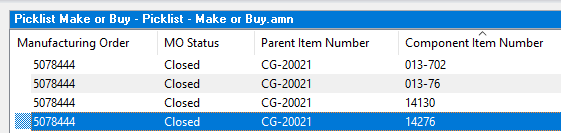
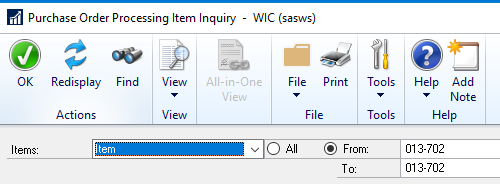
I setup an ‘Open Form Go To’ on a custom Smartlist. The Go To is setup to open the Purchase Order Processing Item Inquiry Window and enter the Component Item Number. Instead of entering the Component Item Number for the highlighted line (14276), it always uses the first one (alpha numeric) in the list (013-702). Any thoughts on why it isn’t pulling from the highlighted line? Thanks in advance for your help.
——————————
Scott Shankel
Controller
Woodings Industrial Corp.
Mars PA
—————————— -
Hi Scott,
Can you please share the SLB setup screen(s) and how you have the goto defined?
And, on a different note, I feel like I’m in Disney and the “It’s a small world song is playing…” I saw your question, then I saw your address. I moved to Vancouver, WA 12 years ago from Cranberry Twp and my brother works about 3 miles north of you… “It’s a small world…” 🙂
——————————
John Arnold
Senior Software Engineer
US Digital
Vancouver WA
——————————
——————————————- -
Scott,
I am not sure what you have setup for your SmartList Builder setup, but here is a basic one that I setup that seems to be working.
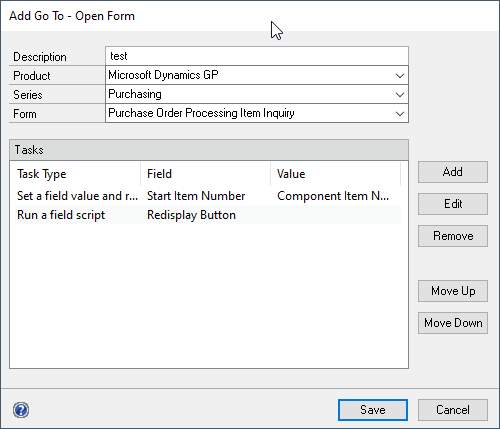
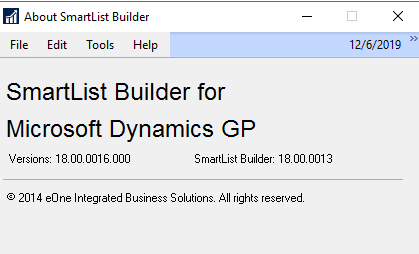
If that type of setup doesn’t work, what do you have setup for your Key Fields on the main table? Make sure whatever field you are using for your Component Item Number is included in that list and if it is the only GoTo, maybe make that field the only one there. Also, what version of SmartList Builder do you have installed (Microsoft Dynamics GP – Tools – SmartList Builder – About SmartList Builder)?
——————————
Nicole Albertson
Product Manager
eOne Solutions
——————————
——————————————- -
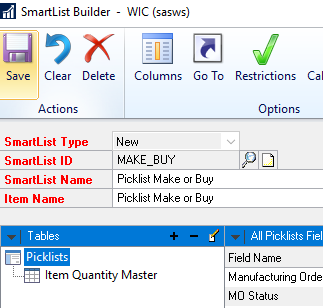
Thanks for the responses. I am trying to find where I can add a key field? I created the smartlist based off an existing smartlist. Maybe that is the issue?
——————————
Scott Shankel
Controller
Woodings Industrial Corp.
Mars PA
——————————
——————————————- -
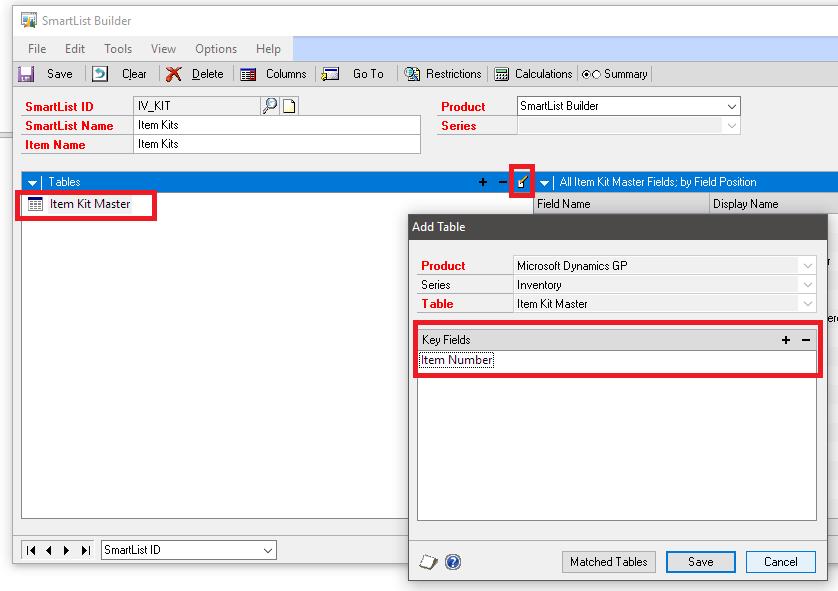
Scott, you can define key fields for your Smartlist on the Picklists table. Double click “Picklists” (or select it and click the pencil and paper icon to the right of the + and -) to edit the table. In the window that appears, you can use the + button to add Key Fields from that table. Make sure Item Number is added as a Key Field.
——————————
Sarah Brewster
Implementation and Support
ActivReporter by nQativ
Lubbock TX
——————————
——————————————- -
Scott,
I would check the list of ‘Key’ fields that you defined for the table. Did you include the Item Number?
Chris
——————————
Chris Donnelly
Sr Mgr of Info Systems and Financial Reporting
Healthmark Industries
——————————
——————————————- -
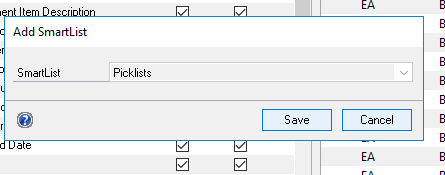
When I try to edit the table, I get the following window which does not allow me to edit the key fields.
——————————
Scott Shankel
Controller
Woodings Industrial Corp.
Mars PA
——————————
——————————————- -
Scott,
Try editing the Item Quantity Master (Sarah’s screenshot).
Chris
——————————
Chris Donnelly
Sr Mgr of Info Systems and Financial Reporting
Healthmark Industries
——————————
——————————————- -
Scott,
The Key Fields only exist on the first table and only when it is a GP Table. Since yours is a SmartList table, there isn’t key fields to set. I have tried the GoTo on the same type of setup as you have and it isn’t going to work.
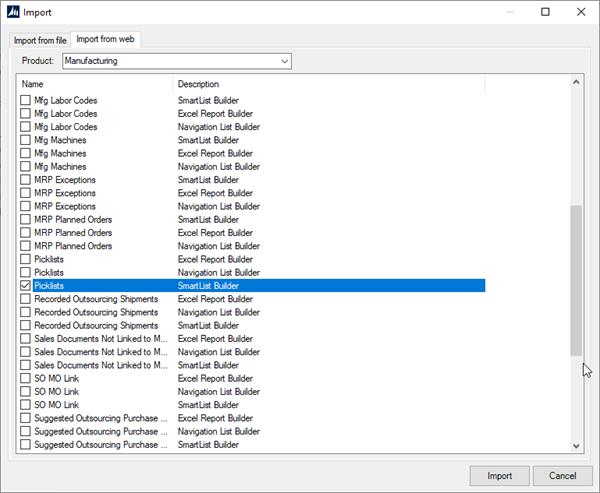
What you can do is create a new one based on GP tables. If you go to Microsoft Dynamics GP – Tools – SmartList Builder – Import, on the Import from web tab, you can import a setup that is built to mimic the default Picklists, but uses the GP tables option instead. From there, you can add your Item Quantity Master table again and the fields you want from that. Then you can build your GoTo using the setup I had replied with earlier in the post.
Let me know if that doesn’t work or you have any questions.
Nicole
——————————
Nicole Albertson
Product Manager
eOne Solutions
——————————
——————————————- -
Thanks Nicole. I had a feeling that was the issue.
——————————
Scott Shankel
Controller
Woodings Industrial Corp.
Mars PA
——————————
——————————————-
sshankel@woodings.com replied 6 years, 11 months ago 1 Member · 0 Replies -
-
0 Replies

Sorry, there were no replies found.
The discussion ‘Smartlist Builder GO TO – Open Form’ is closed to new replies.