


Dynamics GP
Dynamics GP
Organizer:
- JOSE Organized by
-
-

Reprinting after Posting an AP Batch
-
Reprinting after Posting an AP Batch
- To reprint the General Ledger Distribution Journal:
- Purchasing>Reports>Posting Journals
- Reports: Choose GL Distribution Detail from the drop down
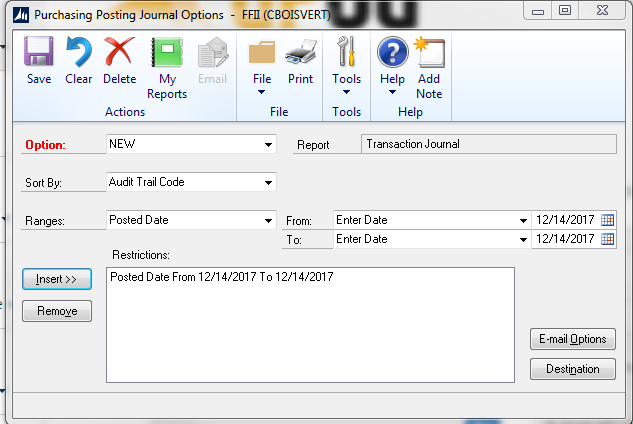
- Options: If you do not have a saved report click on New to bring up the Purchasing Posting Journal Options window. If you have a saved report then highlight the report name and click on Modify to bring up the Purchasing Posting Journal Options window.
- Options: If creating a new report type in a report name
- Sort By: Choose Batch ID from the drop down
- Ranges: Choose Batch ID from the drop down
- Click on the looking glass at the end of the From field to open the Historical Purchasing Batch IDs window
- Click on the Posting Date column then scroll to the bottom to access the most recent batches.
- Click on the batch needed and Select
- Insert
- Destination: For a new report click on Destination to open the Report Destination window, choose your preferred destination, and click OK.
- When printing is complete close the Purchasing Posting Journal Options window
- If desired, when asked to save changes to the report option click on Save to keep the parameters entered.
- To reprint the General Posting Journal:
- Financial> Reports>Cross-Reference
- Reports: choose Audit Trail Code from the drop down
- Options: If you do not have a saved report click on New to bring up the Cross-Reference Report Options window. If you have a saved report then highlight the report name and click on Modify to bring up the Cross-Reference Report Options window.
- Include: Check Posting Accounts, Unit Accounts, and Voided Transactions.
- Sort By: Audit Trail Code
- Year: Click on Open and choose the proper year from the drop down at the end of the Year field.
- Ranges: Click on the drop down and choose Date.
- From/To: choose the posting date of the journal needed.
- Insert into Restrictions
- Go back to Ranges and click on the drop down and choose Source Document
- Type in PMTRX in From and To, or click on the looking glass and choose that code from the Source Documents window.
- Insert into Restrictions
- Destination: For a new report click on Destination to open the Report Destination window, choose your preferred destination, and click OK.
- When printing is complete close the Purchasing Posting Journal Options window
- If desired, when asked to save changes to the report option click on Save to keep the parameters entered.
——————————
Shari Bruno
Accounting Operations Manager
Bible League International
Crete, IL
——————————
——————————————-

Sorry, there were no replies found.
The discussion ‘Reprinting after Posting an AP Batch’ is closed to new replies.
