
Dynamics Business Central (NAV)
Public Group
Active 5 days ago
Experts:




NAV 2018 Item Card Performance
-
NAV 2018 Item Card Performance
Posted by Jason Wilder on October 8, 2019 at 9:45 am-
I just sent out a tip to our users and thought it worth posting here as well. If you are on NAV 2018 Windows Client (possibly later versions as well but not earlier) you might have noticed some slowness when you open the Item Card (or other Card pages). Here are some tips that most likely help improve the time to open the card:
- Remove any Factboxes (on the right hand side) of your screen that you will never use. (Blue down arrow in upper left , Customize, Customize the Page, Factboxes on left)
- Collapse any remaining Factboxes if you do not need to see the data all of the time.
- Remove any Fasttabs (main part of the screen) that you do not need. (Blue down arrow in upper left, Customize, Customize the Page, Fasttabs). Most likely everybody can remove Item Tracking, Specifications and Warehouse Fasttabs (in our environment maybe not yours).
- This tip will help the most: Collapse most Fasttabs except for maybe the first two (Item,Inventory)
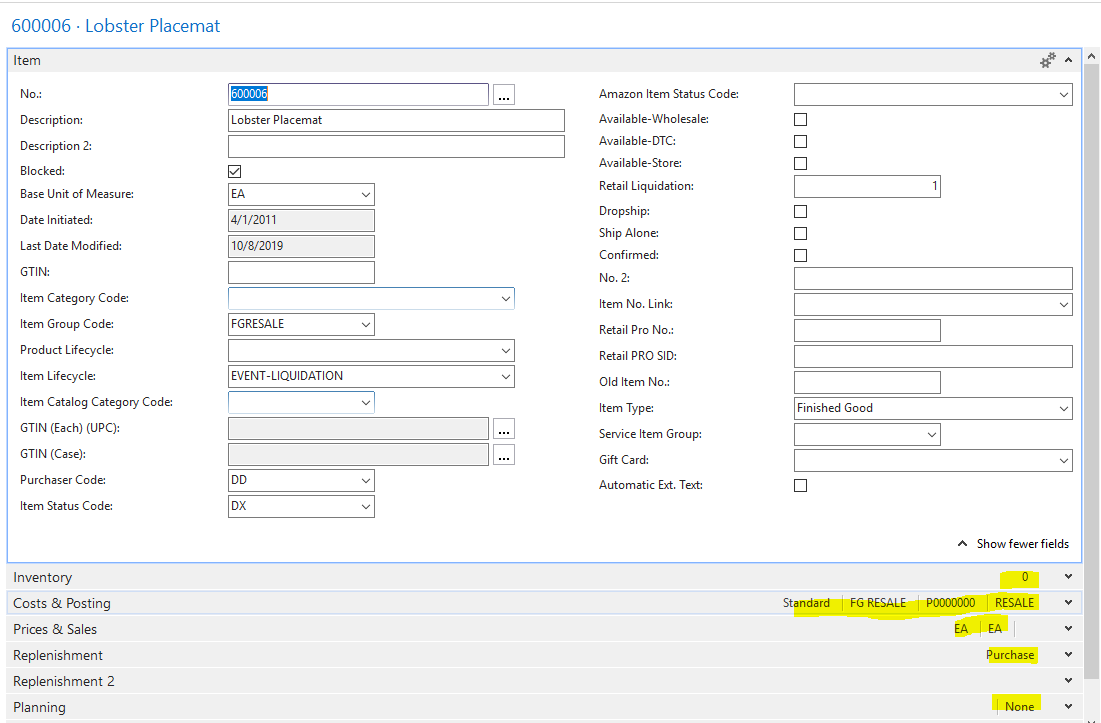
- If there is data you just have to see every time on a fasttab then Promote the field so it shows on the collapsed Fasttab like you can see in this example in yellow:
I originally think I saw a thread on something to do with this a year or so ago but not sure who to give the credit to, sorry if it was you!
——————————
Jason Wilder
Senior Application Developer
Stonewall Kitchen
York ME
—————————— -
Thank you! We are on NAV 2015, and these tips helped some of my screens load faster. It is a small difference, but for those in NAV all day, it will help so much! I am kicking myself for not thinking of this earlier!
——————————
Heather Walters
Apothecary Products
Burnsville MN
——————————
——————————————- -

Maria Avery
MemberOctober 10, 2019 at 10:26 AM
Thanks for the suggestions. How do you promote the fields so it shows on the collapsed Fasttab like your highlighted area on your example?——————————
Maria Avery
Compax
Salt Lake City UT
——————————
——————————————- -
Blue down arrow in upper left, Customize, Customize the Page, Fasttabs, Choose the Fasttab (I am choosing Costs & Pricing for this example) with the field you want to promote. You will see a screen like this:
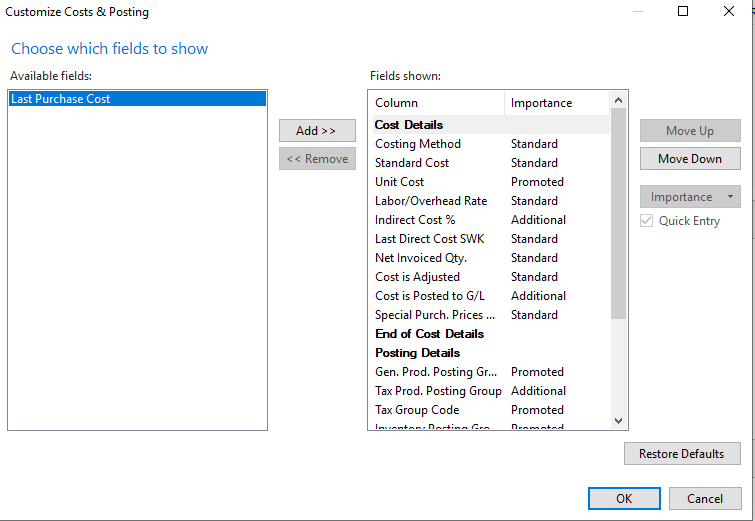
Click on the field on the right such as Unit Cost. Click the Importance button and change the value to Promoted. Click OK twice, your screen should close and then re-open and when the Cost & Pricing Fasttab is collapse the Unit Cost field should show up. You can hover over the value to see the name of the field.
——————————
Jason Wilder
Senior Application Developer
Stonewall Kitchen
York ME
——————————
——————————————- -
Maria Avery
MemberOctober 11, 2019 at 12:34 PM
Thanks you! How would I do this so everyone would see the same promoted fields? Then they could customize it further for themselves.——————————
Maria Avery
Compax
Salt Lake City UT
——————————
——————————————- -
You would have to modify the page in C/AL or AL to do that.
——————————
Jason Wilder
Senior Application Developer
Stonewall Kitchen
York ME
——————————
——————————————- -
You can do it in configuration mode by role. I just tried it, and it worked.
(we are on 2015 still, so I am not sure about the higher versions)
I use a bat file with this text in it:
“C:Program Files (x86)Microsoft Dynamics NAV80RoleTailored ClientMicrosoft.Dynamics.Nav.Client.exe” -configure -profile:”IT MANAGER”
——————————
Heather Walters
Apothecary Products
Burnsville MN
——————————
——————————————- -
A couple of things about configuration mode that you should be aware of:
1) You will need to do this for each profile that is used in your system as mentioned by Heather.
2) Once you configure something, a user can’t touch whatever you configured. For example, if you hide a field, the user is not allowed to show that field. This is the main reason why I do not like configuration.
3) I do not believe configuration is being brought forward in the web client in BC (if I am wrong about this please correct me). It is “replaced” with the In Client Designer but that is a bit different. Plus the in client designer does not seem to allow the changing of Promoted fields yet.With all of that said I am sure many people use configuration mode and are happy with it.
——————————
Jason Wilder
Senior Application Developer
Stonewall Kitchen
York ME
——————————
——————————————- -
Adriano Ramiano
MemberOctober 21, 2019 at 6:21 PM
We noticed a huge difference in speed when updating all client machines to SSD drives. Even with the server running on mechanical disks (tried and tested SAS 15k disks) it’s a massive improvement for day-to-day user tasks.Any HP/Dell/IBM machines from 4th Gen upwards are likely to come with an SSD option as standard. We’re using HP Elitedesk 800 G1’s with Samsung SSD’s and it’s a really smooth experience.
——————————
Adriano Ramiano
——————————
——————————————- -
Anthony Darden
MemberOctober 22, 2019 at 9:18 AM
– great point about the SSD drives. We noticed an improvement for the users as well converting them over to SSDs and it’s now part of our standard going forward. Regardless of web client or fat client, there is a performance gain to be had.?——————————
Anthony Darden
Vice President – IT
Protective Industries, Inc.
Buffalo NY
NAVUG All-Star
NAVUG CIO Council
——————————
——————————————-
Jason Wilder replied 7 years ago 1 Member · 0 Replies -
-
0 Replies
Sorry, there were no replies found.
The discussion ‘NAV 2018 Item Card Performance’ is closed to new replies.