


Power Platform
Public Group
Active 3 days ago
Power Platform
Organizer:
- JOSE Organized by
-
-

Stop a user from submitting a form twice
-
Stop a user from submitting a form twice
Posted by DSC Communities on June 22, 2020 at 11:32 am-

Tony Malek
MemberJune 22, 2020 at 11:32 AM
Hello all. I’ve created and designed a Survey form for my company. It’s close to completion but HR want a few tweaks. One of them is they want the user to not be allowed to go and submit the form for than once. Currently, after you fill it all in you can still go back in with the PowerApps link and fill it in again and submit. Is there something within PowerApps I can do to disable a user from being able to start the form more than once? Something that maybe recognizes their credentials/login and sees that they already hit the submit button before and to grey out the begin button at the start of the form if a condition like that is met?
Also, when a user goes to the PowerApp survey in a phone this pops up,
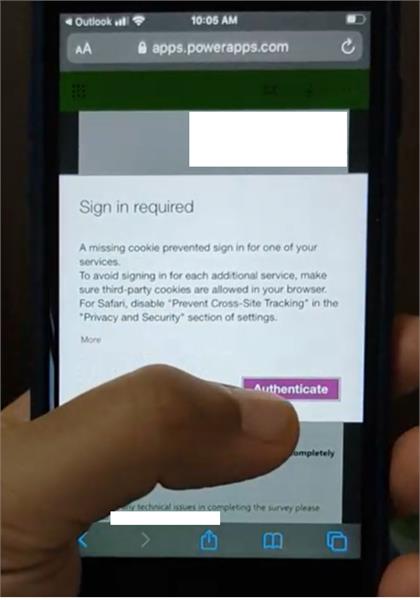 I have the “Office 365 Users” added into the data source of the PowerApp. This is just the authentication part. HR want to know if we can delay this from coming up. Reasoning being that the beginning of the Survey takes about 50 seconds to read and this prompt is a distraction apparently as it comes up about 20 seconds after you go to the Survey. This of course I would all depends on Internet connection speed on the phone, etc.As far as I know I wouldn’t be able to control when this pops up and it is of course mandatory. Just thought I’d ask anyway if there was anything I coudl do.Thank you
?
——————————
Tony Malek
IT Infrastructure Engineer
—————————— -
I would make a full screen message with it’s visibility property set to If(user().email in Sharepointlistname.createdby.email, true, false)
There are delegation issues with “in” when using SharePoint as a data source.
As for the accept message, your IT department can run –> Set-AdminPowerAppApisToBypassConsent -AppName put-the-PowerApps-GUID-here -ApiVersion
——————————
Dennis Newcomb
Digitalms365.com
dennis.newcombjr@Digitalms365.comNeed remote help today?
Book sometime with my at Digitalms365.com/bookings
——————————
——————————————- -
Tony Malek
MemberJune 22, 2020 at 3:24 PM
Thank you Dennis! This makes sense. If you don’t mind, I just had a couple of follow up questions.
So my focus here is back on the “Begin” button which kicks off the form initially.
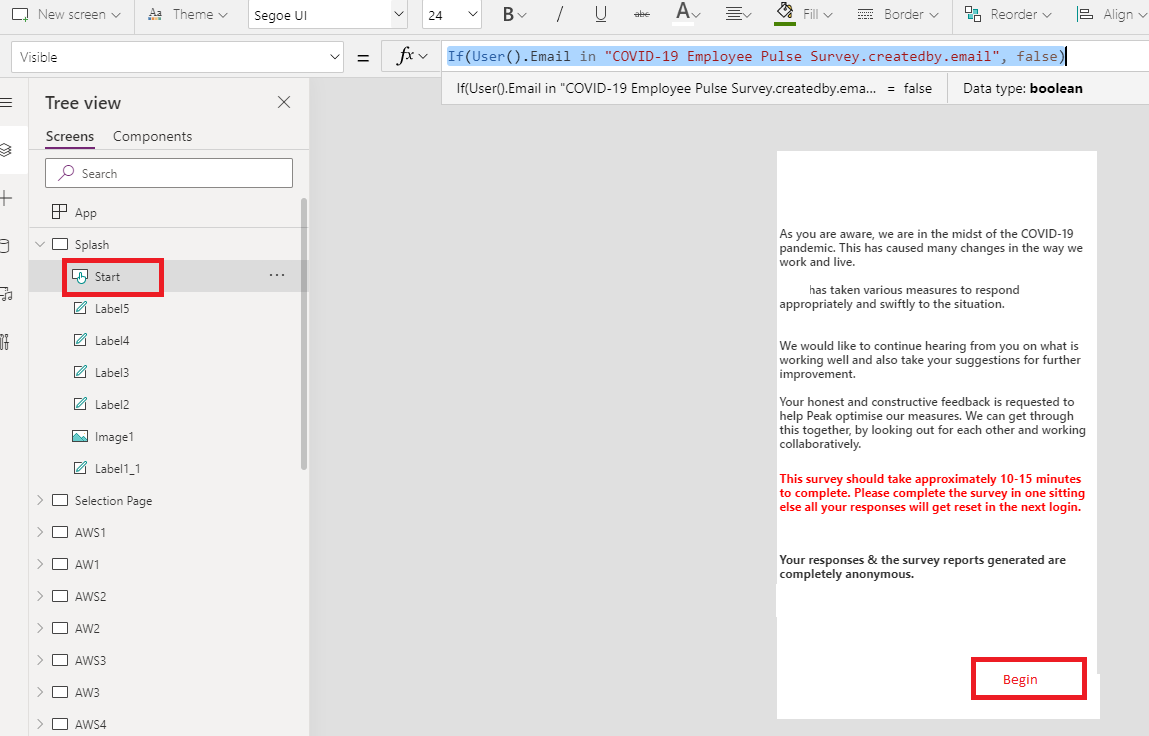 My SharePoint list is named “COVID-19 Employee Pulse Survey”. It has spaces so I believe I’ll need to use Quotes in the line of code for the Begin button’s “Visible” property. Not sure if I need the URL to the SharePoint list instead of just the name I gave it,This is what I have,
If(user().email in "COVID-19 Employee Pulse Survey.createdby.email", false)This doesn’t seem to work. A concern of mine is that when I submit an entry and it goes into the SharePoint list I don’t actually have an Email column there. Just a “Created by” column which is the person’s first and last name such as “John Smith”.
Can I still use .email even if that property isn’t getting captured and going into the SharePoint list? I guess it’s getting captured with my Office 365 connector in the data source I just mean I don’t see it listed anywhere within any columns.I definitely get the logic that if PowerApps looks at the SharePoint list, see’s the logged in user has an entry already then it will set the visible mode to false.——————————
Tony Malek
IT Infrastructure Engineer
——————————
——————————————- -
Hi Tony,
My bad i messed up…
Based on the info given the formula looks like this –>
IsEmpty(
Filter(
‘COVID-19 Employee Pulse Survey‘,
User().Email in ‘Created By’.Email
)
)Still some delegation issues using the Created By column. I would wright back the users email to a Text column named user_email. Then you can use –> If(user().email in ‘COVID-19 Employee Pulse Survey’.user_email, false)
I do have sometime for the next hour if you need a call. Digitalms365.com/bookings
——————————
Dennis Newcomb
Digitalms365.com
dennis.newcombjr@Digitalms365.comNeed remote help today?
Book sometime with my at Digitalms365.com/bookings
——————————
——————————————- -
Tony Malek
MemberJune 22, 2020 at 4:49 PM
You’re a genius mate thank you. So I created a new text type column in my SharePoint list called user_email and then added that field into the final submit pages of my survey. I patched the Form data containing the email address into the list and it works now.
When I go into my SharePoint list I can see the email address is being captured when I’ve submitted all my answers.
I used this line of code you advised on the Survey begin button:
If(User().Email in 'COVID-19 Employee Pulse Survey'.user_email, false)What’s interesting is that when I go into the SharePoint list and delete all the entries so it’s a back to being blank again the “Begin” button remains hidden. I refreshed a few times. Tried a different browser but it seems to stay hidden. Logically, when I delete my test entries and my email address is no longer there anywhere I would have expected
If(User().Email in 'COVID-19 Employee Pulse Survey'.user_email, false)to return a true value instead but it seems to be sticking on false as if my entries were still in the list. I’ll have a look around. Do some more testing, maybe the refresh isn’t instant.Anyway you’ve helped me out a lot. Thank you so much.
——————————
Tony Malek
IT Infrastructure Engineer
——————————
——————————————- -
An alternative solution that doesn’t throw delegation warnings is to use an expression like:
If(IsEmpty(Filter(‘DATASOURCE’, ‘Created By’.Email = vUser)),true, false)
I set the variable vUser to the logged on user email at app start as you do get delegation warning if you try to dynamically look it up as part of the formula.
——————————
Luke Burgess
SharePoint Administrator/Developer
876722376
——————————
——————————————- -
Tony Malek
MemberJune 23, 2020 at 1:22 PM
Hello. Thanks guys. So I’ve got a couple of issues. I did what Dennis had suggested but I must be doing something wrong as I am getting unexpected results. No matter what, the “Start” button is hidden and I can never see it until I just delete the code and set the value back to true. The start button’s visible property is set to,
If(User().Email in 'COVID-19 Employee Pulse Survey'.user_email, false)On each submission page I have an invisible form which holds a data card with this value,
User().Email
If I un-hide the label I can see my email address in it. I’m patching that form data (my email address or whoever fills this in) into the SharePoint list.
So basically I did as Dennis suggested and I created the user_email data field. Email addresses are being captured. Once I fill in the form I can see my email address in the user_email column, But for some reason the Begin button won’t appear ever. I would have thought that as soon as I go to the SharePoint list and manually delete my entry, PowerApps would see that my email address wasn’t in the SharePoint list and then display the button. That doesn’t seem to be happening though I am not sure why. I even went and emptied the recycle bin just in case it’s referencing that when it looks.
Luke, thanks for your suggestion. I’ve went to the App’s Startup and entered this,
Set(varUser,Text("'Created By'.Email"))I think I have the syntax incorrect though?
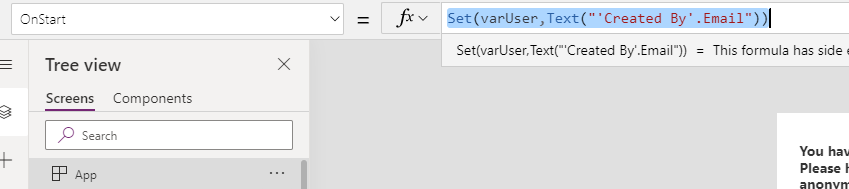 Then on the actual Begin button’s visible property I have used this,
If(IsEmpty(Filter('COVID-19 Employee Pulse Survey', 'Created By'.Email = varUser)),false)If I am understanding this correctly, right at the beginning of the App we are declaring varUser whatever the person’s email address who is logged into Office 365 doing the form.Then the begin button’s visible property is looking at the table and filtering by searching for the varUser variable which will be whoever just submitted the form. Should this work given what I have so far? My tests just don’t seem to show things refreshing in real time. Like I would have expected the begin button to just be invisible until I deleted my entry from the SharePoint list and then as soon as I refresh the data source again within editing the App it will become visible again. I am not sure if I need to save and publish this each time I need to test.——————————
Tony Malek
IT Infrastructure Engineer
——————————
——————————————- -
If(User().Email in ‘COVID-19 Employee Pulse Survey’.user_email, false) Is not complete
If(User().Email in ‘COVID-19 Employee Pulse Survey’.user_email, false, true)
you can also use:
IsEmpty(
Filter(
‘COVID-19 Employee Pulse Survey’,
User().Email in user_email
)
)——————————
Dennis Newcomb
Digitalms365.com
dennis.newcombjr@Digitalms365.comNeed remote help today?
Book sometime with my at Digitalms365.com/bookings
——————————
——————————————- -
Hi Tony,
When you set the variable to store the users email you are just getting the currently logged in users email address not the email address from the data source so set it to:
Set(varUser, User().Email)
Then when you use the expression below you are simply returning a set of results where Created By equals the current user and checking if it is empty. The only change I would recommend is setting the value in case it is not empty just in case it defaults to something you are not expecting. I highlighted the change below as well
If(IsEmpty(Filter(‘COVID-19 Employee Pulse Survey’, ‘Created By’.Email = varUser)),false, true)
——————————
Luke Burgess
SharePoint Administrator/Developer
——————————
——————————————- -
Tony Malek
MemberJune 23, 2020 at 2:10 PM
Fixed!! Thank you so muchIf(User().Email in 'COVID-19 Employee Pulse Survey'.user_email, false, true)This worked. I’ve tested it multiple times. For some reason I thought after user_email it could only be set to false.
Very happy it’s working. I was really struggling with this as I’m new to PowerApps so this has been a massive help.
Thank you both.
——————————
Tony Malek
IT Infrastructure Engineer
——————————
——————————————-
DSC Communities replied 5 years, 11 months ago 1 Member · 0 Replies -
-
0 Replies
Sorry, there were no replies found.
The discussion ‘Stop a user from submitting a form twice’ is closed to new replies.
